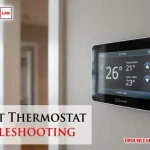
To fix your system, you can perform basic econet thermostat troubleshooting by checking the power supply, verifying your Wi-Fi connection, and resetting the unit. The most common cause for a blank screen or unresponsive controls is a loose wire or a tripped breaker in your home electrical panel. If the device remains dark, check the air handler’s internal safety switch. If you’re unsure about your home wiring, always call a licensed HVAC technician to prevent electrical damage.
Troubleshooting unresponsive econet thermostat systems
The primary reason for a communication error between your wall unit and the heating or cooling system is a loss of power or signal. Most modern thermostats require a steady 24-volt supply from the HVAC unit to keep the display active and the Wi-Fi chip running. If the power at the air handler is interrupted, the thermostat will lose its connection to the internet and stop controlling your home climate.
Another frequent cause is a faulty Wi-Fi signal. If your router has moved or been updated, the device may lose its link to the cloud, preventing you from using remote features. You can check the signal strength in the settings menu; if the bars are low, the unit may struggle to keep its time and schedule updated. You can find official guidance on Rheem EcoNet system support to see if your specific model has a known connectivity issue.
Finally, internal software glitches occur after power surges or network drops. If the screen is frozen or the buttons don’t respond, the system might be stuck in a loop. A simple power cycle often clears these errors, but if the problem persists, it could indicate a failing battery or a damaged backplate connection. If you see an error code, note the number before you restart the device, as this helps a professional diagnose the hardware failure.
Restarting the Control Unit
If your screen is frozen or the interface is unresponsive, a system reboot is the first step. To do this, locate the power switch on your furnace or air handler and turn it off for 60 seconds. After the minute has passed, flip the switch back on and wait for the thermostat to reboot. This process forces the device to re-establish a link with the HVAC system and the local network.
This fix is intended for users who can safely access the furnace or air handler power switch. If you don’t know where your system switch is located, or if the unit is hardwired into a junction box without a visible toggle, stop here and call a professional. Never attempt to open the thermostat housing or touch the internal wiring, as this can void your warranty and cause injury.
If the screen lights up but the system doesn’t turn on, check the thermostat’s internal wiring menu. Ensure that the “System Type” matches your actual equipment, such as gas furnace or heat pump.
If the settings were reset during a power loss, the unit may have defaulted to the wrong configuration, causing it to send signals to equipment that isn’t installed. If the settings are correct but the unit still won’t trigger the HVAC, the issue lies in the control board of the furnace itself.
Reconnecting the Network Link
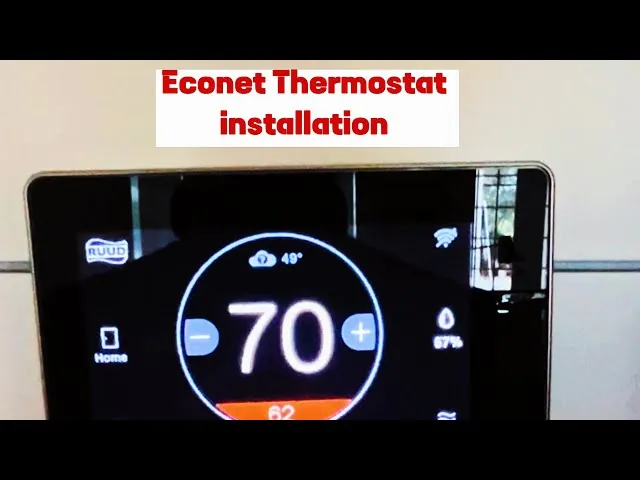
When the thermostat works manually but the mobile app shows the device as offline, you need to refresh the connection. Start by opening the settings menu on the wall unit and selecting the network option. Forget the existing Wi-Fi network and scan for your home signal again. Enter your password carefully, ensuring that you’re connecting to a 2.4GHz network, as many of these devices can’t see 5GHz signals.
If the device still fails to join the network, restart your home router. Unplug the router from the wall, wait 30 seconds, and plug it back in. Once the internet is active, try to pair the thermostat again. If you have changed your router or updated your security settings recently, the thermostat may need to be removed from your mobile app and re-added as a new device.
This approach is for users who have confirmed that other devices in their home can access the internet. If the thermostat shows “No Signal” even after a router restart, the internal Wi-Fi antenna may be faulty. If your home has thick walls between the router and the thermostat, you might need a Wi-Fi extender to maintain a stable link. If you aren’t comfortable managing network settings, ask a family member or a professional to assist with the password entry.
Inspecting the Equipment Safety Switch
Sometimes the problem isn’t the thermostat, but a safety feature on your HVAC equipment. Most systems have a condensate float switch that shuts down power if the drain line is clogged. If your AC unit has a full drain pan, the safety switch will cut power to the thermostat to prevent water damage in your home. Check your drain line for blockages and ensure the pan is dry.
This fix is for users who have basic access to their HVAC drain lines. If you see standing water in the pan, clean the drain line using a wet-dry vacuum or a specialized clearing tool. If the pan remains full or you can’t locate the drain, don’t try to bypass the switch. A bypass can lead to severe water damage in your walls or ceilings, which is much more expensive to repair than a simple drain cleaning.
Once the drain is clear, the float switch should reset automatically. If the thermostat screen remains blank after you have cleared the water, the safety switch itself may be stuck in the “open” position. In this case, you need a technician to test the switch and verify that the electrical path is restored. Never attempt to bridge or remove a safety switch, as it’s there to protect your home from flooding.
Common Mistakes to Avoid
Replacing batteries while the unit is live: Some models use backup batteries. Always remove the unit from its base before changing them to prevent a short circuit. If you see a spark or smell ozone, you have likely caused a short circuit or damaged the internal components.
Resetting the factory settings immediately: This deletes your custom schedules and preferences. Most connection errors stem from router proximity rather than software corruption. Only perform a hard reset if you have already power-cycled the unit and verified your Wi-Fi signal strength is sufficient.
Using harsh cleaners on the screen: Spraying liquid directly onto the unit can seep inside and destroy the motherboard. Always spray a soft cloth first. If you use ammonia-based glass cleaners, you risk stripping the anti-glare coating, which causes permanent clouding.
Ignoring error codes on the display: These codes provide the exact reason for the failure. Looking them up saves hours of trial and error.
Attempting to repair internal wiring: Any work beyond the wall plate is technician-only work. High-voltage components can hold a lethal charge even when the power is off. If the device requires internal disassembly, stop immediately to avoid voiding your warranty.
Preventing Future Connection Issues
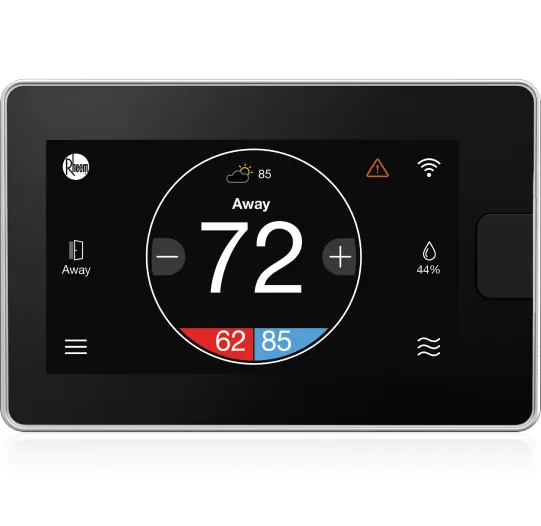
To keep your system running, compare your current setup to these recommended maintenance habits. A small change in how you manage the network or the hardware can prevent the need for future troubleshooting.
| If you’re doing this | Do this instead | Why |
|---|---|---|
| Leaving the unit near a lamp | Move it to a neutral wall | Heat from lamps triggers false readings |
| Using a 5GHz Wi-Fi signal | Use a 2.4GHz signal | The thermostat hardware requires 2.4GHz |
| Never checking the air filter | Clogged filters cause system overheating | |
| Ignoring software updates | Enable auto-updates in app | Updates patch known connection bugs |
| Turning power off via breaker | Use the thermostat “Off” mode | Frequent breaker trips wear out the switch |
Frequently asked questions
Can I fix a blank screen by myself?
You can fix a blank screen by checking the circuit breaker and the HVAC drain pan float switch. If these are clear, ensure the thermostat is seated firmly on its base. If the screen remains dark, a technician must test the low-voltage transformer for 24 volts.
How long does a factory reset take?
A factory reset typically takes 5 to 10 minutes to complete the reboot process. Once triggered, the device wipes your settings and restarts its operating system. If the screen remains frozen for more than 15 minutes, the internal hardware is likely failing and needs replacement.
Is it safe to use a hair dryer to dry the unit?
It’s never safe to use a hair dryer or heat gun on your thermostat. High heat can melt the housing and permanently damage sensitive internal electronic components. If moisture enters the device, remove it from the wall and let it air dry for 24 hours.
What happens if I ignore an error code?
Ignoring an error code may cause the system to run inefficiently, leading to higher utility bills. These codes often indicate that heating or cooling stages are failing to fire correctly. Always address error codes immediately to prevent potential stress on your HVAC equipment.
How often should I update the thermostat software?
You should ensure your device is configured to receive automatic software updates to ensure it runs correctly. Most thermostats update automatically via Wi-Fi, but you can manually check for new versions in the system menu. Keeping software current prevents connection drops and maintains compatibility with your smartphone.
Why does my thermostat lose Wi-Fi at night?
Your thermostat may lose Wi-Fi at night if your router performs automatic updates or channel scans. You can assign a static channel in your router settings to maintain a more stable connection. Ensure your router isn’t inside a metal cabinet, which can block the signal.
Conclusion
If your display still doesn’t light up after these checks, don’t worry. There might be a deeper issue with your furnace or heat pump that needs a pro’s touch. Reach out to a local service company today, and they’ll get your home’s temperature back to where it’s comfortable again.