Are you tired of emails getting lost, stuck, or not sending at all? Email issues can disrupt your day and waste precious time.
But don’t worry—you’re not alone, and fixing these problems is easier than you think. In this guide, you’ll discover simple steps to troubleshoot your email quickly and get back to what matters most. Keep reading to unlock the secrets that will save your inbox and your sanity.
Common Email Problems
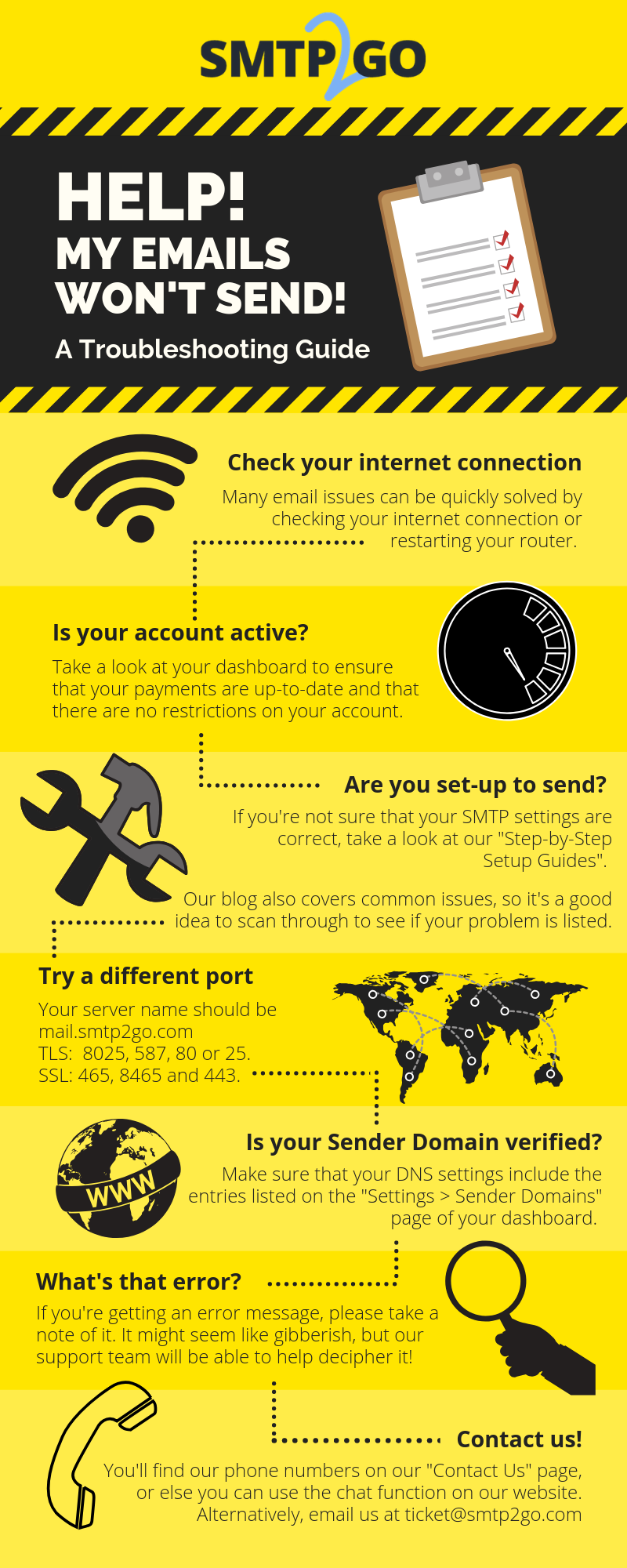
Email issues happen to everyone at some point. They can disrupt work and cause stress. Knowing common problems helps fix them fast.
This section covers frequent email troubles and simple ways to understand them. Clear explanations make troubleshooting easier.
Unable To Send Emails
Sometimes, emails get stuck and do not leave your outbox. This can happen due to poor internet or wrong email settings. Check your connection and server details to solve this.
Another cause is a blocked port or firewall. Make sure these are not stopping your email app from sending messages.
Emails Not Received
Missing emails can cause confusion. They might be lost in spam or deleted by mistake. Verify your spam folder first.
Also, confirm the sender’s address is correct. Sometimes, wrong spelling stops the email from arriving.
Login Issues
Login problems stop access to your inbox. This can be due to wrong passwords or server errors. Reset your password if needed.
Check if your email provider is down. Sometimes, servers have temporary issues that block logins.
Attachments Not Working
Attachments may fail to open or send. Large files often cause this problem. Try compressing files before attaching them.
Also, some email providers limit file types. Confirm your attachment follows these rules to avoid issues.
Spam And Junk Mail Troubles
Spam fills your inbox with unwanted messages. It wastes time and clutters your email. Use filters to block spam emails.
Mark suspicious emails as junk. This helps your email system learn and improve its filtering.
Quick Fixes For Sending Errors
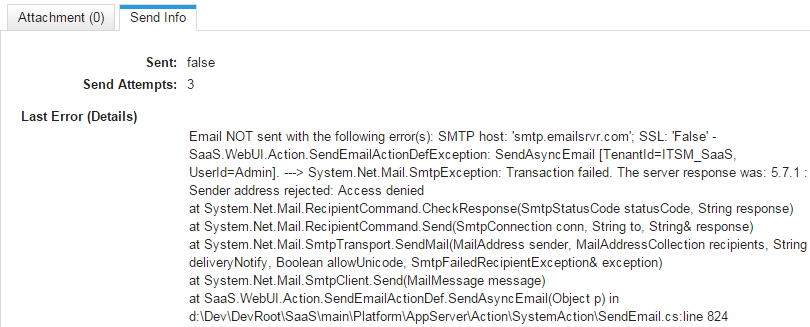
Sending errors can stop your email from reaching others. Quick fixes help solve these problems fast. These simple steps often get your messages sent without delay. Follow these tips to fix common sending issues easily.
Check Internet Connection
A poor or lost internet connection can block email sending. Make sure your device is connected to Wi-Fi or mobile data. Try opening a website to see if the internet works. Restart your router or switch networks if needed. A stable connection is key to sending emails.
Verify Smtp Settings
SMTP settings control how emails leave your device. Incorrect settings cause sending errors. Check the SMTP server name, port number, and security type. Use the details from your email provider. Correct settings ensure emails send smoothly.
Clear Outbox And Resend
Emails stuck in the outbox often cause sending problems. Open your email app and find the outbox folder. Delete or move stuck emails to drafts. Try sending the email again after clearing the outbox. This step helps clear blockages.
Update Email Client
An outdated email app may not work properly. Check for updates in your app store. Installing updates fixes bugs and improves performance. Use the latest version for better sending success. Keep your email client current for smooth use.
Resolving Receiving Issues
Receiving issues with email can be frustrating. Messages may not arrive as expected. These problems often have simple fixes. Checking a few key settings can help find the cause quickly. Follow these steps to resolve receiving problems effectively.
Inspect Spam And Trash Folders
Emails sometimes end up in spam or trash by mistake. Check these folders regularly. Look for missing messages there. Mark legitimate emails as “Not Spam” to move them back to the inbox. This helps your email provider learn what you want to see.
Check Email Filters
Email filters can block or move messages automatically. Review your filter settings carefully. Ensure no filters are hiding or deleting important emails. Adjust or delete filters that cause problems. Filters help organize mail but can cause issues if set incorrectly.
Confirm Storage Limits
Full inboxes stop new emails from arriving. Check your storage space often. Delete old or large emails to free up space. Many providers send warnings when nearing limits. Keeping enough space ensures new messages get through without delay.
Review Blocked Senders List
Blocked addresses prevent emails from arriving. Check your blocked senders list. Remove any addresses or domains that should not be blocked. Sometimes, blocking settings stop emails you want. Keeping this list clean avoids missing important messages.

Troubleshooting Login Problems
Login problems can stop you from accessing your email quickly. They cause delays and frustration. Finding the root cause helps solve the issue fast. Common login problems include forgotten passwords, browser issues, and account blocks. Here are simple steps to fix these problems and get back to your email.
Reset Passwords
Passwords often cause login trouble. Reset your password using the email provider’s reset option. Choose a strong, new password. Avoid using old or simple passwords. This step helps if you forget your password or suspect a hack.
Enable Two-factor Authentication
Two-factor authentication adds security to your account. It requires a second step to verify your identity. Enable this feature in your email settings. It stops unauthorized access and protects your data.
Clear Browser Cache And Cookies
Old cache and cookies can block login pages. Clear them in your browser settings. This step removes outdated files that may cause errors. Restart the browser after clearing for a fresh start.
Check Account Status
Sometimes, accounts get locked or suspended. Check your email provider’s notifications or support page. Look for messages about account status. Resolving these issues may require contacting customer support.
Fixing Attachment Failures
Attachment failures can stop your email from sending properly. Fixing these issues ensures your message reaches the recipient with all files intact. Simple checks often solve the problem fast. Follow these steps to troubleshoot attachment failures.
Check File Size Limits
Email services limit how big attachments can be. Check your file size before sending. Compress large files to reduce their size. Use tools like ZIP to make files smaller. Stay under the limit to avoid failure.
Use Supported File Formats
Some email providers block certain file types. Common supported formats include PDF, JPG, and DOCX. Avoid sending executable files like .exe or .bat. Convert files to safe formats to ensure delivery.
Scan For Viruses
Viruses in attachments trigger blocks from email servers. Scan files with antivirus software before sending. Clean files reduce the chance of rejection. Protect your device and the recipient’s too.
Try Alternative Upload Methods
Sometimes attachments fail due to server issues. Use cloud storage services like Google Drive or Dropbox. Share the file link instead of attaching the file. This bypasses size and format limits easily.
Managing Spam And Junk Mail
Spam and junk mail clutter your inbox. They waste time and hide important messages. Managing these unwanted emails improves your email experience. It keeps your inbox clean and safe. Simple steps help control spam and protect your data.
Adjust Spam Filter Settings
Spam filters catch many unwanted emails. Adjust settings to fit your needs. Tighten filters to block more spam. Loosen them if important emails get caught. Check your email provider’s filter options. Customize rules for better spam control.
Mark Emails As Not Spam
Sometimes, good emails end up in spam. Mark them as not spam to fix this. This action trains your email system. It learns to recognize trusted senders. Check your spam folder often. Move valid emails back to the inbox.
Whitelist Trusted Contacts
Whitelist contacts you trust. This prevents their emails from going to spam. Add their email addresses to your safe sender list. Whitelisting ensures you never miss important messages. It keeps communication smooth and reliable.
Report Phishing Attempts
Phishing emails try to steal your information. Report these emails to your provider. Reporting helps block dangerous senders. It protects you and others from scams. Always be cautious with suspicious emails.
Preventive Tips For Smooth Email Use
Keeping your email running smoothly takes simple steps. These tips help avoid common problems and keep your account safe. Follow these habits to enjoy hassle-free email use every day.
Regular Software Updates
Update your email app and software often. Updates fix bugs and improve security. They protect your account from new threats. Set your device to update automatically for best results.
Strong Password Practices
Create passwords that are hard to guess. Use a mix of letters, numbers, and symbols. Change passwords regularly to keep your account safe. Avoid using the same password across different sites.
Backup Important Emails
Save important emails to a separate folder or device. Backing up prevents loss from accidental deletion or hacking. Use cloud storage or external drives for extra safety. Regular backups keep your data secure.
Monitor Account Activity
Check your email account activity often. Look for unusual logins or actions you did not make. Most email services offer alerts for suspicious activity. Early detection helps stop problems before they grow.
Frequently Asked Questions
What Causes Common Email Sending Errors?
Email sending errors often happen due to wrong server settings or internet problems. Spam filters and full inboxes can also block emails.
How Can I Fix Emails Stuck In The Outbox?
Check your internet connection and email settings first. Restart the email app or device to clear stuck messages.
Why Are My Emails Going To Spam Folders?
Emails may land in spam if they have suspicious links, many images, or certain keywords. Using a verified sender address helps.
How Do I Recover Deleted Emails?
Look in the Trash or Deleted Items folder for missing emails. Many email services allow recovery within 30 days of deletion.
What To Do If I Can’t Receive New Emails?
Verify your inbox is not full and check spam filters. Also, confirm your email settings and internet connection are correct.
Conclusion
Email problems can be frustrating and slow your work. Simple steps often fix common issues quickly. Check your internet, settings, and spam folder first. Keep your software updated to avoid errors. Don’t ignore error messages—they guide you to solutions. Staying patient helps you solve problems calmly.
Regularly backing up emails keeps your data safe. Troubleshooting email issues becomes easier with practice. Use these tips to keep your email running smoothly every day.