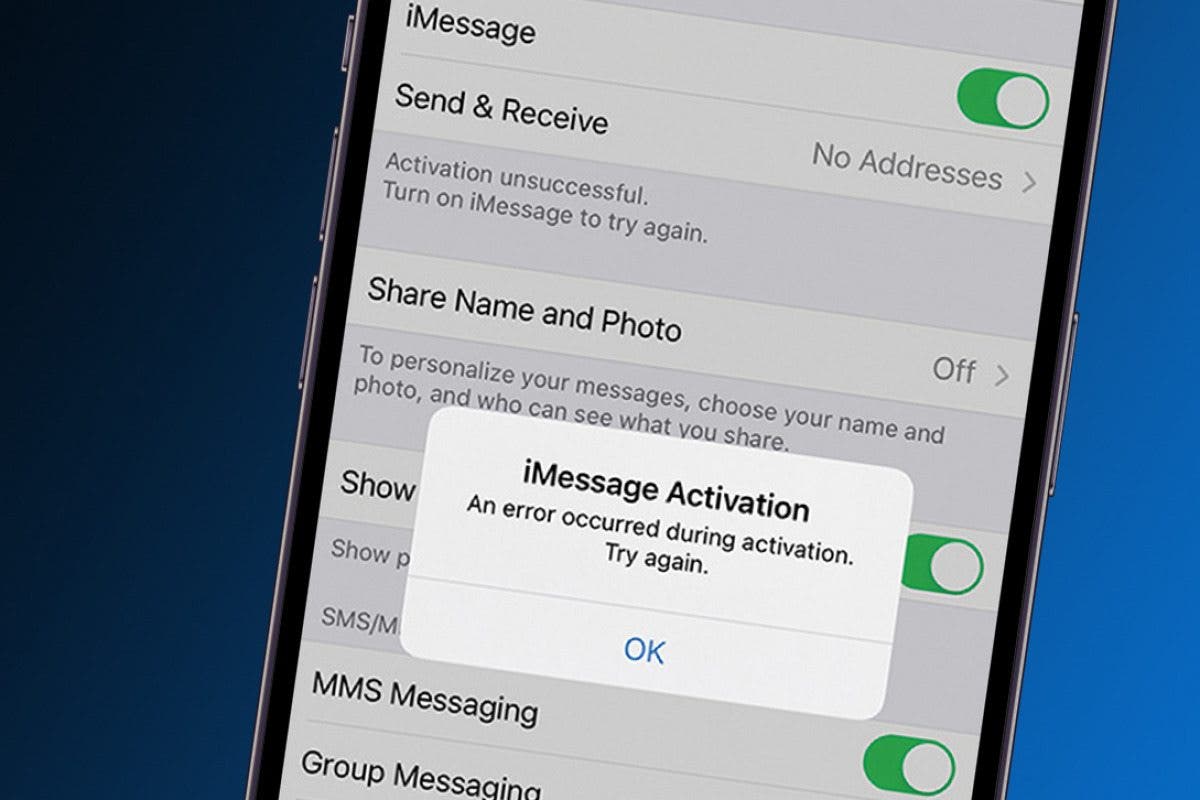
Are you struggling to get iMessage activated on your device? It can be frustrating when you want to send messages but iMessage just won’t turn on.
You’re not alone, and the good news is that most activation problems have simple fixes. You’ll discover easy troubleshooting steps that can quickly solve your iMessage activation issues. Keep reading to get your messages flowing smoothly again.
Check Network Connection
Checking your network connection is a key step in fixing iMessage activation issues. Without a stable internet connection, iMessage cannot activate or send messages. This section helps you understand how to verify your connection settings quickly.
Wi-fi And Cellular Data
Make sure your device is connected to Wi-Fi or cellular data. Open Settings and check if Wi-Fi is on and connected to a network. If Wi-Fi is weak or not working, switch to cellular data. Ensure cellular data is enabled in Settings under Mobile Data or Cellular. A strong internet connection is essential for iMessage activation.
Airplane Mode Status
Airplane mode turns off all wireless connections. Check if airplane mode is on by looking at the top of your screen or in Settings. If airplane mode is active, turn it off. This will restore your Wi-Fi and cellular data, allowing iMessage to activate properly.
Verify Apple Id Settings
iMessage uses your Apple ID to activate and sync messages. Problems with your Apple ID can stop iMessage from working. Checking your Apple ID settings helps fix these problems quickly.
Make sure your Apple ID details are correct and active. This step ensures iMessage connects to Apple servers properly. Follow the steps below to verify your Apple ID and fix common issues.
Sign Out And Sign In
Open Settings and tap on your name at the top. Scroll down and tap “Sign Out.” This removes your Apple ID from the device temporarily.
Restart your device after signing out. Then, go back to Settings and sign in with your Apple ID again. This refreshes your Apple ID connection to iMessage.
Check if iMessage activates after signing back in. This simple step often resolves activation issues.
Check Two-factor Authentication
Two-factor authentication adds extra security to your Apple ID. iMessage may require it to activate properly. Check if it is enabled on your account.
Go to Settings, tap your name, then “Password & Security.” Look for “Two-Factor Authentication” status here.
Turn it on if it is off. Follow the prompts to set up two-factor authentication. This helps protect your account and supports iMessage activation.
Update Ios Software
Updating your iOS software often fixes iMessage activation problems. Software updates contain important bug fixes and improvements. These updates help your device communicate better with Apple’s servers. Keeping your iPhone or iPad up to date can solve many activation issues quickly.
Follow the steps below to check for updates and install the latest version of iOS.
Check For Updates
Open the Settings app on your device. Tap on “General,” then select “Software Update.” Your device will check for any available updates. This process only takes a few seconds. If an update is available, details about the new version appear on the screen.
Checking for updates regularly ensures your device runs smoothly. It also keeps iMessage activation from failing due to outdated software.
Install Latest Version
After finding a new update, tap “Download and Install.” Your device will start downloading the latest iOS version. Make sure your device is connected to Wi-Fi and has enough battery life. The installation process may take some time, so be patient.
Once the update finishes, your device restarts automatically. Try activating iMessage again after updating. Most activation problems disappear with the newest iOS software installed.
Reset Network Settings
Resetting network settings can fix many iMessage activation problems. It clears old settings that may block iMessage from working. This process resets Wi-Fi, cellular data, and VPN settings to default. Your saved Wi-Fi passwords will be deleted, so keep them handy.
This step often helps if iMessage says “Waiting for activation” or shows error messages. It gives your device a fresh start with network connections. A quick reset can restore proper communication with Apple servers.
How To Reset Network Settings On Iphone
Open the Settings app. Tap General. Scroll down and select Reset. Choose Reset Network Settings. Enter your passcode if asked. Confirm the reset by tapping Reset Network Settings again. Your iPhone will restart automatically.
What Happens After Resetting Network Settings
All Wi-Fi networks and passwords are removed. Cellular settings return to default. VPN and APN settings are erased. You must reconnect to Wi-Fi manually. iMessage will try to activate again using fresh network data.
When To Use Reset Network Settings
Try this if iMessage activation is stuck or fails repeatedly. Use it after checking your internet connection. It helps when toggling iMessage off and on does not work. This reset fixes network glitches causing iMessage issues.
Check Date And Time Settings
Checking the date and time settings on your device is important for iMessage activation. Incorrect settings can cause activation to fail. Your device needs the correct date and time to connect to Apple’s servers properly. This step helps fix common activation problems quickly.
Set Automatically
Go to your device’s Settings and find the Date & Time section. Turn on the “Set Automatically” option. This lets your device get the correct time from the network. It adjusts the time zone and date on its own. This setting is the easiest way to ensure your time is accurate. After enabling it, try activating iMessage again.
Manual Adjustment
If “Set Automatically” does not work, try setting the date and time manually. Turn off the automatic option in Settings. Then, set the date and time to the current exact values. Make sure the time zone is correct too. This can solve issues if your device does not update the time correctly. After setting the time manually, restart your device and test iMessage activation again.
Restart Your Device
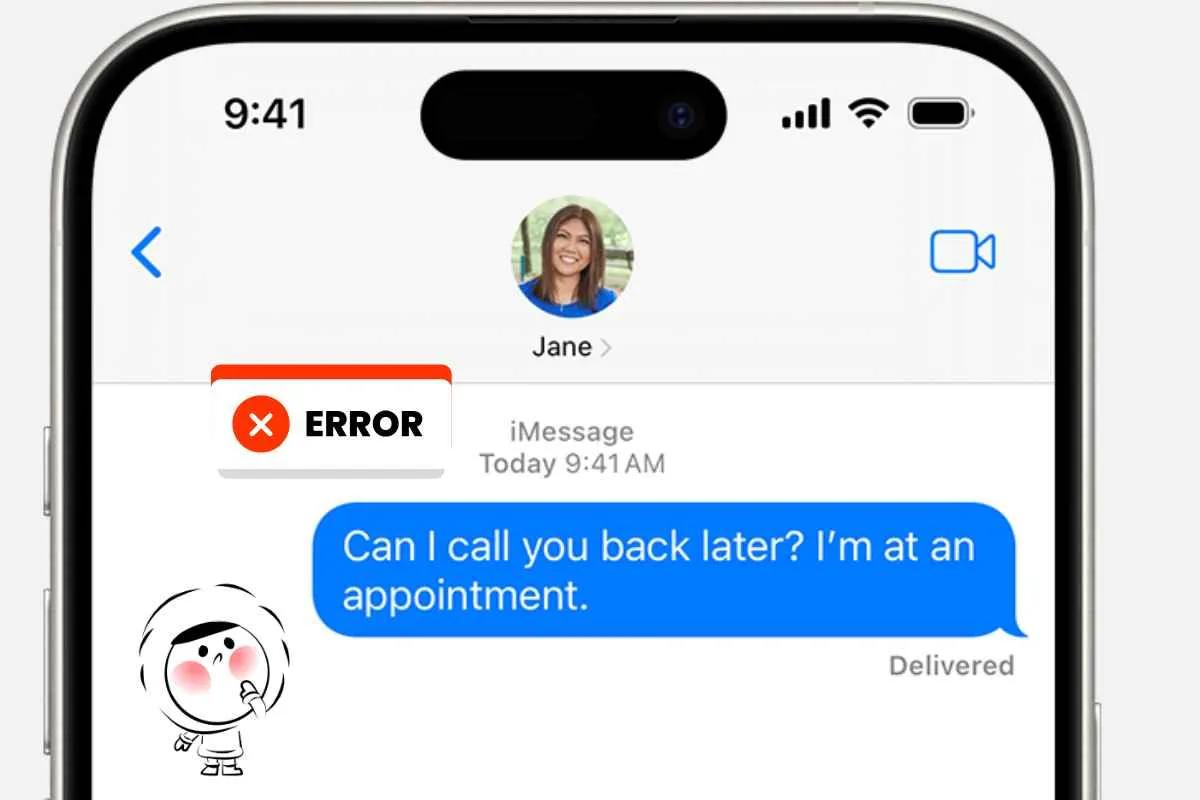
Restarting your device is a simple but effective way to fix iMessage activation issues. It clears temporary glitches and refreshes the system. This step helps your phone reconnect to Apple servers smoothly. Many users find their iMessage works again after a quick restart.
Try restarting before trying complex solutions. It saves time and often solves the problem fast.
How To Restart An Iphone
Press and hold the side button and volume button together. Wait for the power off slider to appear. Slide it to turn off the phone. Wait 30 seconds, then press and hold the side button to turn it back on.
How To Restart An Ipad
Hold the top button until the power off slider shows. Drag the slider to switch off the iPad. After it turns off, press and hold the top button to restart it.
Force Restart For Unresponsive Devices
If your device does not respond, try a force restart. For iPhone 8 or later, quickly press and release the volume up button, then volume down. Hold the side button until the Apple logo appears. For iPhone 7, press volume down and side button until Apple logo shows.
Check Imessage After Restart
Open Settings, go to Messages, and turn on iMessage. Wait a few minutes for activation. Usually, restarting helps the activation process complete without errors.
Contact Apple Support
Contacting Apple Support can help solve iMessage activation problems quickly. Apple experts understand the system well. They offer clear guidance and solutions. This support ensures your iMessage works properly again. Here are two easy ways to get help directly from Apple.
Use Support App
The Apple Support app offers a fast way to get help. Download it from the App Store if needed. Open the app and search for iMessage activation issues. Choose the topic that fits your problem. Chat with an expert or schedule a call. The app also provides helpful articles and tips.
Visit Apple Store
Visiting an Apple Store lets you get face-to-face assistance. Apple staff can check your device in person. They diagnose the problem and fix it on site. Bring your device and Apple ID details. You may need an appointment, so book one in advance. This option is great for hands-on support.
Frequently Asked Questions
Why Is Imessage Activation Taking Too Long?
IMessage activation can delay due to poor internet or server issues. Restart your device and check your network connection. Patience helps as activation may take up to 24 hours.
How Do I Fix Imessage Activation Error On Iphone?
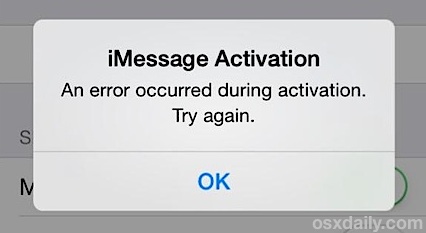
Check if your date and time settings are correct. Sign out and back into your Apple ID. Ensure your phone can send and receive SMS messages.
Can Imessage Activate Without A Sim Card?
No, iMessage requires a valid SIM card to activate. The SIM card helps verify your phone number with Apple servers.
What To Do If Imessage Shows “waiting For Activation”?
This message means the activation process is stuck. Switch off iMessage, restart your device, and turn iMessage back on. Verify your network and Apple ID settings.
Does Airplane Mode Affect Imessage Activation?
Yes, airplane mode disables all connections needed for activation. Turn off airplane mode and connect to Wi-Fi or cellular data. Then try activating iMessage again.
Conclusion
IMessage activation problems can be fixed with simple steps. Check your internet connection first. Make sure your phone’s date and time are correct. Restart your device to refresh settings. Sign out and sign back into your Apple ID. Update your iOS to the latest version.
If the issue stays, contact Apple Support for help. Stay calm and follow these tips carefully. Soon, your iMessage will work smoothly again. Keep your device updated and settings correct to avoid future issues. Troubleshooting is easy with patience and the right steps.