Are you facing issues with Outlook 365 that slow you down or stop you from getting work done? You’re not alone.
Problems like slow loading, syncing errors, or unexpected crashes can be frustrating and disrupt your daily routine. But don’t worry—this guide is here to help you fix those common Outlook 365 troubles quickly and easily. Keep reading, and you’ll discover simple solutions that get your email and calendar working smoothly again, so you can focus on what really matters.
Common Outlook 365 Issues
Outlook 365 is a popular email and calendar app. It helps millions stay organized and connected. Despite its many features, users face some common issues. These problems can slow work or stop email flow. Understanding these issues helps solve them faster.
Syncing Problems
Outlook may not sync emails or calendar events. This causes delays or missing updates. Syncing issues happen due to poor internet or server errors. Incorrect account settings also block syncing. Fixing these can restore smooth updates.
Slow Performance
Outlook may run slowly or freeze. Large mailbox size or many add-ins can cause this. Outdated software versions also reduce speed. Cleaning the mailbox and disabling add-ins improves performance. Regular updates keep Outlook running well.
Login Errors
Users sometimes cannot sign in to Outlook 365. Wrong passwords or expired accounts cause this. Network problems or security settings can block login. Resetting passwords or checking connections helps regain access.
Email Sending Failures
Emails may not send or get stuck in outbox. Server issues or wrong SMTP settings are common causes. Internet interruptions also stop emails from sending. Verifying settings and connection fixes this problem quickly.

Quick Fixes For Syncing
Syncing issues in Outlook 365 can disrupt your workflow. Quick fixes often solve these problems fast. Try simple steps first before deeper troubleshooting.
Check Internet Connection
Outlook needs a stable internet connection to sync emails. Check if your device is online. Restart your router if the connection is weak. A strong signal helps Outlook update your inbox properly.
Update Outlook
Running the latest version of Outlook fixes many bugs. Open Outlook and go to the update section. Download and install any available updates. Updated software improves syncing and overall performance.
Reset Account Settings
Sometimes account settings cause syncing errors. Remove your email account from Outlook. Add it back with the correct credentials. Resetting account settings refreshes the connection to the server.
Clear Cache And Cookies
Old cache and cookies may block syncing. Clear them in your browser or Outlook app settings. This removes corrupted data that can stop syncing. After clearing, restart Outlook for smooth operation.
Speeding Up Outlook 365
Outlook 365 can slow down over time, affecting your productivity. Speeding up Outlook improves your experience and helps you work faster. Several simple steps can boost its performance without technical skills.
Disable Unnecessary Add-ins
Add-ins add extra features but can slow Outlook. Disable add-ins you do not use. Go to File > Options > Add-ins. Select COM Add-ins and click Go. Uncheck add-ins you don’t need. Restart Outlook to see the changes.
Archive Old Emails
Old emails take space and slow Outlook. Archive emails you don’t need daily. Use the Archive option or move emails to a local folder. This clears your main mailbox and speeds up Outlook.
Compact Data Files
Data files grow with use and affect speed. Compact your Outlook data files regularly. Go to Account Settings > Data Files. Select your file and click Settings. Press Compact Now to reduce file size.
Optimize Mailbox Size
Large mailboxes slow Outlook response. Delete unnecessary emails and empty the Deleted Items folder. Use the Mailbox Cleanup tool to find large emails. Keeping mailbox size small helps Outlook run smoothly.
Resolving Login Issues
Login problems in Outlook 365 can stop you from accessing your emails. These issues can be due to simple mistakes or technical glitches. Fixing them quickly helps you stay connected and productive.
Below are clear steps to solve common login troubles. Follow each step carefully to regain access.
Verify Credentials
Check your username and password carefully. Make sure there are no typos or extra spaces. Use the correct email address linked to your Outlook 365 account. Sometimes, the Caps Lock key can cause wrong password entries. Confirm your credentials before trying again.
Reset Password
Reset your password if you cannot log in. Use the “Forgot password” option on the login page. Follow the instructions sent to your recovery email or phone. Choose a strong new password that you can remember easily. This step often resolves many login blocks.
Check Account Status
Verify if your Outlook 365 account is active. Accounts can be locked due to security reasons or inactivity. Visit your Microsoft account page to check status. Contact support if your account shows any restrictions. An active account is essential for login success.
Clear Cached Credentials
Clear old saved login data on your device. Cached credentials can cause conflicts during login. Go to your browser or system settings to remove stored passwords. Restart Outlook 365 and enter your details fresh. This method often fixes persistent login errors.
Fixing Email Sending Errors
Fixing email sending errors in Outlook 365 is essential to keep communication smooth. These errors can stop your emails from reaching others. Simple checks often solve the issue quickly.
Review Outbox
Start by checking your Outbox folder. Emails stuck here have not sent yet. Sometimes, large attachments or slow internet cause delays. Deleting or resending these emails can fix the problem.
Check Smtp Settings
SMTP settings control how emails send from Outlook. Incorrect settings block outgoing messages. Verify the server name, port number, and encryption type. Use the correct details from your email provider.
Increase Attachment Size Limit
Outlook limits attachment sizes by default. Large files may fail to send. Raise the attachment size limit in your settings. Or use cloud links to share big files instead.
Scan For Malware
Malware can disrupt email functions. Run a full scan with trusted antivirus software. Remove any threats found. Safe devices ensure emails send without errors.

Using Microsoft Support Tools
Using Microsoft support tools helps solve Outlook 365 issues fast. These tools guide users step-by-step. They can fix many common problems without expert help.
Support tools offer clear instructions and automated checks. They save time and reduce frustration during troubleshooting. Explore these options to improve your Outlook experience.
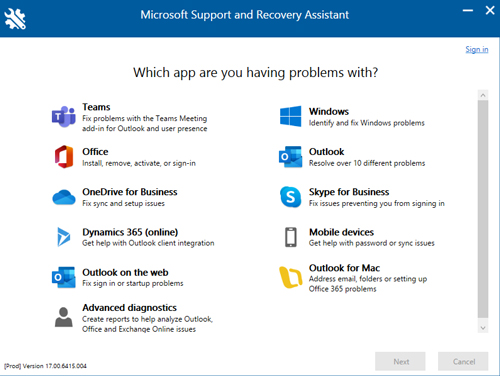
Outlook Support And Recovery Assistant
The Outlook Support and Recovery Assistant scans your Outlook setup. It finds errors and suggests fixes. This tool can repair email sync issues and login problems. It works on Windows and Mac systems. Run it to detect problems quickly and follow easy repair steps.
Microsoft 365 Admin Center
The Microsoft 365 Admin Center helps manage user accounts and settings. It shows service health and alerts about outages. Admins can check mailbox status and security issues here. This tool is essential for business users managing multiple accounts.
Community Forums
Community forums offer real user advice and tips. Many users share solutions for common Outlook problems. Microsoft experts often participate in these discussions. Browsing forums can reveal quick fixes and new troubleshooting ideas.
Contacting Support
Contacting Microsoft support connects you to professional help. Support agents assist with complex issues that tools can’t fix. You can reach them by chat, phone, or email. Prepare your account details and error messages before contacting support.
Preventive Tips For Smooth Outlook
Keeping Outlook 365 running smoothly saves time and avoids frustration. Simple preventive steps help maintain good performance. These tips reduce errors and improve your email experience. Follow easy habits to keep Outlook fast and reliable every day.
Regular Updates
Always install the latest Outlook updates. Updates fix bugs and improve security. New features also help Outlook run better. Set updates to install automatically. This keeps your software current without extra effort.
Backup Data
Back up your Outlook data often. Save emails, contacts, and calendars in a safe place. Use cloud storage or an external drive. Backups prevent data loss from crashes or errors. Regular saves give peace of mind.
Manage Add-ins Wisely
Only enable add-ins you really need. Too many add-ins slow Outlook down. Disable or remove unused add-ins from the settings menu. This keeps Outlook clean and quick. Review add-ins regularly for better speed.
Monitor Storage Limits
Watch your mailbox size closely. Large mailboxes cause Outlook to lag. Delete old emails or move them to archives. Empty the Deleted Items and Junk folders often. Staying under storage limits helps Outlook perform well.
Frequently Asked Questions
How Do I Fix Outlook 365 Not Sending Emails?
Check your internet connection and email settings first. Restart Outlook and try sending again. Clear the Outbox folder if emails are stuck.
Why Is Outlook 365 Running Slow On My Computer?
Too many add-ins or large mailboxes can slow Outlook. Disable unused add-ins and archive old emails. Also, close other heavy programs while using Outlook.
How Can I Recover Deleted Emails In Outlook 365?
Look in the Deleted Items folder to find deleted emails. If not there, check the Recoverable Items folder. Use the Recover Deleted Items option within 14 days.
What Causes Outlook 365 To Keep Asking For A Password?
This often happens due to incorrect login details or expired passwords. Update your password in Outlook settings. Also, clear stored credentials in Windows Credential Manager.
How Do I Fix Outlook 365 Calendar Sync Issues?
Make sure your device is connected to the internet. Check calendar sync settings in Outlook and your device. Restart the app or device to refresh sync.
Conclusion
Troubleshooting Outlook 365 can be simple with the right steps. Start by checking your internet connection and updates. Clear cache or restart the app if it slows down. Fix common errors by reviewing account settings carefully. Use built-in tools to scan for issues.
Stay calm and follow each step one by one. Small fixes often solve big problems. Keep your software updated to avoid future troubles. With patience, you can get Outlook working smoothly again. Don’t let errors stop your work or email flow.
Keep trying, and you will succeed.