Dealing with audio dropouts, connectivity issues, or complete silence requires a systematic approach to energy soundbar troubleshooting. Whether you’re using a budget-friendly model or a premium audio system, most performance issues stem from simple handshake errors between your television and the speaker unit. By verifying your physical connections, software settings, and power supply, you can usually restore high-fidelity sound without needing professional technical support or expensive replacement parts.
Key Takeaways
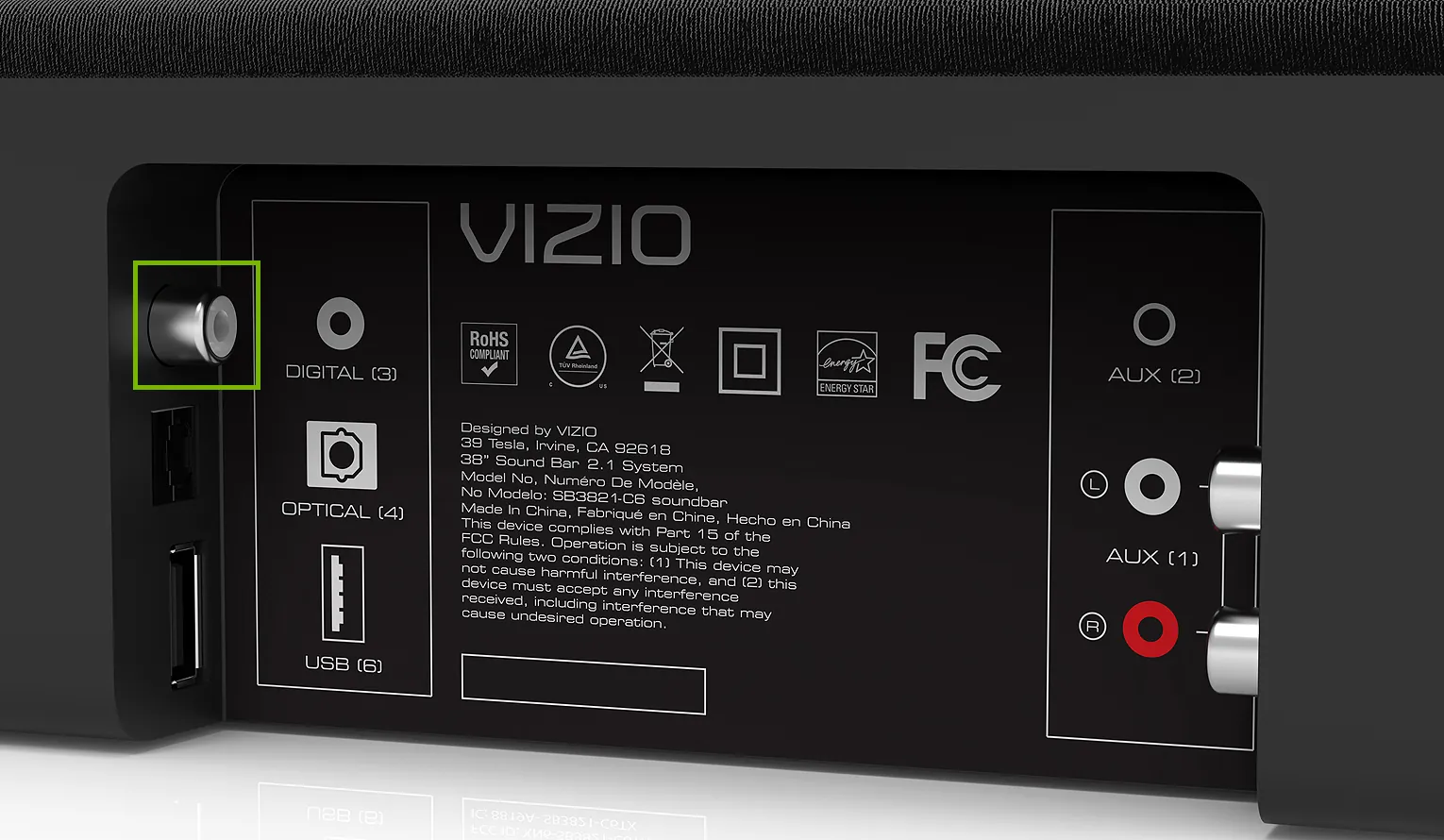
- Always verify that your HDMI or optical cables are fully seated in the ports.
- Perform a hard power cycle by unplugging both the TV and soundbar for sixty seconds.
- Check your television’s audio output settings to ensure the correct digital format is selected.
- Update your device firmware if the manufacturer provides a specific USB update utility.
- Ensure that your wireless subwoofer is paired correctly to avoid intermittent signal loss.
Verifying Physical Cable Connections
The most common culprit for soundbar failure is a loose or damaged cable. Even if a cable looks secure, micro-vibrations or improper seating can prevent the HDMI ARC or Optical signal from transmitting correctly. Always start by unplugging your HDMI, Optical, or 3.5mm auxiliary cables from both the television and the soundbar.
Inspect the pins and tips for dust or debris. Reinsert them firmly until you hear a mechanical click or feel a distinct resistance. If you suspect the cable itself is faulty, swap it with a known working cable from another device to rule out a hardware defect.
Common Connection Methods
| Connection Type | Typical Use Case | Troubleshooting Priority |
|---|---|---|
| HDMI ARC/eARC | Primary TV Audio | High (Check CEC settings) |
| Optical (Toslink) | Legacy TV/Console | Medium (Check for bent pins) |
| Bluetooth | Mobile/Wireless | Low (Check interference) |
| 3.5mm Aux | Basic Stereo | Low (Check for loose jack) |
Signal integrity is vital for high-definition audio. If you’re using HDMI, ensure you’re utilizing a high-speed cable that supports ARC (Audio Return Channel) functionality. Using an outdated or damaged HDMI lead can cause intermittent audio drops, as the handshake between the television and the soundbar fails to maintain a stable digital stream.
Troubleshooting Energy Soundbar System Resets
If cables aren’t the issue, a software hang or a “stuck” state in the soundbar’s microprocessor might be the cause. A hard power cycle is the most effective way to clear the volatile memory of the device. Turn off your television and soundbar, then disconnect the power cords from the wall outlet.
Wait for at least sixty seconds to allow all capacitors to discharge fully. Reconnect the power and turn the devices back on. This simple process often resolves sync issues where the soundbar refuses to wake up or respond to the television remote.
Factory settings can be restored if a hard reset doesn’t work. Most manufacturers include a specific button combination on the soundbar chassis or remote to wipe user configurations. Refer to your specific model’s manual, as this will erase your EQ settings, Bluetooth pairings, and volume presets, effectively returning the unit to its “out-of-box” state.
Addressing Wireless Subwoofer Issues
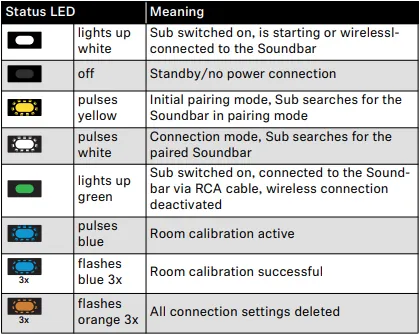
Many modern soundbars include a wireless subwoofer that requires a stable signal to function. If you hear no bass or experience “popping” sounds, the subwoofer may have lost its synchronization with the main bar. Look for a “Pairing” or “Link” button on the back of the subwoofer. Often, you must hold this button for several seconds until an LED indicator flashes, signaling that it’s searching for the host bar. Once the indicator turns solid, the connection is re-established.
Signal interference from other electronics can disrupt this wireless link. Keep your soundbar and subwoofer away from large metal objects, cordless phone bases, or Wi-Fi routers that operate on the 2.4GHz frequency band. If the connection remains unstable, move the subwoofer closer to the main soundbar to determine if range is the limiting factor.
Why Is My Soundbar Silent?
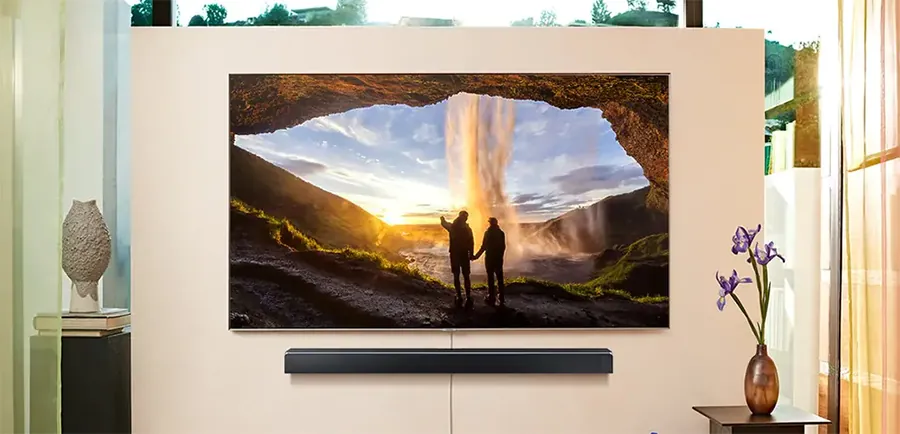
A silent soundbar is often caused by a mismatch in audio output settings rather than a hardware failure. Navigate to your television’s “Sound” or “Audio” menu and confirm that the “Audio Output” is set to “HDMI ARC” or “Optical” instead of “Internal Speakers.”
Furthermore, verify the digital audio format settings. Many televisions default to “Auto” or “Bitstream,” which may be incompatible with older soundbars. Try toggling this setting to “PCM” (Pulse Code Modulation), which is a universal format that almost every soundbar can decode without difficulty.
Potential Audio Configuration Errors
| Symptom | Likely Cause | Suggested Fix |
|---|---|---|
| No sound at all | Wrong output selected | Set TV audio to External |
| Audio/Video lag | Processing delay | Adjust AV Sync/Lip Sync |
| Popping sounds | Wireless interference | Move subwoofer/router |
| Low volume | Volume ceiling set | Disable “Night Mode” |
Firmware updates may be required if your soundbar was manufactured recently. Manufacturers often release updates to resolve handshake issues with newer television operating systems. Check the official product support documentation to determine if your model requires a USB flash drive update to improve compatibility and fix known bugs.
Managing HDMI CEC Conflicts
HDMI-CEC (Consumer Electronics Control) is a feature that allows your TV remote to control the soundbar’s volume and power. While convenient, it’s frequently the source of “handshake” issues where the soundbar fails to turn on with the TV or loses volume control functionality. If you experience these symptoms, navigate to your TV’s “System” or “CEC” settings and toggle the function off, wait ten seconds, and toggle it back on. This forces the two devices to re-negotiate their communication protocols.
CEC naming conventions vary by brand; Samsung calls it Anynet+, LG uses SimpLink, and Sony refers to it as BRAVIA Sync. Regardless of the brand-specific name, the underlying standard remains the same. If your devices continue to fight for control, you may need to disable the “Auto-Power” feature to prevent the soundbar from turning off prematurely during quiet moments in a movie.
Troubleshooting Bluetooth Connectivity
Bluetooth is notoriously fickle when used for high-fidelity home theater applications. If your soundbar isn’t appearing in your smartphone’s list of available devices, ensure the soundbar is in “Pairing Mode.” This usually involves holding the Bluetooth button on the remote or the bar itself until the light blinks rapidly.
If the device is paired but produces no sound, ensure your source device has its media volume turned up, as the volume level on the smartphone is independent of the volume level on the soundbar.
Unpairing devices is a necessary step if your soundbar is already connected to another device in the house. If a laptop or tablet is within range and already paired, the soundbar will often prioritize that connection and refuse to accept audio from your television or phone. Clear the Bluetooth memory on the soundbar if you have recently changed your primary listening source.
Adjusting Audio Processing Settings
Sometimes the soundbar is working perfectly, but the “Mode” or “EQ” setting is inappropriate for the content you’re watching. If voices sound distant or muffled, you might be in a “Music” or “Stadium” mode that emphasizes background noise over dialogue.
Switch your soundbar to “Movie,” “Standard,” or “Dialogue” mode to see if the clarity improves. Additionally, check for a “Night Mode” or “DRC” (Dynamic Range Compression) setting; these features intentionally flatten the audio to prevent sudden loud noises, which can make the overall volume feel thin or weak.
Sound stage processing can create artifacts if your room has significant acoustic issues. Hard surfaces like tile or hardwood floors reflect sound, causing echoes that make the audio seem muddy. If the sound is unintelligible, try placing a rug in front of the soundbar or moving the unit slightly forward so it’s flush with the edge of your media console.
Frequently Asked Questions
Why does my soundbar keep turning off?
Many soundbars feature an “Auto-Standby” function designed to save electricity when no audio signal is detected for a specific duration. If you’re watching content with long, quiet passages, the soundbar may interpret this as inactivity. Check your user manual to see if you can disable the auto-standby feature or adjust the sensitivity of the signal detection settings in the device menu.
How do I fix audio delay?
Audio delay, or lip-sync error, occurs when the video processor in your TV takes longer to render an image than the soundbar takes to process the audio. Most modern televisions include an “Audio Delay” or “Lip Sync” setting in the sound menu. Adjust this value in increments of 10-20 milliseconds until the audio and visual elements are perfectly aligned.
Can I use a universal remote?
Yes, most soundbars are compatible with universal remotes, especially those that support infrared (IR) codes. However, if your soundbar relies on HDMI-CEC for control, a universal remote may not be able to adjust the volume if the CEC chain is broken. Ensure the remote is programmed with the correct manufacturer code for your specific soundbar model to ensure full functionality.
Is my soundbar broken?
Not necessarily. Most “broken” soundbars are simply suffering from software glitches or configuration errors. If you have tried a hard power cycle, replaced the HDMI cable, and tested multiple inputs without success, the internal amplifier or digital-to-analog converter may be failing. If the unit makes no noise at all and shows no lights, verify the power outlet itself is functional with another device.
Does the optical cable type matter?
While all optical (Toslink) cables perform the same basic function, the build quality can vary. A low-quality cable with a poorly polished tip can lead to signal attenuation, causing the soundbar to lose the connection intermittently. If your optical cable is tightly bent or kinked, the internal fiber optic strand may be damaged, necessitating a replacement to restore a reliable digital signal.
Conclusion
Start by performing a full power cycle on your system, as this resolves the vast majority of connectivity and sync issues. If the audio remains problematic, systematically inspect your cables and verify your television’s output settings to ensure the digital stream is correctly routed. For further assistance, check the specific support section on the manufacturer’s website for your model.