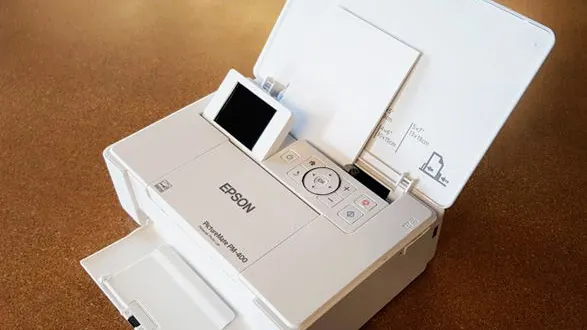
The Epson PictureMate PM-400 is a compact, high-quality photo printer designed specifically for small-format snapshots, but when it stops performing as expected, you need clear steps for epson picturemate pm-400 troubleshooting to restore your prints to their former brilliance. Whether you’re dealing with streaks on your glossy photos, connectivity drops, or a stubborn paper jam, most issues can be resolved with a methodical approach to maintenance. This guide focuses on the most common mechanical and digital hurdles faced by users of this specific model, ensuring you spend less time configuring settings and more time printing your memories.
Key Takeaways
- Always check the physical paper path for debris before running software cleaning cycles.
- Use only genuine Epson ink cartridges to prevent permanent printhead clogging or damage.
- Perform a nozzle check pattern print to diagnose specific color or flow issues.
- Ensure your printer firmware is updated via the official Epson support portal.
- Keep the printer in a dust-free environment to extend the life of internal rollers.
Common Paper Feed Problems
If your printer is failing to grab paper or is frequently jamming, the issue is often related to the pickup rollers. Over time, these rollers can accumulate dust from the paper, reducing their grip. Start by turning the printer off and unplugging it. Open the rear cover or the paper tray area and inspect for any small scraps of paper that might have torn off during a previous print job.
Gently wipe the visible rubber rollers with a lint-free cloth dampened with distilled water. Avoid using alcohol or harsh solvents, as these can dry out the rubber and cause cracking. Ensure the paper you’re using is within the supported weight specifications provided by the manufacturer. If the paper is too thick or curled, the feed mechanism will struggle to pull it through the print path effectively.
Troubleshooting Epson PictureMate 400 Print Quality
When your photos appear with horizontal lines, missing colors, or muted tones, it’s time to address the printhead nozzles. These tiny apertures are prone to drying out if the printer remains idle for extended periods. Navigate to the maintenance menu on the printer’s LCD screen and select the “Nozzle Check” function. This will print a test pattern that reveals exactly which colors are failing. If the pattern shows gaps, run the “Head Cleaning” cycle.
| Issue | Likely Cause | Recommended Action |
|---|---|---|
| Horizontal Lines | Clogged Nozzles | Run Head Cleaning Cycle |
| Faded Colors | Low Ink Levels | Replace Ink Cartridge |
| Paper Jams | Dirty Feed Rollers | Clean Rollers with Cloth |
| Spotty Prints | Dust on Paper | Use Clean, Sealed Paper |
Warning: Don’t run more than three consecutive head cleaning cycles. If the print quality doesn’t improve after three attempts, turn the printer off and wait for at least six hours. This allows the ink to settle and potentially soften any dried clogs, preventing internal pump damage.
How to Fix Connectivity Issues
Modern photo printers rely heavily on stable wireless signals, and the PM-400 is no exception. If your computer or smartphone can’t find the printer, start by checking the Wi-Fi status light on the device’s control panel. If the light is flashing or off, you need to re-establish the connection.
First, power cycle your wireless router by unplugging it for 30 seconds and plugging it back in. Next, use the Epson setup utility on your computer to re-enter the network credentials. If you’re printing from a mobile device, ensure both the printer and the phone are on the exact same local network frequency (2.4GHz is usually the most stable for these devices). You can confirm your official model settings and specifications at the Epson PM-400 support page.
Understanding Error Messages
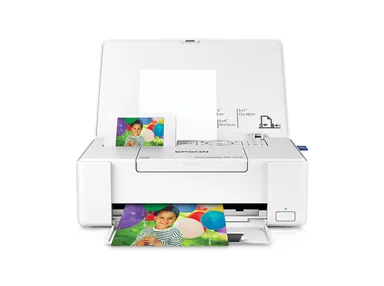
The PM-400 uses a series of simple codes and on-screen alerts to communicate its status. Understanding these messages is a core part of epson picturemate pm-400 troubleshooting. Most errors fall into two categories: mechanical or supply-related. A “Paper Out” error is often a false positive caused by a sensor being blocked by paper dust.
Use a can of compressed air to gently blow out the interior of the paper tray area. If you see an “Ink Cartridge Not Recognized” error, remove the cartridge and carefully clean the gold contact points with a soft, dry eraser. Be extremely gentle to avoid bending the delicate pins inside the printer carriage.
Maintaining Your Ink System
The ink system in the PM-400 is a sophisticated piece of engineering designed for high-fidelity photo reproduction. Because photo ink is water-based and thin, it’s susceptible to environmental changes. If you live in an area with very low humidity, the ink inside the printhead can evaporate and solidify faster than in humid climates.
To mitigate this, keep the printer cover closed when not in use. If you anticipate not using the printer for more than two weeks, print a small test page once a week to keep the ink flowing through the lines. This simple preventative maintenance habit is the most effective way to avoid the need for deep cleaning cycles, which consume a significant amount of ink.
Resolving Software and Driver Glitches
Sometimes, the printer is perfectly fine, but the communication software on your computer has hung or corrupted. If you attempt to print and the job sits in the queue indefinitely, clear the print spooler on your operating system. On Windows, navigate to the services menu and restart the “Print Spooler” service.
On macOS, go to System Settings, select Printers & Scanners, and reset the printing system. This clears out any hung jobs that might be blocking new requests. Ensure you’re using the most current driver version available from the official manufacturer website, as older drivers may not be compatible with recent operating system updates.
Managing Paper and Media Types
Using the wrong type of paper is a common source of frustration. The PM-400 is calibrated for specific Epson-branded photo papers, which have a coating designed to absorb the ink instantly and prevent smearing. If you use generic or third-party cardstock, the ink may pool on the surface, causing the rollers to pick up wet ink and transfer it to the back of subsequent pages.
Always adjust the media type settings in your print dialog box before sending a file. If you’re using glossy paper, select “Glossy” in the printer properties; if using matte paper, select “Matte.” This tells the printer how much ink to deposit, preventing saturation issues that lead to paper curling or ink smearing.
Frequently Asked Questions
Why is my printer not picking up paper?
This is typically caused by dust buildup on the rubber pickup rollers or paper that has been left in the tray for too long, causing it to curl. Gently clean the rollers with a damp, lint-free cloth and ensure your paper is stored flat in a cool, dry place. If the rollers are worn down, the printer may require professional service to restore proper feeding functionality.
How do I clear a paper jam safely?
Turn off the printer and open the access doors. Locate the jammed paper and pull it out slowly and steadily with both hands to avoid tearing the sheet. If a piece remains stuck, don’t use sharp objects like tweezers, as these can damage the internal printhead or sensors. Once the path is clear, close the doors and restart the printer to reset the internal mechanical sensors.
Why are my photos coming out with streaks?
Streaks are usually a sign of partially clogged nozzles or an accumulation of ink on the printhead assembly. Perform a nozzle check to identify the problematic color, then run one or two head cleaning cycles. If the streaks persist, ensure the paper is loaded correctly and that the printhead isn’t rubbing against the surface of the photo paper during the printing process.
Can I use third-party ink cartridges?
While third-party cartridges may be cheaper, they’re often the primary cause of printhead failure. Many generic cartridges use ink formulations that differ from the manufacturer’s chemistry, which can lead to rapid clogging or chemical degradation of the printhead. For the longevity of your hardware and the best color accuracy, using the recommended OEM ink cartridges is the most reliable choice for long-term ownership.
How often should I run a nozzle check?
It’s a good practice to run a nozzle check once every two weeks if you aren’t using the printer daily. This helps you identify potential clogs before they become hardened and difficult to remove. If the printer has been sitting idle for more than a month, run a nozzle check before attempting to print important photos to ensure the ink flow is consistent and clean.
Conclusion
Proper care for your device ensures that your photographic prints remain vibrant and sharp for years to come. By consistently following these maintenance steps and addressing minor errors as they arise, you prevent long-term mechanical degradation. If issues persist despite these efforts, consult your warranty documentation or contact the manufacturer’s customer support team directly to explore professional repair options for your unit.