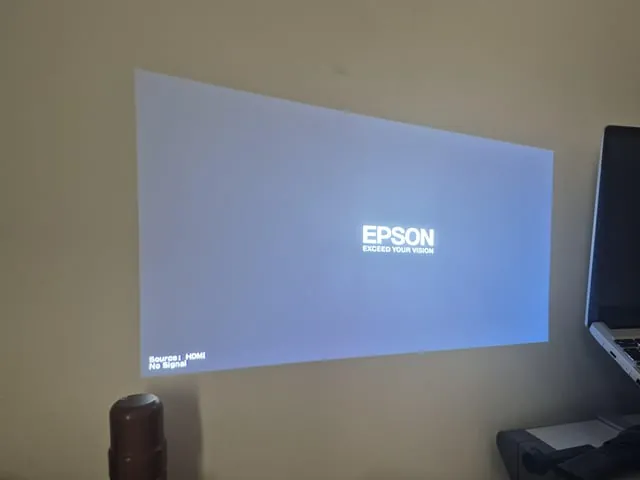
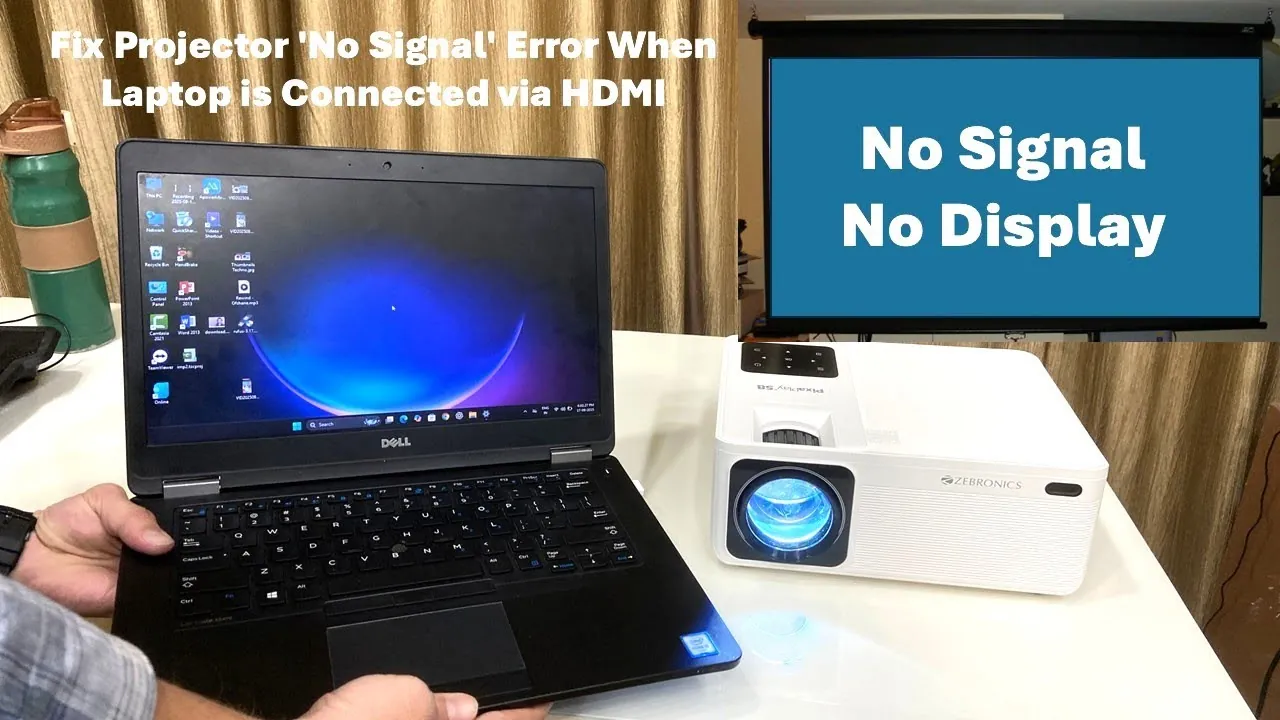
When you turn on your device and are met with a blank screen, it can be incredibly frustrating, but identifying why your epson projector troubleshooting no signal error is occurring is usually a straightforward process. Most signal issues are caused by loose cable connections, incorrect input selection, or incompatible resolution settings between your source device and the projector. By methodically checking each component in your signal chain, you can typically restore your image quality without needing professional repairs or expensive replacement parts.
Key Takeaways
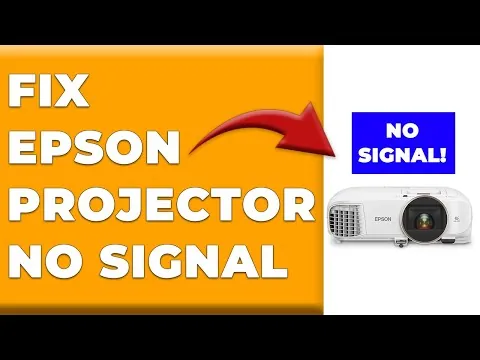
- Ensure all video cables are firmly seated in both the projector and the source device ports.
- Verify that the projector is set to the correct input source matching the physical port in use.
- Check that your source device, such as a laptop or Blu-ray player, is outputting a compatible resolution.
- Test with a known-working cable to rule out a damaged or faulty connection between devices.
- Perform a power cycle by unplugging both the projector and the source device to clear temporary glitches.
Troubleshooting Epson Projector No Signal Cable Issues
The most common reason for a “No Signal” message is a simple physical disconnection. Cables can loosen over time due to vibrations or accidental tugs. Always inspect the HDMI cables or VGA cables connected to the back of your projector. Ensure they’re pushed all the way into the ports. If you’re using an adapter, such as a USB-C to HDMI dongle, this is often the point of failure.
| Connection Type | Common Issues | Troubleshooting Step |
|---|---|---|
| HDMI | Bent pins or loose fit | Swap with a new cable |
| VGA | Tightening screws loose | Check for secure mounting |
| DisplayPort | Latching mechanism stuck | Ensure latch is clicked in |
| Component | Color-coded plugs mismatched | Match colors strictly |
Pro Tip: If you’re using long cable runs, ensure you’re using an active cable or a signal booster, as standard passive cables often lose signal strength over distances exceeding 15 feet.
Is the Input Source Correct?
Projectors have multiple input ports, and the device must be manually set to “listen” to the specific port where your cable is plugged in. Use your remote control or the physical buttons on the projector chassis to open the input menu. Cycle through the available options—such as HDMI1, HDMI2, or Computer—to see if the signal appears. Many users assume the projector automatically detects the active source, but manual selection is often required.
Identifying the Active Port
Look at the back of your projector. Note the label printed next to the port you have used. If the label says “HDMI 1,” ensure your menu selection explicitly highlights “HDMI 1.” If you have multiple devices connected, it’s easy to accidentally select the wrong port.
Adjusting Your Source Device Settings
Sometimes the projector is working perfectly, but the source device (like a laptop or desktop computer) isn’t sending a signal. For Windows computers, press the Windows key plus the P key to open the display projection menu. Select “Duplicate” or “Extend” to force the computer to send a signal to the external display. On a Mac, navigate to System Settings and ensure the “Arrangement” tab shows the projector as an active display.
Resolution Compatibility Issues
Projectors have a “native resolution.” If your source device is set to output a resolution that the projector doesn’t support, the screen will remain blank. Try lowering your resolution to 1080p or 720p if you’re currently attempting to output 4K or ultra-wide formats.
Perform a Total Power Cycle
Electronic devices sometimes experience software hangs that prevent them from handshaking correctly over the HDMI protocol. To resolve this, perform a hard reset. Turn off the projector and unplug the power cord from the wall outlet. Simultaneously, turn off and unplug your source device.
Wait at least 60 seconds to allow the internal capacitors to discharge completely. Plug everything back in and turn on the projector first, then the source device. This sequence often forces the devices to re-establish their digital handshake.
Inspecting Cables for Internal Damage
Even if a cable looks fine on the outside, the internal copper wiring may be frayed or broken. If you have been using the same cable for years, it may have developed a break near the connector head. Try using a high-quality cable that you know works with another television or monitor. If the signal appears immediately, your original cable is the culprit and should be discarded.
How to Handle HDCP Errors
High-bandwidth Digital Content Protection (HDCP) is a security protocol designed to prevent piracy. If the projector and your source device can’t agree on the HDCP handshake, the signal will be blocked. This is common with streaming sticks like those from Roku, Amazon, or Apple.
Try plugging your streaming device directly into the projector rather than routing it through an AV receiver or a soundbar. If the signal works when plugged directly into the projector, the issue lies with the intermediary device.
Does the Projector Lamp Work?
While a “No Signal” message implies the lamp is functional, it’s worth confirming the projector itself isn’t experiencing a hardware failure. If you see the Epson logo or the menu screen when you press the “Menu” button on your remote, the projector is functioning correctly.
If you can’t see the menu, the issue isn’t a “No Signal” error, but rather a lamp failure or an internal power supply issue. Check the status lights on the top of the projector; a flashing red light usually indicates an overheating issue or a lamp that has reached the end of its life.
| Status Light Color | Meaning | Required Action |
|---|---|---|
| Solid Blue | Normal operation | No action needed |
| Flashing Orange | Lamp cooling down | Wait for power-down |
| Solid Red | Internal error | Unplug and contact support |
| Flashing Red | Lamp failure | Replace projector lamp |
Understanding Refresh Rate Conflicts
Modern graphics cards can push refresh rates up to 144Hz or higher, but many projectors are limited to 60Hz or 120Hz. If your computer is forcing a refresh rate that the projector can’t process, the screen will stay black. Go into your computer’s advanced display settings and manually set the refresh rate to 60Hz. This is the universal standard and will work with almost any projector model currently on the market.
Check for Firmware Updates
If you have tried all the above steps and the issue persists, your projector might need a firmware update. Manufacturers release updates to fix compatibility issues with newer hardware, such as updated gaming consoles or streaming devices. Check the official support page for your specific projector model to see if a firmware update is available. You’ll typically need a USB flash drive to perform this update, following the specific instructions provided by the manufacturer.
When to Seek Professional Repair
If you have tested multiple cables, multiple source devices, and performed a factory reset, the problem may be an internal hardware failure. The HDMI port itself can become loose or damaged on the motherboard of the projector. If the port feels “wobbly” when you plug in a cable, it’s likely a physical connection failure that requires professional soldering or a motherboard replacement. At this stage, contact a certified technician to avoid further damaging the sensitive internal components.
Frequently Asked Questions
Why does my projector say no signal even when plugged in?
This usually happens because the projector and the source device haven’t successfully completed their “handshake.” Ensure both devices are powered on, the correct input is selected on the projector, and the cable is firmly connected. Sometimes, simply unplugging the HDMI cable and plugging it back in while both devices are powered on can trigger the handshake, or you may need to cycle the power on both units.
Can a bad HDMI cable cause no signal?
Yes, a bad HDMI cable is one of the most frequent causes of signal loss. HDMI cables contain many tiny wires; if just one is broken internally, the entire signal can fail. Because these cables are often bent behind furniture or pulled tight during installation, they’re prone to mechanical failure. Always test with a short, high-quality cable to rule out the original cable as the cause.
Does the resolution setting affect the signal?
Yes, the resolution must be supported by the projector’s native display capabilities. If a computer sends a 4K signal to a 1080p projector that doesn’t support downscaling, the projector will display a “No Signal” or “Unsupported Format” error. Always check the projector’s manual for its maximum resolution and ensure your source device is set to match or fall below that specific resolution threshold.
How do I reset my Epson projector?
To reset your projector, navigate to the “Reset” menu within the projector’s on-screen display settings. If you can’t see the menu, look for a “Reset” button on the device itself, though this is rare on modern models. Alternatively, performing a hard power cycle—unplugging it for several minutes—often clears temporary configuration errors. For a full factory reset, consult your specific model’s user guide as the exact button combination varies.
Why does my streaming stick show no signal?
Streaming sticks often require a stable power supply and a functioning HDCP handshake. Ensure the streaming stick is plugged into a powered USB port or its dedicated wall adapter. If it still shows no signal, try connecting it directly to the projector’s HDMI port rather than through a switch or receiver. If it works directly, the issue is with the intermediary hardware, not the projector or the stick.
Conclusion
If you have followed these steps and still encounter the error, the next logical step is to test your projector with a completely different source device, such as a DVD player or a different laptop, to isolate whether the fault lies with the projector or your primary hardware. If the problem persists across multiple devices, consult your owner’s manual for the specific procedure to perform a factory reset of the projector’s internal settings.