You can fix most printing issues by checking your card stock, cleaning the internal rollers, and verifying your driver settings as part of standard evolis primacy troubleshooting. The most frequent cause is dust or debris accumulating on the print head or transport rollers. When these parts get dirty, the printer can’t grip the cards properly or transfer the ink evenly. You should inspect the ribbon and card path first before trying more complex software resets.
Evolis Primacy troubleshooting mechanical and software issues
The main reason these printers stop is simple mechanical interference. Because the internal parts move with very tight tolerances, even a tiny piece of dust or a slightly warped card can cause a jam or a “ribbon out” error. If your card stock is even a fraction of a millimeter too thick, the sensor will trigger a stop to prevent damage to the print head.
Another common cause is a software mismatch. If you have recently updated your computer’s operating system, the printer driver might no longer communicate correctly with your print queue. This often happens because the driver is still trying to send data to a port that the new system has restricted or changed.
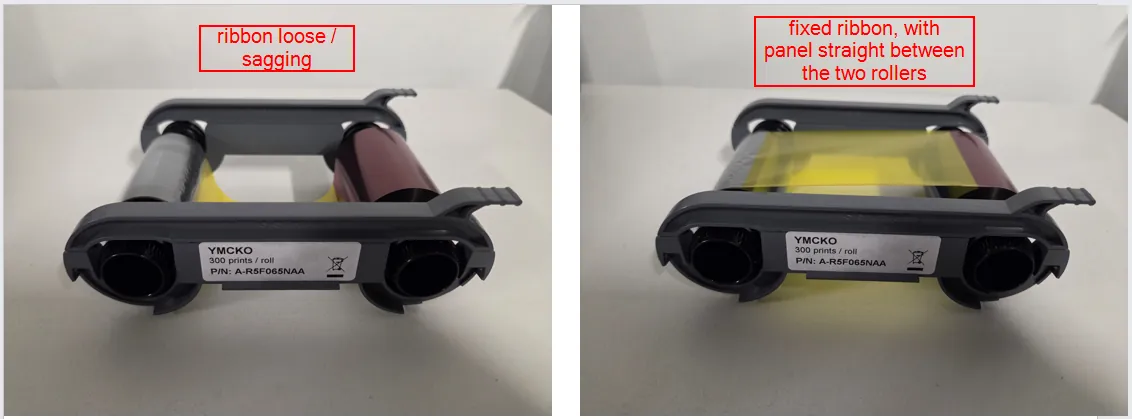
Finally, ribbon issues often stem from how the spool is seated. If the ribbon isn’t perfectly flat or if it’s slightly loose, the internal sensor will fail to detect the panel transition. This causes the printer to pause mid-print or refuse to start. Always ensure the ribbon is taut and the spools are pushed fully into their slots until you hear a click.
Clean the internal rollers
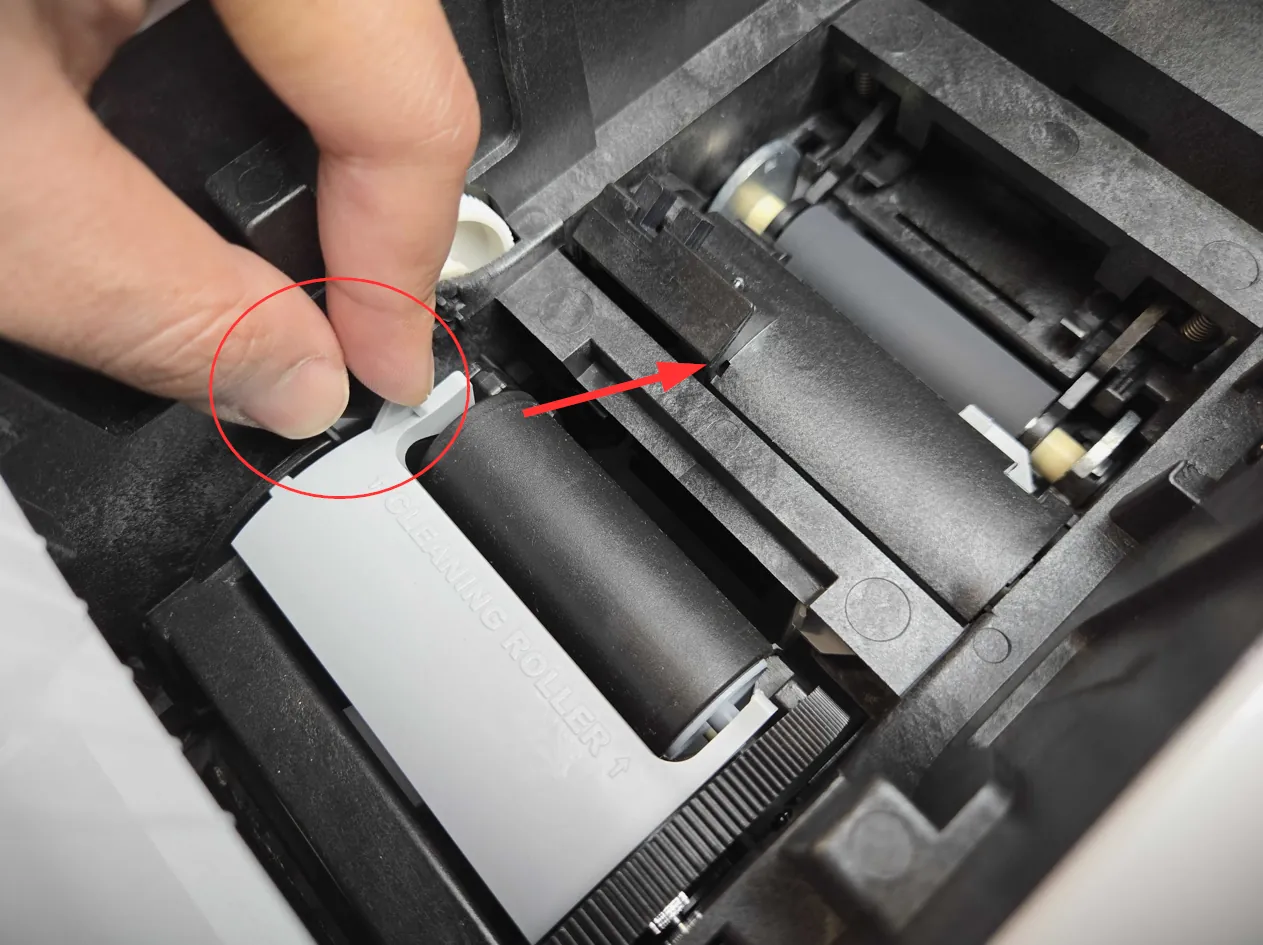
Cleaning the rollers is the most effective way to solve feeding errors or cards that get stuck inside the machine. You should use the manufacturer-approved cleaning kit, which typically includes a long adhesive card and a specialized cleaning pen for the print head. Never use household alcohol or paper towels, as these leave fibers behind that make the dust problem worse over time.
To perform this, open the printer cover and remove any cards currently in the hopper. Insert the cleaning card into the feeder as if you were loading a standard plastic card. Run the cleaning utility from the printer driver software on your computer.
The rollers will spin and pull the adhesive card through the path, picking up oils and debris. If you see black marks on the adhesive after one pass, repeat the process with a fresh card until it comes out clean.
This fix is for users dealing with “card not detected” or “feed error” messages. If the printer still fails to grab the card after two cleanings, the rubber on the rollers may be worn down. In that case, you have reached the limit of what you can do at home. You’ll need to contact an authorized service center to have the internal transport assembly replaced.
Check the print ribbon and sensors
When you face ribbon breakage or color misalignment, the issue is almost always the tension or the sensor alignment. Start by pulling the ribbon out and checking for any wrinkles or tears. If the ribbon is damaged, you must replace it, as a taped ribbon will snag on the print head and cause a permanent failure. Once you insert the new roll, rotate the spool manually to ensure it’s tight.
Check the sensor by looking inside the ribbon bay. You should see a small plastic tab or optical sensor that detects the ribbon’s color panels. If this area is blocked by dust, use a can of compressed air to blow it out gently. Don’t touch the sensor with your fingers, as the natural oils from your skin can cause it to misread the ribbon panels.
This step is for those seeing “ribbon out” or “panel not detected” errors. If you have verified the ribbon is tight and the sensor is clear but the printer still errors out, the mainboard might be failing. This is a hardware limit that only a professional technician can address. If you’re under warranty, contact your provider before opening the internal housing to avoid voiding your coverage.
Update the driver and firmware
When the printer shows as “offline” or refuses to accept a print command, the communication between your PC and the hardware is likely broken. Start by removing the printer from your computer’s “Devices and Printers” list entirely. Unplug the USB cable from both the printer and the computer, then restart your machine. This clears any stuck print jobs that might be blocking the port.
Once the computer reboots, plug the USB cable back into a different port. Download the latest driver from the official website and run the installer. If the installer asks for a firmware update, allow it to finish completely. Don’t disconnect the power during this process, as a failed firmware update can render the printer unusable.
This is for users whose printer is detected by the computer but fails to print. If the printer still doesn’t respond after a fresh driver install, check your cable. Use a high-quality, shielded USB cable under 6 feet long. Long or damaged cables are a common mistake that causes data packets to drop, leading to incomplete prints or printer timeouts.
If your printer uses a network connection instead of USB, ping the device’s IP address from your command prompt. If the ping fails, the issue is your router or firewall, not the driver. If the ping succeeds but the print queue remains stuck, restart the “Print Spooler” service in your Windows Services menu. This simple toggle resolves 90% of software-side communication errors.
Common troubleshooting mistakes
Using standard printer paper: Never run standard office paper through this device. Its loose fibers clog the print head instantly, requiring a professional cleaning that costs roughly 30% of the machine’s retail value.
Forcing a jammed card: Pulling a card out with pliers or metal tools scratches the delicate print head. This component is the most expensive part to replace, often exceeding the price of a new unit. If a card sticks, power the unit down and use a soft, plastic-tipped tool to gently nudge it free.
Ignoring error codes: Bypassing a “ribbon out” error by resetting the printer repeatedly causes the motor to burn out. The motor will continue to fight a physical jam, leading to permanent mechanical failure.
Using unauthorized cleaning supplies: Chemicals like acetone or window cleaner melt the internal plastic rollers. This damage is irreversible and voids your warranty immediately. Only use manufacturer-approved cleaning cards or isopropyl alcohol swabs.
Prevent future printing issues
You can stop most problems by keeping a consistent maintenance schedule based on your monthly print volume. If you print more than 500 cards per month, you should run a cleaning cycle every time you change the ribbon. If your volume is lower, a monthly cleaning is sufficient to keep the rollers in good shape.
Most users ignore the environment, but dust is the primary killer of print heads. If you operate in a warehouse or high-traffic area, you must clean the rollers bi-weekly regardless of volume. Failing to do so causes “white lines” on your cards, which are permanent scratches on the print head that require a costly hardware replacement.
| If you’re doing this | Do this instead | Why |
|---|---|---|
| Leaving the lid open | Keep it closed | Prevents dust from settling on the head |
| Using old cards | Use fresh, sealed cards | Old cards collect static and debris |
| Pulling cards out | Let the printer eject | Prevents sensor misalignment |
| Using long USB cables | Use a short, shielded cable | Reduces data errors during transfer |
Use this decision rule: If your print quality drops suddenly, check the cable connection first. If the quality degrades slowly over weeks, your rollers need immediate cleaning.
Frequently asked questions
How long does an evolis primacy print head last?
A print head typically lasts for 100,000 cards when using clean, standard-thickness PVC cards. This lifespan assumes you follow the official cleaning schedule and avoid edge-to-edge printing. If white lines persist after cleaning, the head may require professional replacement.
Why is my printer showing a red light?
A red light indicates a mechanical or sensor error, such as an empty ribbon, card jam, or open cover. Check your computer’s status monitor for the specific error code. If the light persists after clearing jams and resetting the power, contact support.
Is it safe to clean the print head with water?
Never use water on the print head or internal components, as it causes instant corrosion and short circuits. Always use the manufacturer-approved cleaning pen or kit. If liquid spills occur, unplug the printer immediately and seek professional inspection before powering it on.
How do I clear a card jam?
Turn the printer off and open the cover to gently remove the jammed card with your fingers or a plastic tool. Avoid metal tools, which can permanently scratch the print head. Run a cleaning cycle afterward to ensure no debris remains in the path.
Can I print on non-standard card materials?
Use only standard PVC or composite cards recommended by the manufacturer to prevent damage to the print head or transport mechanism. Unauthorized materials like metal or wood can cause jams and void your warranty. Always check the manual for thickness and surface requirements.
What happens if I use an old ribbon?
An old ribbon may become brittle or lose the adhesive quality required for proper ink transfer. This often results in faded colors or patches where ink fails to stick. Use ribbons within their expiration date to ensure optimal print performance.
Conclusion
If your printer still isn’t working right, don’t hesitate to contact the manufacturer’s support team for extra help. They’ll guide you through more advanced diagnostics to get your machine running smoothly again. It’s a great way to ensure your equipment stays in top shape for all your future projects.