Are you frustrated because FaceTime isn’t working on your desktop? You’re not alone.
Whether you’re missing important calls or struggling to connect with friends and family, these issues can disrupt your day. But don’t worry—fixing FaceTime problems on your desktop is easier than you think. You’ll discover simple, effective steps to get your FaceTime running smoothly again.
Keep reading, and you’ll be back to seamless video calls in no time.
Common Facetime Issues
FaceTime is a popular app for video and audio calls on Apple devices. Users enjoy clear conversations and easy connection. Still, some common issues can interrupt the experience. Understanding these problems helps in quick troubleshooting.
Below are frequent FaceTime issues users face. Each one affects call quality and connection. Knowing them can save time and frustration.
Call Dropping
Calls may suddenly end or disconnect without warning. This often happens due to weak internet signals. Switching to a stronger Wi-Fi or moving closer to the router can help. Restarting the device can also fix temporary glitches.
Audio Problems
Users sometimes cannot hear the other person or sound is very low. Check if the microphone or speakers are blocked or muted. Make sure FaceTime has permission to use the microphone in settings. Testing with headphones can identify if the issue is device-related.
Video Freezing
Video may freeze or show a still image during calls. This issue usually links to slow internet speeds. Closing other apps that use the internet can improve video flow. Restarting the FaceTime app or device often resolves freezing problems.
Connection Errors
FaceTime may fail to connect or show error messages. Ensure the Apple ID is signed in correctly and FaceTime is enabled. Network restrictions like firewalls can block FaceTime connections. Switching networks or resetting network settings can fix connection errors.
Check System Requirements
Before using FaceTime on your desktop, check the system requirements. This step helps avoid common issues and ensures smooth video calls. Knowing what your computer needs saves time and frustration.
Operating System Compatibility
FaceTime desktop works best on specific operating systems. For Mac users, macOS Mojave or later is required. Windows users cannot run FaceTime natively yet. Make sure your system is updated to meet these needs. This check prevents errors during installation or use.
Hardware Specifications
Your computer’s hardware must support FaceTime features. A webcam and microphone are essential for video and audio calls. The processor should be fast enough to handle video streaming. At least 4GB of RAM is recommended. These specs ensure clear video and smooth performance.
Network Troubleshooting
Network issues often cause problems with FaceTime on desktop. A slow or unstable connection can disrupt calls. Troubleshooting your network can fix many common FaceTime problems. Simple checks can improve call quality and reduce dropouts. Focus on Wi-Fi, router, and security settings to find solutions.
Wi-fi Vs Ethernet
Wi-Fi is convenient but less stable than Ethernet. Wireless signals can weaken due to walls or distance. Ethernet cables provide a direct, stable connection. Use Ethernet for better speed and fewer interruptions. Test FaceTime on both to see which works best. Switch to Ethernet if Wi-Fi is unreliable.
Router Settings
Router settings affect FaceTime’s performance. Ensure your router firmware is up to date. Restart the router to clear temporary issues. Check if Quality of Service (QoS) is enabled to prioritize video calls. Disable any parental controls that might block FaceTime. Reset router settings if calls keep dropping.
Firewall And Security
Firewalls can block FaceTime connections. Check your firewall rules and allow FaceTime traffic. Temporarily disable firewall to test if it causes problems. Antivirus software might also interfere with FaceTime. Add FaceTime to your antivirus exceptions list. Keep your security software updated for best results.
Update And Restart
Updating software and restarting devices often fix many FaceTime desktop issues. These steps refresh your system and clear minor errors. Start with updating your software to ensure compatibility and security.
Software Updates
Check for the latest macOS or iOS updates. Apple regularly releases patches that improve FaceTime performance. Open System Preferences or Settings and click on Software Update. Download and install all available updates. Updated software helps FaceTime run smoothly and prevents crashes.
Also, update the FaceTime app if it is separate. New versions fix bugs and add features. Keeping your system current reduces connection problems and improves video and audio quality.
Restarting Devices
Restart your Mac or other Apple devices after updates. Rebooting clears temporary files and resets processes. This step refreshes your device’s network and hardware connections. A simple restart often resolves frozen or lagging FaceTime calls.
Turn off your device, wait 10 seconds, then turn it back on. Relaunch FaceTime and test the call again. Restarting is quick and effective for many common issues.
Adjust Facetime Settings
Adjusting FaceTime settings can fix many desktop issues. It helps improve call quality and connection. Setting up FaceTime correctly ensures smooth video and audio.
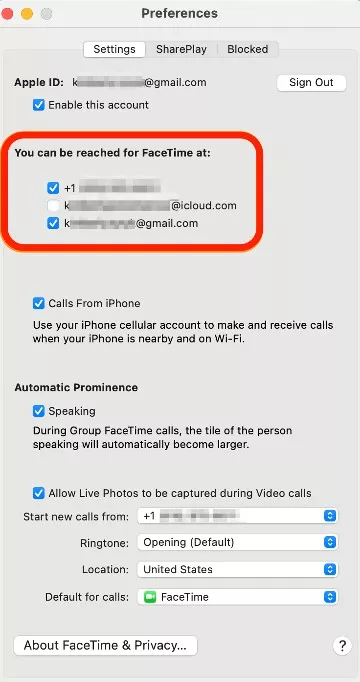
Check settings carefully. Small changes can stop common problems fast. Focus on camera, microphone, and account settings for best results.
Camera And Microphone Access
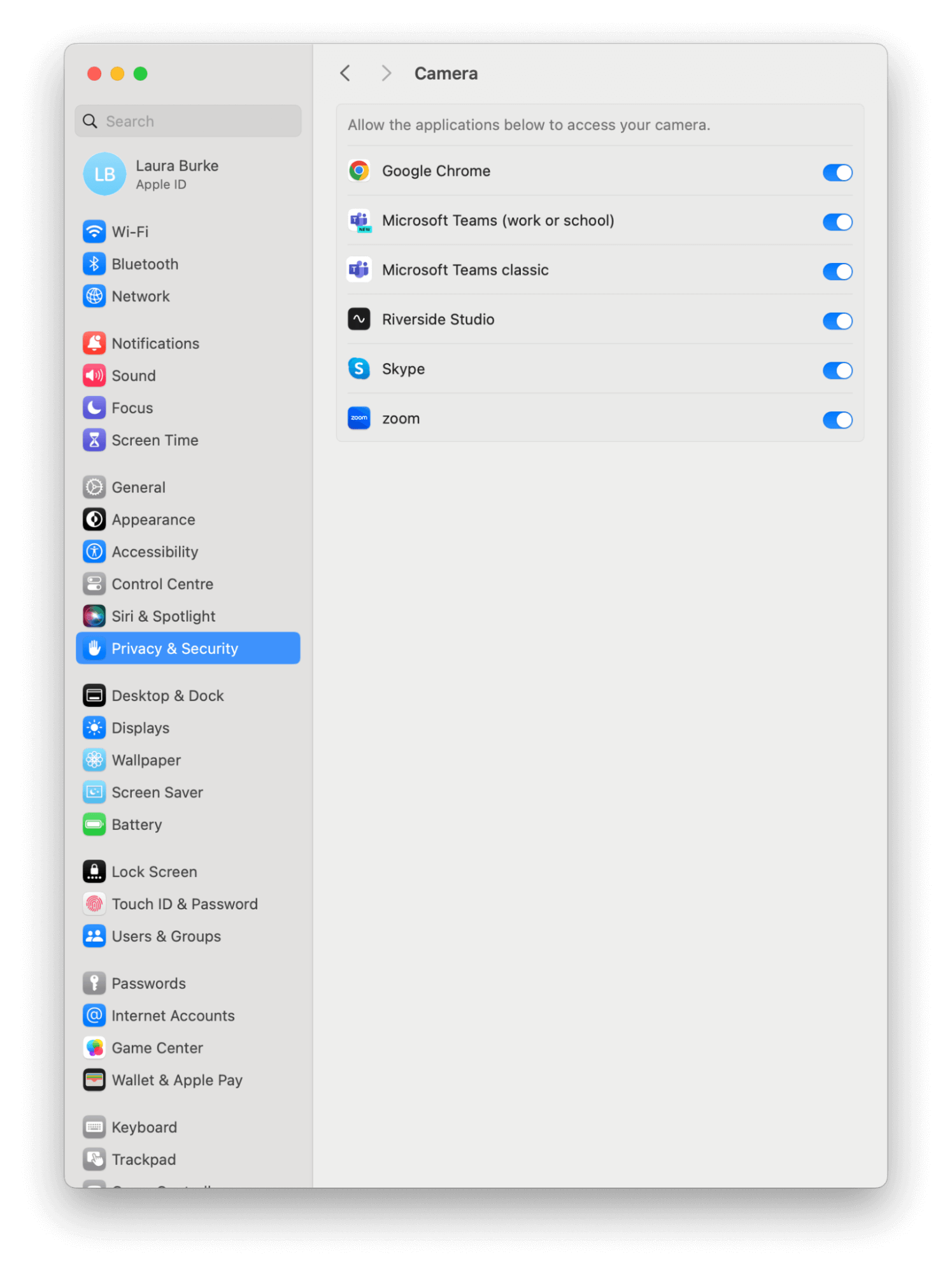
FaceTime needs permission to use your camera and microphone. Without access, video or sound may not work. Open your desktop settings and find privacy options. Allow FaceTime to use both camera and microphone. Restart FaceTime after changing these settings. Test a call to see if video and sound are clear. Update your device drivers if access issues continue. This step solves many common hardware problems.
Account And Sign-in Issues
FaceTime requires a valid Apple ID to sign in. Enter your username and password correctly. Check your internet connection before signing in. If FaceTime won’t log in, reset your password on Apple’s website. Sign out and then sign in again to refresh the account. Make sure your Apple ID is verified with Apple. Account problems often cause call failures or error messages. Keep your FaceTime app updated to avoid bugs affecting sign-in.
Reset Facetime App
Resetting the FaceTime app can fix many common issues quickly. It clears out temporary problems that stop FaceTime from working well. This process does not affect your personal data or settings. It just refreshes the app to run smoothly again.
Two simple ways to reset FaceTime include clearing the cache and reinstalling the app. Both methods are easy and safe to do.
Clearing Cache
Clearing the cache removes temporary files stored by FaceTime. These files can slow down the app or cause glitches. To clear the cache, close FaceTime completely first. Then, go to the system settings or Finder and find the FaceTime cache folder. Delete the files inside. Restart FaceTime to see if it works better now.
Reinstalling Facetime
Reinstalling FaceTime means deleting the app and installing it again. This fixes deeper issues that clearing cache cannot solve. First, uninstall FaceTime from your desktop. Then, download the latest version from the official Apple website or App Store. Install the app and sign in with your Apple ID. This fresh version often runs without errors.
Use Alternative Solutions
Sometimes FaceTime on desktop may not work as expected. Use alternative solutions to keep your video calls going. These options help you stay connected without delay. They offer simple ways to continue your conversations smoothly.
Third-party Apps
Several apps provide video calling features similar to FaceTime. Apps like Zoom, Skype, and Google Meet work well on desktop. They support group calls and screen sharing. Most apps run on Windows and Mac. These tools are easy to download and use. They offer reliable video and audio quality. Using third-party apps can save your call when FaceTime fails.
Temporary Workarounds
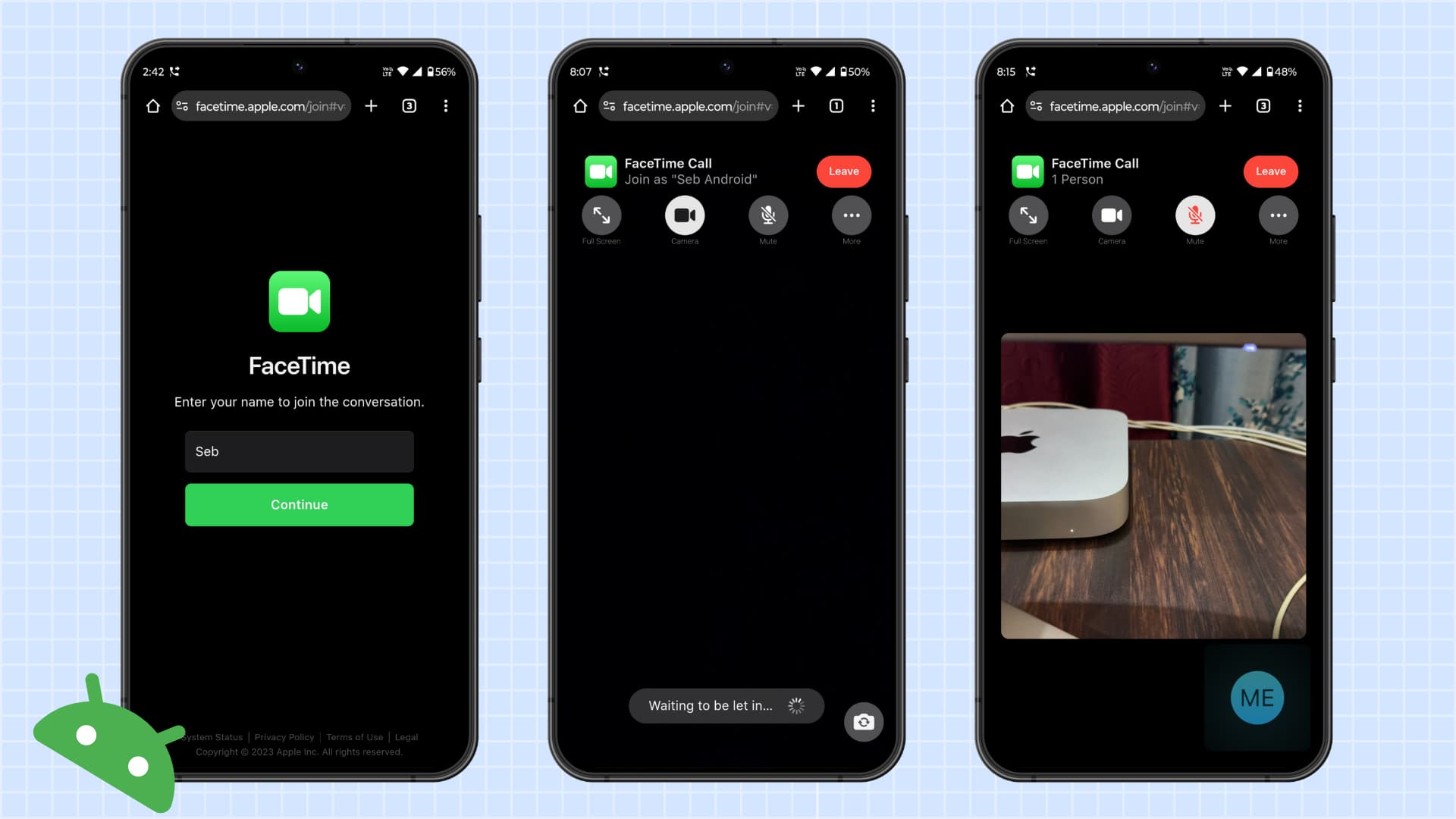
Restart your computer or FaceTime app to fix minor bugs. Check your internet connection for stability. Use a mobile device for FaceTime if desktop issues persist. Switching to a web-based video call service helps too. These quick fixes keep your communication active. They work until you solve the main problem with FaceTime.
Frequently Asked Questions
How Do I Fix Facetime Not Connecting On Desktop?
Check your internet connection and restart your computer. Ensure FaceTime is updated and signed in with the correct Apple ID.
Why Is My Facetime Camera Not Working On Desktop?
Make sure the camera is not blocked by another app. Check camera permissions in system settings and restart the FaceTime app.
How Can I Improve Facetime Call Quality On Desktop?
Use a strong Wi-Fi or wired connection. Close other apps using internet and move closer to your router.
What To Do If Facetime Audio Is Not Working On Desktop?
Check if your microphone is muted or blocked. Verify microphone settings in system preferences and test with another app.
Why Does Facetime Keep Crashing On My Desktop?
Update your operating system and FaceTime app. Restart your device and remove any conflicting software that may cause crashes.
Conclusion
Troubleshooting FaceTime on your desktop can be simple and quick. Check your internet connection and update the app first. Restart your computer if FaceTime still doesn’t work. Make sure your settings allow FaceTime to use the camera and microphone. Try signing out and back into your Apple ID.
If problems continue, visit Apple’s support page for help. These steps fix most common issues fast. Stay patient, and your FaceTime should work smoothly again soon.