If your card printer is failing to print or showing errors, the most effective fargo dtc1250e troubleshooting involves checking your physical connections, ribbon supply, and driver status. Most issues arise from a simple communication break between the computer and the device or a physical blockage within the card path. Before you call for support, ensure your power cable is firm and your USB or network cable is plugged directly into the machine, not a hub.
Troubleshooting Fargo DTC1250e errors
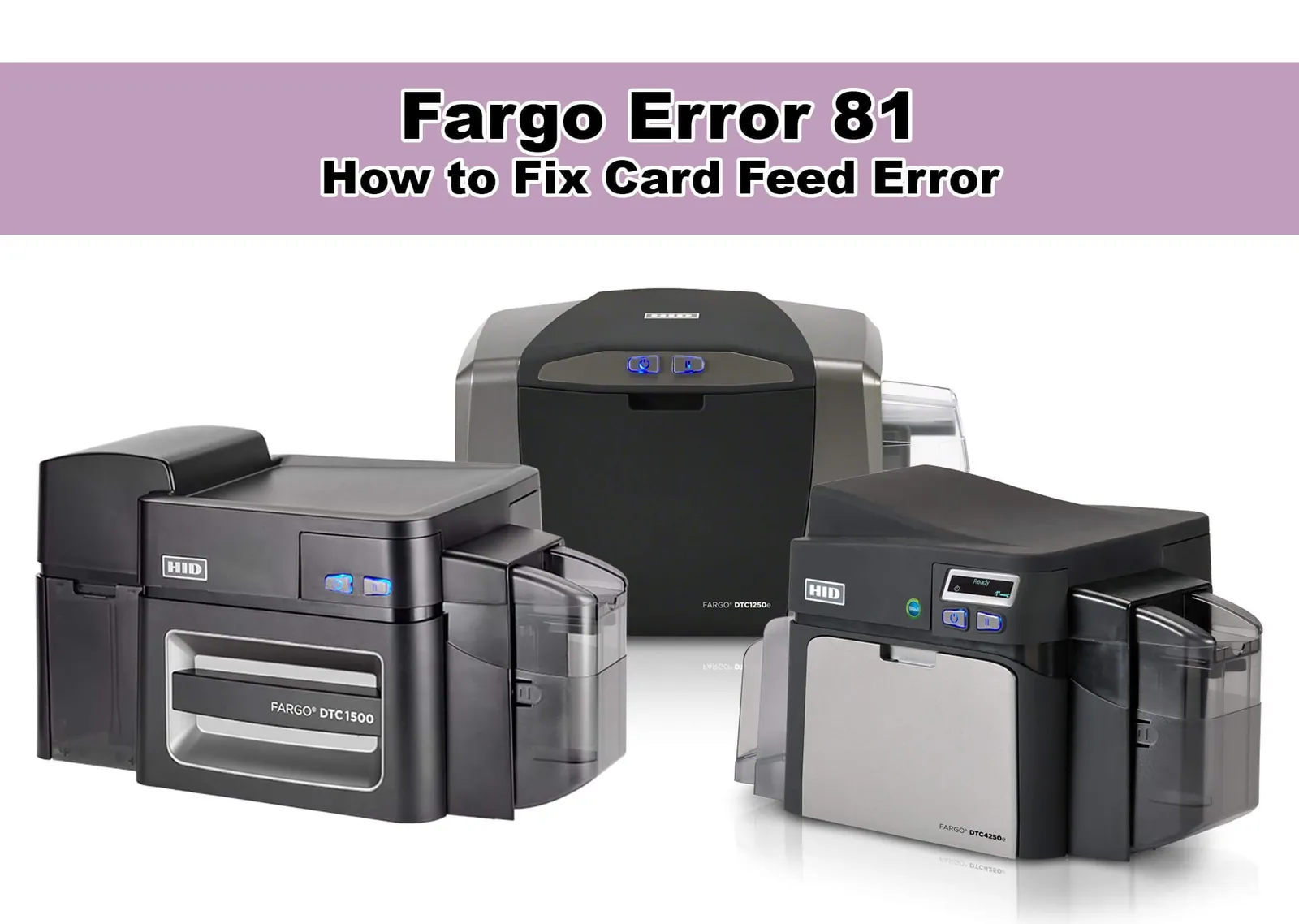
The primary cause of failure is usually a mismatched driver or a physical obstruction like dust or a stray card fragment. When the printer stops responding, the first step is to check the status monitor on your computer screen. If the display shows “Ribbon Out” or “Card Jam,” the problem is physical. If the status says “Offline” or “Not Found,” the issue is likely a connection or software conflict.
Most users mistakenly attempt to reinstall the entire driver suite when an “Offline” error appears. This rarely works because the issue is usually a static IP address conflict or a loose USB cable. Before deleting software, ping the printer’s IP address from your command prompt. If you receive a “Request Timed Out” message, the issue is your network connection, not the driver.
You should also examine the printer’s internal sensors. These sensors detect the presence of the ribbon and the card stock. If they’re covered in dust from the cards, they may falsely report an error. A simple cleaning cycle using the manufacturer-provided kit often resolves these sensor-related faults.
If the printer light is flashing amber, it indicates a hardware fault that requires immediate attention. Count the flashes to identify the specific error code in your manual. A steady amber light often signals a printhead overheat, which requires a ten-minute cooling period before the device will resume operation.
Clear the card path
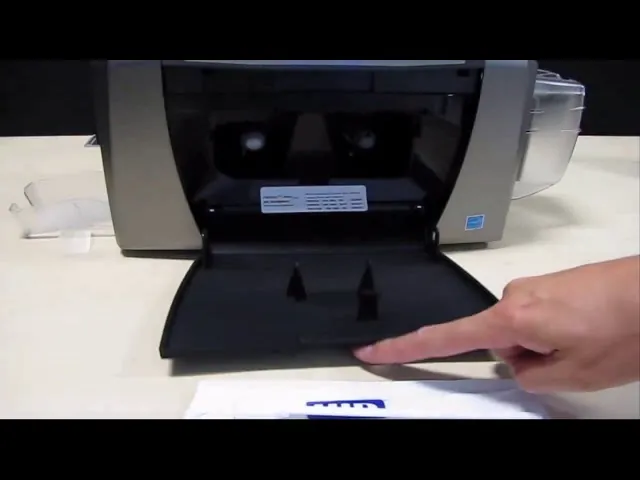
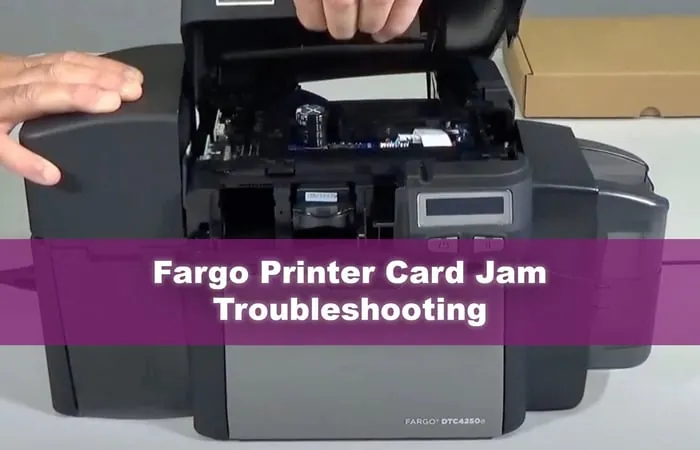
If the printer reports a jam, you must first turn off the device and unplug the power cord to avoid injury. Open the top cover and gently remove the ribbon cartridge to get a clear view of the feed path.
Check for any half-printed cards or scraps of plastic lodged near the rollers. If you see a card, pull it out slowly in the direction of the travel path. Never use sharp tools like metal screwdrivers to pry out stuck cards, as this can scratch the print head.
If you can’t see the card, look for a “ghost jam.” This occurs when the card is stuck inside the flipper module or the output hopper, rather than the main print path. If the card is hidden deep within the flipper, don’t force it. Instead, gently rotate the manual feed knob to nudge the card toward the exit. Forcing a card against the motor’s resistance often strips the plastic gears, turning a simple jam into a permanent mechanical failure.
Once the path is clear, inspect the rollers for sticky residue or debris. If the rollers look dirty, use a lint-free cloth dampened with 99% isopropyl alcohol to wipe them clean. Let the rollers air dry for at least 5 minutes before you put the ribbon back.
If the printer continues to report a jam after you have cleared the path, the internal sensor might be faulty. A persistent error message despite an empty path usually indicates a blocked optical sensor. Use a can of compressed air to blow out any dust from the sensor housing. If the error remains, consult the HID Global Fargo technical support page to check if your specific serial number has a known sensor recall or requires professional hardware repair.
Reset the print driver
Software conflicts often occur when multiple print jobs are queued or the driver settings don’t match your card stock. Start by canceling all pending print jobs in the Windows Print Queue. Once the queue is empty, restart your computer and the printer. If the machine still doesn’t print, uninstall the current driver and download the latest version from the official manufacturer website.
When you install the new driver, ensure that the card size settings match your actual plastic cards. Using the wrong card type setting causes the printer to search for a card that isn’t there, leading to a “Media Out” error. Most users mistakenly assume the driver updates automatically; failing to manually reinstall it after a major OS update is the most common cause of persistent communication errors.
If you’re using a network connection, verify that the static IP address assigned to the printer hasn’t been changed by your router. If you have a dynamic IP setup, you may need to update the printer port in your driver settings to match the new address.
To check this, open the Printer Properties, navigate to the Ports tab, and confirm the IP listed matches the one displayed on the printer’s physical control panel. If they differ, the printer will remain offline indefinitely. When in doubt, always assign a static IP through your router’s DHCP reservation table to prevent these connectivity drops from recurring.
Clean the print head
If your cards show white lines or faded spots, the print head likely has debris on it. To fix this, use a dedicated cleaning card or a swab dipped in 99% isopropyl alcohol. Gently wipe the print head in one direction only, moving from the center toward the outside edges. Never touch the print head with your fingers, as the oils from your skin can cause permanent damage to the heating elements.
This process is for users who see visible print defects. Before you start, perform a test print to confirm the issue isn’t a software driver error or a low ribbon supply. If the lines remain in the exact same position on every card, the debris is fixed to the head. If the lines shift or change, the problem is likely your ribbon or card stock.
If the print head is physically cracked or has a burned-out pixel, cleaning won’t fix the issue. A damaged print head is a permanent hardware failure that requires a professional replacement. If you aren’t comfortable handling the print head, contact an authorized service center to perform the maintenance.
Improper handling can void your warranty and lead to expensive repair costs that exceed the value of the printer. Never attempt to clean the head while the printer is actively heating or cycling, as this can cause electrical shorts.
Avoid common mistakes
Forcing the card tray: Never push a jammed tray. If the mechanism resists, the plastic locking clips are likely already misaligned. Forcing it will snap these clips, which renders the tray unable to seat properly. If the tray sticks, power down the unit and gently nudge the internal gear release instead.
Using cheap cards: Low-quality cards often feature rough edges or inconsistent thicknesses. These create plastic dust that clogs the rollers and eventually ruins the print head. If you notice white streaks on your prints, stop immediately; this is a sign of debris buildup.
Ignoring warning lights: Continuing to print when the status light is amber can turn a minor jam into a permanent hardware failure. If the light persists, clear the path and perform a hard reset.
Cleaning with water: Never use water or household cleaners on internal parts. These leave conductive residues that damage sensitive thermal components. If you must clean the print head, use only 99% isopropyl alcohol and a lint-free swab. This prevents short circuits and ensures the longevity of the heating elements.
Prevent future printer issues
You can keep your printer running smoothly by following a set schedule for cleaning and maintenance. The following table outlines how to manage your device to avoid common errors.
| If you’re doing this | Do this instead | Why |
|---|---|---|
| Leaving the printer on | Power it down nightly | Saves the print head life |
| Using generic ribbons | Use official Fargo media | Ensures proper sensor alignment |
| Ignoring dust buildup | Use a cleaning kit monthly | Prevents sensor error messages |
| Printing in high heat | Keep in a cool room | Prevents ribbon from melting |
Frequently Asked Questions
Can I use rubbing alcohol to clean the print head?
You should use 99% pure isopropyl alcohol to clean your print head. The extra water in 70% alcohol can corrode delicate electronic components. If you lack 99% alcohol, use a manufacturer-approved cleaning card kit to avoid damage.
Why is my printer showing a ribbon error when a new ribbon is installed?
The printer likely needs a sensor calibration to recognize the new ribbon. Remove and reinsert the cartridge until it clicks, then run a manual calibration via the control panel. If errors persist, the sensor may be obstructed or at its end of life.
How long does a print head usually last?
A print head typically lasts for 50,000 to 100,000 prints depending on usage intensity. You can monitor your current print count through the printer status software. High heat or low-quality cards will significantly shorten the lifespan of your print head.
Is it safe to open the printer housing?
You shouldn’t open the internal housing unless you’re a certified technician. Opening the case exposes you to delicate mechanical parts and internal circuitry. Contact a professional repair service for internal issues to avoid electric shock or permanent damage.
What happens if I use the wrong driver for my operating system?
Using an incorrect driver causes communication errors, leading to spooler crashes or blank cards. The driver acts as a translator between your computer and the printer’s internal language. Always download the version matching your operating system from the official support site.
Conclusion
If these quick fixes don’t get your printer running smoothly, don’t worry. Sometimes a deeper internal cleaning or a firmware update is all it takes to restore performance. You should reach out to your authorized dealer if you’re still stuck, as they’ll help you get back to printing high-quality cards quickly.