If your doorbell isn’t working, performing simple feit doorbell troubleshooting steps like checking your Wi-Fi signal and power supply usually fixes the issue. Most connection problems happen because of a weak signal or a drained internal battery. You can often resolve these issues by resetting the device or ensuring the transformer provides the correct voltage. If the device remains unresponsive after these checks, you should contact the manufacturer for further support.
Troubleshooting Feit doorbell connection issues
The most common cause for a smart doorbell to stop working is an unstable Wi-Fi connection. Since these devices stream high-definition video, they require a strong, consistent upload speed. If your router is too far from the door, or if there are thick walls between them, the doorbell will frequently disconnect or fail to send notifications to your phone.
Finally, software glitches can cause the device to freeze or stop responding to commands. This often happens after a router update or a power surge in your home. If the device is physically powered but not appearing in your app, the internal firmware may need a refresh. If you suspect a hardware failure due to physical damage or water ingress, you should stop using the device and consult a professional installer.
Reset the device settings
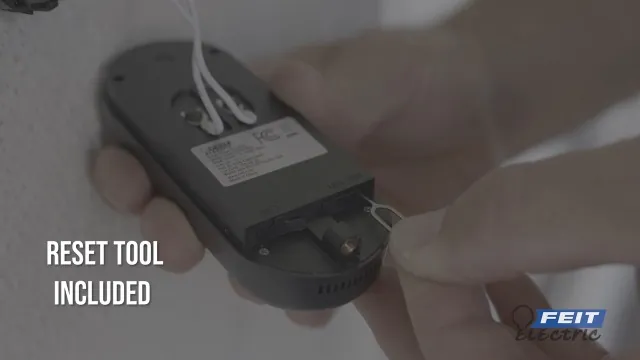
If your doorbell is powered on but won’t connect to your network, a factory reset is often the best approach. This process clears out old network configurations that might be preventing the device from communicating with your router. To reset the unit, locate the small reset button usually found under the faceplate or near the SD card slot.
Press and hold the reset button for about 10 to 15 seconds until you hear a tone or see the status light blink. Once the reset is complete, the device will return to pairing mode. You’ll need to open your mobile app and follow the setup instructions as if you were installing the doorbell for the first time.
This fix is for users who have confirmed the unit has power but can’t see the device in their app. If you don’t have your original Wi-Fi password or the app login credentials, you should recover those before attempting a reset. If the unit doesn’t enter pairing mode after holding the button for the required time, it may indicate a hardware fault.
Check the power supply
When the doorbell doesn’t turn on at all, the issue is almost certainly the power source. You should first verify that the circuit breaker for your doorbell is in the “on” position. If the breaker is fine, the problem likely lies with the transformer, which converts high-voltage house current into the lower voltage the doorbell needs.
A simple way to check if the doorbell is receiving power is to look for a status light on the front of the unit. If there’s no light, use a voltage tester to ensure the wires at the doorbell location are live. If you aren’t comfortable working with electrical wiring, it’s safer to hire a licensed electrician to measure the voltage at your door.
This fix is intended for those who have confirmed the device is correctly wired but still shows no signs of life. If the wires are loose or corroded, clean them gently with a dry cloth before re-attaching them. Never attempt to force a wire into a terminal if it doesn’t fit, as this can damage the internal components of the doorbell.
Optimize the wireless signal
If your doorbell connects but the video feed is laggy or drops out, the issue is signal interference. Many household items, such as microwaves and cordless phones, can interfere with your 2.4GHz Wi-Fi network. You can often improve performance by moving your router closer to the door or using a Wi-Fi range extender to boost the signal strength in the entryway.
This fix is for users whose doorbell is online but experiences poor video quality or delayed motion alerts. If you have a dual-band router, try to ensure the doorbell is connected to the 2.4GHz band, as this signal travels through walls better than the 5GHz band. If your signal strength remains low even after adding an extender, you may need to upgrade your router.
If you’re still having trouble after checking these settings, consider if there are large metal objects near the doorbell. Metal can block wireless signals and reduce the effective range significantly. For complex network issues, consult your internet service provider to verify if your current bandwidth supports multiple high-definition security devices simultaneously.
Common troubleshooting mistakes
Ignoring the Wi-Fi frequency: Attempting to force the doorbell onto a 5GHz network when it only supports 2.4GHz will prevent the initial pairing from completing. Check your router settings; if you see two separate SSIDs, always select the one labeled 2.4G to ensure the handshake succeeds.
Blocking the sensor: Placing the doorbell behind a metal screen door can block both the motion sensor and the Wi-Fi signal, leading to missed alerts. If you must mount it on metal, use a plastic wedge kit to angle the device away from the frame.
Skipping the app update: Using an outdated version of the mobile app can cause compatibility issues that prevent the doorbell from streaming video correctly.
Over-tightening screws: Forcing the mounting screws too hard can crack the housing or damage the internal wiring, which might create an intermittent electrical connection. Once the device feels snug against the wall, stop turning; if it wobbles, use a silicone gasket instead of more torque.
Improve doorbell performance
If you find that your doorbell is still not performing as expected, compare your current setup against the recommended standards. Small adjustments to your environment can lead to much more reliable performance and fewer connection drops.
| If you’re doing this | Do this instead | Why |
|---|---|---|
| Mounting on metal | Use a non-metallic spacer | Metal blocks the wireless signal |
| Using high-voltage wiring | Install a 16V-24V transformer | Prevents internal component burnout |
| Ignoring router distance | Add a Wi-Fi range extender | Ensures stable video streaming |
| Leaving app un-updated | Enable automatic app updates | Fixes known software bugs |
Many users mistakenly place their router behind a concrete wall or large appliance. If your signal strength is below 60% RSSI in the app settings, the device will struggle to maintain a live feed. Move your access point to a central, elevated location to cut through interference.
If your doorbell experiences “ghost rings” or resets during cold weather, your transformer is likely underpowered. Check the label on your current unit. If it provides less than 10VA of power, it can’t support the infrared night vision mode. Replace it with a 30VA model to solve the issue permanently.
Frequently asked questions
Can I fix a doorbell that won’t turn on?
You can often fix power issues by checking your circuit breaker. If the breaker is on and the wires are secure, the internal hardware is likely faulty. In this case, reach out to the manufacturer for a warranty replacement rather than attempting to open the device yourself.
How long does a factory reset take?
A factory reset typically takes about 30 seconds to complete. Hold the reset button for 10 to 15 seconds, then wait another 15 seconds for the unit to reboot and enter pairing mode. If the status light doesn’t change after this time, the reset didn’t register.
Why is my doorbell video feed lagging?
Lagging video usually happens when the doorbell has a weak connection to your Wi-Fi router. A low signal strength means the device struggles to upload video data quickly enough for smooth playback. You can check the signal strength in your mobile app settings. If it shows fewer than two bars, moving your router or adding a Wi-Fi extender will improve the feed speed and reduce the delay.
Is it safe to replace the doorbell wiring myself?
It’s safe to replace the wiring if you turn off the power at the main breaker before touching any cables. You must use a voltage tester to verify the wires are dead before you start working. If you aren’t familiar with electrical systems or if the wiring looks damaged or frayed, it’s much safer to hire a professional electrician to handle the repair to avoid electrical shock.
What happens if I use an incompatible transformer?
How often should I reset my doorbell?
You should only reset your doorbell if you’re experiencing persistent connection issues that other troubleshooting steps haven’t solved. A reset is a last resort because it clears your saved settings and requires you to reconfigure the device in your app. There’s no need to perform a reset on a regular schedule, as the device should maintain its connection automatically under normal operating conditions.
Conclusion
When your doorbell fails to function, always start by verifying your power and Wi-Fi stability before assuming the device is broken. Most issues are resolved by simply ensuring the hardware receives enough energy and the network signal is strong enough to handle the video stream. If these basic steps don’t resolve your problem, contact the manufacturer’s official support team for further guidance on your specific model.