You can resolve most Fellowes laminator issues by checking the pouch thickness, carrier usage, and machine temperature. The most common cause of jams is using a pouch that exceeds your model’s capacity or failing to use a required carrier sheet. If a jam occurs, avoid pulling the pouch, as this can damage the internal rollers.
Troubleshoot common Fellowes laminator problems
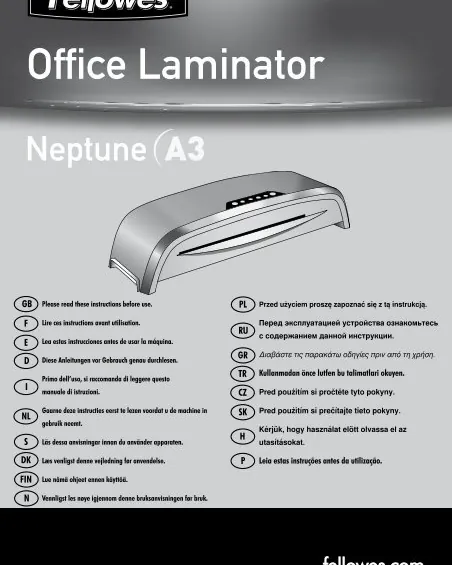
Most problems occur because the internal rollers aren’t gripping the document properly or the adhesive is melting at the wrong speed. When a pouch wraps around the rollers, it’s usually because the document inside is too small or the pouch was fed into the machine at an angle. If you feed the pouch crooked, it will likely catch on the internal frame, leading to a permanent jam.
Another frequent cause is selecting the wrong temperature setting for the pouch mil thickness. If you use a 5-mil pouch on a setting designed for 3-mil material, the adhesive may become too thin and runny. This excess glue leaks onto the rollers, creating a sticky layer that catches subsequent pouches. You can check the Fellowes official user manuals to confirm the exact pouch thickness compatibility for your specific model number.
Finally, some issues stem from worn-out rollers that have lost their grip. If you have used the machine heavily for several years, the silicone coating on the rollers might be smooth and slick. When this happens, the machine can’t push the plastic through the exit slot, causing a backup. If the motor is running but the rollers aren’t turning, the internal drive belt may have slipped or broken.
Clear a jammed pouch safely
If your machine is stuck, you must act carefully to avoid breaking the heating element. First, locate the release lever, which is usually found on the back or side of the unit. This lever moves the rollers apart so you can pull the pouch out by hand. If you don’t have a release lever, press the reverse button immediately to back the document out of the feed slot.
This fix is for users who have a minor jam where the edge of the pouch is still visible. If the pouch has disappeared completely inside the housing, don’t try to reach inside with metal tools like screwdrivers or knives. You risk damaging the delicate plastic gears or getting an electric shock.
The primary mistake users make is tugging on the pouch while the rollers are still engaged. This often tears the laminate, leaving a jagged plastic remnant wrapped around the internal mechanism that requires a total teardown to clear. If the pouch is fully inside, turn the power off, unplug the cord, and contact a professional repair shop.
Never attempt to open the outer casing yourself, as this voids your warranty and exposes live electrical components. Always check the feed alignment before restarting; if the pouch entered at an angle, the rollers will likely jam again immediately.
Adjust the temperature and speed settings
If your documents are coming out cloudy or with bubbles, the heat is likely too low for the pouch you’re using. Start by ensuring the machine has fully reached the “ready” light status before you insert anything.
For very thin paper, the machine might be too hot, causing the pouch to curl as it exits. If you see waves or ripples in the plastic, lower the temperature setting by one level if your model allows it.
If your laminator is a fixed-temperature model, try feeding a piece of thicker carrier board behind your document to provide extra support and even pressure. This helps to smooth out the plastic before it hardens. You can tell this worked when the finished document is perfectly flat and the edges are sealed tightly without any gaps.
Many users make the mistake of pulling the document as it exits. This tension stretches the hot plastic, creating permanent distortion. Let the machine pull the item through at its own pace. If the document exits with a milky haze, the adhesive isn’t melting. If it comes out with brown streaks or scorched edges, the heat is too high. In that case, increase the feed speed if possible to reduce the time the document spends in the heating element.
Clean the rollers to prevent streaks
Streaks or marks on your finished documents often mean that old adhesive has built up on the rollers. To clean them, wait until the machine is completely cool and unplugged from the wall. You can use a folded piece of heavy cardstock to gently wipe the rollers while they’re still accessible through the feed slot. Never use liquid cleaners, solvents, or abrasive pads on the rollers, as these will ruin the silicone surface.
This method is ideal for light maintenance but won’t fix deep gouges or heavy glue deposits. If you see dark black lines running along the length of your laminated sheets, those are permanent marks from damaged rollers. In this case, cleaning won’t help, and you’ll likely need to replace the machine. If you’re unsure if the rollers are damaged, shine a flashlight into the feed slot and look for uneven textures or peeling bits of rubber.
A common mistake is forcing the cardstock through the mechanism while the motor is engaged. This can snap internal gears or stretch the drive belts. Always rotate the rollers manually using the machine’s reverse lever or a manual feed knob. If the resistance feels uneven as you turn, you have likely found a hardened glue patch that requires a second, firmer pass with the cardstock.
Avoid these common lamination mistakes
Using a carrier sheet when not needed: Some modern machines are designed to run without carriers. Using one unnecessarily creates excess thickness that triggers internal sensors, causing the document to jam or stall mid-cycle. Check your manual; if it specifies “pouch-free” technology, leave the carrier in the drawer.
Forcing a jammed pouch out: Pulling hard on a stuck pouch stretches the internal drive belt or snaps the plastic gears. This damage often costs more to repair than purchasing a brand-new unit. If a jam occurs, use the reverse button immediately. If the machine lacks a reverse feature, power it down and wait for the rollers to cool before gently sliding the pouch free.
Laminating heat-sensitive items: Thermal paper, wax-based prints, and some glossy photographs react poorly to heat. These items will turn black or melt, ruining the original document permanently. If you’re unsure, test a small corner of a similar scrap paper first. If the surface becomes tacky or discolored, use a cold-lamination pouch instead.
Turning off the machine too early: Always allow the cooling cycle to finish. This leads to uneven sealing in future projects.
Improve your lamination process
| If you’re doing this | Do this instead | Why |
|---|---|---|
| Feeding the pouch manually | Let the rollers pull it in | Hand-feeding causes misalignment |
| Laminating small items | Use a larger pouch then trim | Small items shift and jam easily |
| Rushing the process | Wait for the ready light | Heat-up time ensures a tight seal |
| Leaving the machine on | Turn it off after use | Prevents unnecessary roller wear |
Never force a pouch into the intake slot. If the rollers grab unevenly, you create a permanent diagonal wrinkle that ruins the document. If you feel resistance, stop immediately and use the reverse function to clear the path.
When laminating multiple small items, leave at least one inch of space between them. Cutting too close to the edge destroys the thermal seal, allowing air to penetrate and eventually causing the plastic to peel.
Most users ignore the “ready” light, but waiting an extra sixty seconds after the signal ensures the internal heat distribution is uniform. If the machine feels lukewarm to the touch, the adhesive won’t flow properly, leading to cloudy spots. Professional results depend on consistent heat, not just speed.
Frequently asked questions
Can I fix a Fellowes laminator that won’t heat up?
No, you can’t fix a heating element failure yourself if the unit fails to reach the ready state. These issues typically involve internal electrical components like thermal fuses or heating coils. If the machine remains cold after checking the power connection, it has reached the end of its service life and requires replacement.
How long does a Fellowes laminator take to warm up?
Most standard models take 3 to 5 minutes to reach the correct temperature. You can verify this by waiting for the indicator light on the top panel to turn solid. If the light doesn’t change after 10 minutes, the thermostat is likely broken and requires professional repair.
Is it safe to use a knife to clear a jam?
No, it’s never safe to use metal tools to clear a jam inside a laminator. These tools can scratch the rollers and cause permanent damage to future documents. If the jam is too deep to reach with your fingers or the release lever, you must contact a qualified repair technician.
Why is my pouch coming out cloudy?
Cloudiness usually happens because the temperature is too low to fully melt the adhesive inside the plastic. If your machine has a temperature dial, increase it by one level and try again with a scrap piece of paper. If you’re using a fixed-temperature machine, the pouch might be too thick for the heat output. Always check the pouch packaging to ensure it matches the mil rating recommended in your machine’s manual.
What happens if I use a pouch that’s too thick?
Using a pouch that’s too thick will likely cause a jam because the rollers can’t compress the material. Always check the maximum mil rating on the front of your laminator to ensure compatibility. Forcing a thick pouch into a budget model can snap the drive gears and break the motor.
Conclusion
If your machine still doesn’t run smoothly after these checks, it’s best to contact the manufacturer’s support team directly. They’ll help you determine if you need a professional repair or a replacement part. Don’t hesitate to reach out; they’re ready to get your projects back on track in no time.