Are you frustrated with your Fios service acting up right when you need it most? Whether your internet is slow, your TV won’t connect, or your phone line drops calls, these issues can disrupt your day and leave you feeling stuck.
But don’t worry—this guide will walk you through simple, effective steps to get your Fios service back on track fast. By the time you finish reading, you’ll have the confidence to fix common problems yourself and enjoy smooth, reliable service again.
Keep reading, and take control of your Fios experience today.
Common Fios Issues
Fios internet is popular for its speed and reliability. Still, users face some common issues. These problems can disrupt your online activities. Knowing these issues helps you fix them quickly. Here are some frequent Fios troubles and what they mean.
Slow Internet Speeds
Slow speeds affect streaming and browsing. This may happen due to network congestion or old equipment. Sometimes, many devices use the internet at once. Check your plan and compare real speeds. Restarting your router can help improve speed.
Connection Drops
Frequent disconnections interrupt your work or entertainment. This issue might stem from weak signals or wiring problems. Weather and physical obstacles also cause drops. Inspect cables and avoid placing the router near metal objects.
Router Problems
Router glitches cause many internet issues. Your router might overheat or run outdated firmware. Resetting the router often solves minor bugs. Update firmware regularly to keep it secure and stable.
Wi-fi Signal Weakness
Weak Wi-Fi signals limit coverage in your home. Walls and distance reduce signal strength. Place your router in a central spot. Avoid interference from other electronics like microwaves or cordless phones.

Basic Troubleshooting Steps
Basic troubleshooting steps help fix common Fios issues quickly. These simple actions often solve internet problems. Try these steps before calling support. They save time and effort.
Restarting The Router
Restarting the router resets the connection. Unplug the router from power. Wait 30 seconds. Plug it back in. Wait a few minutes for it to fully restart. This clears temporary glitches.
Checking Cable Connections
Check all cable connections between the router and wall outlet. Make sure cables are plugged in tightly. Look for any damaged or loose wires. Secure all cables to ensure proper signal flow.
Verifying Account Status
Confirm your Fios account is active and in good standing. Visit the official Fios website or app. Log in and check for service alerts or billing issues. An inactive account can cause service interruptions.
Running Speed Tests
Run speed tests to check your internet performance. Use a trusted online speed test tool. Compare the results with your plan’s promised speeds. Slow speeds may indicate a service problem or need for further troubleshooting.
Advanced Fixes
Advanced fixes help solve tricky Fios internet problems. These steps go beyond basic checks and bring your connection back to top shape. Follow these simple techniques to boost your network’s speed and stability. Each method targets common issues that slow down or interrupt your internet.
Resetting The Router To Factory Settings
Resetting the router clears all settings and restores original configurations. This step removes any wrong changes causing connection problems. Press the reset button for 10 seconds until the lights blink. Wait a few minutes for the router to restart. After this, set up your Wi-Fi name and password again.
Updating Firmware
Firmware is the software inside your router. Outdated firmware can cause slow speeds and bugs. Check your router’s admin page for firmware updates. Download and install the latest version carefully. Updates improve performance and fix security issues.
Changing Wi-fi Channels
Wi-Fi channels carry your wireless signal. Crowded channels cause interference and slow internet. Use your router’s settings to switch channels. Choose a less busy channel for a clearer signal. This step reduces interruptions and boosts Wi-Fi speed.
Optimizing Router Placement
Where you place your router matters. Keep it in a central, open area away from walls and metal objects. Avoid placing it near microwaves or cordless phones. Higher placement, like on a shelf, improves coverage. Good placement increases signal strength and reduces dead zones.
Device-specific Tips
Troubleshooting Fios can be easier with device-specific tips. Different devices need different steps. This section helps you fix issues on smartphones, tablets, laptops, and smart home gadgets. Follow simple guides to get your devices working smoothly again.
Troubleshooting Smartphones And Tablets
Start by checking your Wi-Fi connection on the device. Turn Wi-Fi off and on again to refresh the link. Restart your smartphone or tablet to clear temporary issues. Forget the Fios network, then reconnect by entering the password again. Make sure your device software is up to date. Close unused apps that may slow down the connection. Test with another Wi-Fi network to see if the problem is with Fios or the device.
Fixes For Laptops And Pcs
Check the network settings on your computer first. Disable and enable the Wi-Fi adapter to reset the connection. Restart your laptop or PC to clear glitches. Run the Windows or macOS network troubleshooter for automatic fixes. Clear your browser cache to fix slow internet issues. Update your network drivers to improve performance. Use an Ethernet cable to test if Wi-Fi is the problem.
Smart Home Device Connectivity
Ensure your smart device is within range of your router. Restart the device to refresh its connection. Power cycle your Fios router by unplugging it for 30 seconds. Check for firmware updates on your smart home gadgets. Use the Fios app to manage and troubleshoot connected devices. Separate devices on a guest network to reduce congestion. Confirm the device supports your Wi-Fi frequency (2.4 GHz or 5 GHz).
When To Contact Support
Knowing when to contact support can save time and frustration. Some issues need expert help. Others can be fixed with simple steps. Understanding the difference helps you get back online faster.
Identifying Persistent Problems
Some problems clear up after a restart or wait. Persistent problems last longer than a few hours. Frequent disconnections or slow speeds count as persistent. Errors with your account or billing may also need support. If basic fixes do not work, it’s time to call.
Preparing For A Support Call
Gather your account details and device information first. Note the exact problem and when it started. List any error messages or strange behavior. Be ready to describe the steps you tried to fix it. This helps support solve the problem faster.
Using Online Resources And Forums
Many answers appear in support pages or user forums. Search for your issue before calling. Online guides can walk you through fixes step-by-step. Forums show real user experiences and solutions. Use these tools to save time and effort.
Preventive Measures
Preventive measures help keep your Fios internet stable and fast. Taking small steps can stop many common issues. These actions save time and avoid frustration. Focus on regular care, security, and watching your network.
Regular Router Maintenance
Clean your router often to avoid dust buildup. Dust can cause overheating and slow down speed. Restart the router once a week to refresh connections. Check for firmware updates to improve performance. Place the router in an open area for better signal.
Securing Your Network
Set a strong password for your Wi-Fi network. Avoid easy passwords like “12345678” or “password.” Use WPA3 or WPA2 encryption for better security. Change your Wi-Fi password regularly to block unwanted users. Disable remote access to protect your network from hackers.
Monitoring Network Performance
Use simple tools to check your internet speed often. Note any slowdowns or disconnections to find patterns. Keep track of connected devices to avoid overload. Restart your router if speeds drop suddenly. Contact support if problems persist after basic checks.

Frequently Asked Questions
What Should I Do If My Fios Internet Is Slow?
Restart your modem and router to refresh the connection. Check for any background downloads or streaming. Also, test the speed using an online tool.
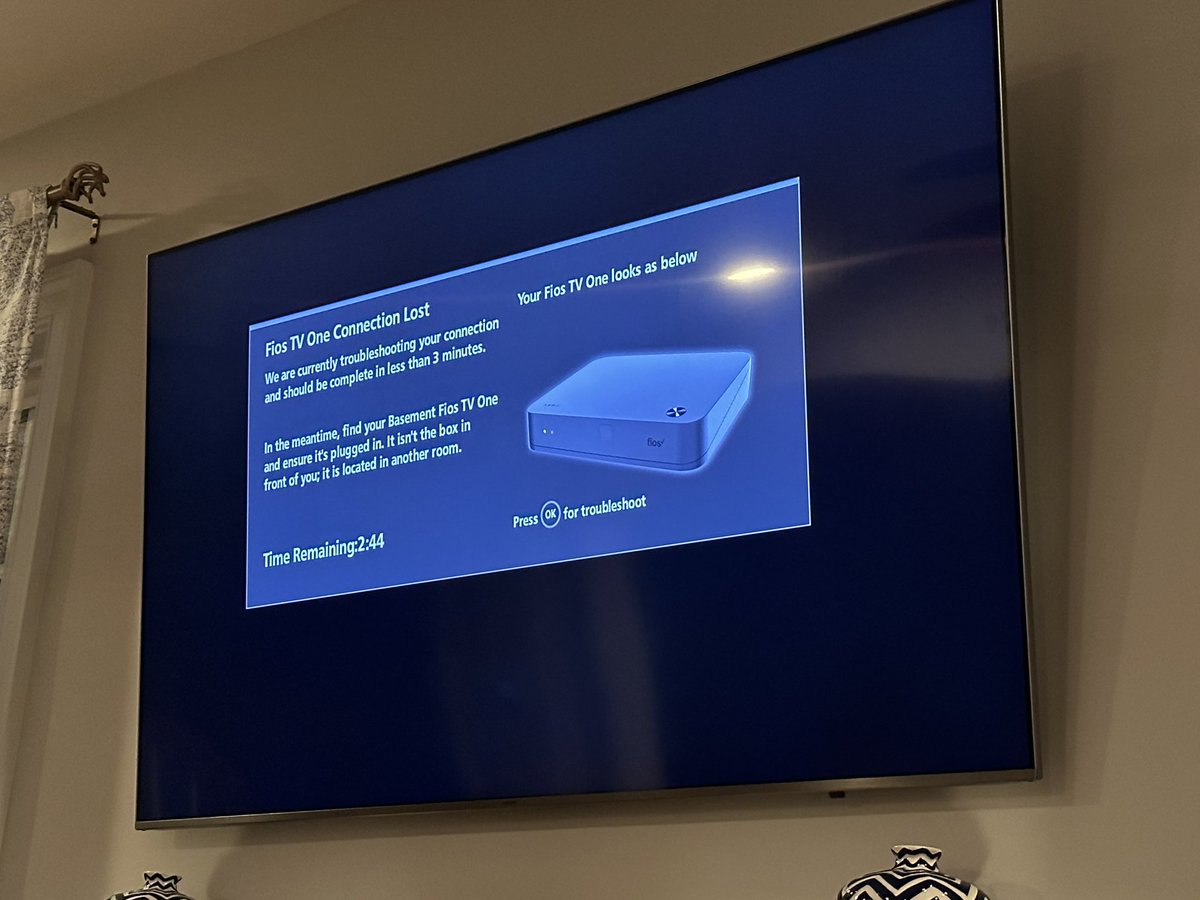
How Can I Fix Fios Tv Signal Issues?
Check all cable connections to ensure they are secure. Restart your set-top box by unplugging it for 30 seconds. Clear any signal obstructions near the receiver.
Why Is My Fios Wi-fi Not Connecting?
Make sure your Wi-Fi is turned on and you are using the correct password. Restart your router to fix temporary glitches. Move closer to the router for better signal.
How Do I Reset My Fios Router Safely?
Locate the reset button on the back of the router. Press and hold it for about 10 seconds using a paperclip. Wait for the router to restart and reconnect.
What Causes Frequent Fios Internet Outages?
Outages may result from network maintenance or severe weather. Faulty wiring and old equipment can also cause drops. Contact Fios support if problems continue.
Conclusion
Troubleshooting Fios problems can be simple with clear steps. Check your connections and restart your devices first. Keep your equipment updated to avoid common issues. Remember, many problems fix quickly with patience and care. Call support only if basic fixes do not work.
Stay calm and follow each step carefully. This helps keep your internet fast and reliable every day.