To fix most issues when you need fire tv cube troubleshooting, you should first unplug the power adapter from the wall outlet, wait 30 seconds, and then plug it back in. This simple power cycle often resolves freezing, remote connection drops, or unresponsive apps. If the device still doesn’t work, the most common cause is a poor internet connection or an outdated software version that needs a manual update. You can manage your device software by visiting the official Amazon help pages to confirm your current system version.
Common Fire TV Cube issues
The most frequent cause of trouble is a weak Wi-Fi signal. Since the device sits near your television, it’s often tucked behind or under metal equipment. Metal blocks wireless signals, leading to buffering or a complete loss of network connectivity. If your device is more than 30 feet from the router, or separated by two or more walls, it will struggle to maintain a stable stream.
A common mistake is assuming the device is broken when it’s simply experiencing a software conflict. Like a computer, the device runs many background processes. If an app crashes, it can hog the system memory and make the interface feel unresponsive. A quick restart clears the temporary memory and stops these hung processes.
Finally, hardware overheating can trigger performance drops. The device generates heat while processing high-definition video. If it’s placed in a closed cabinet with no airflow, the internal temperature rises. This makes the menus feel sluggish and causes video to stutter.
To diagnose this, check the device temperature after an hour of use. If it’s hot to the touch, move it to an open area where air can circulate freely. If the device remains sluggish after moving it to an open shelf, the issue is likely a failing power supply rather than heat.
Restart the system and check cables
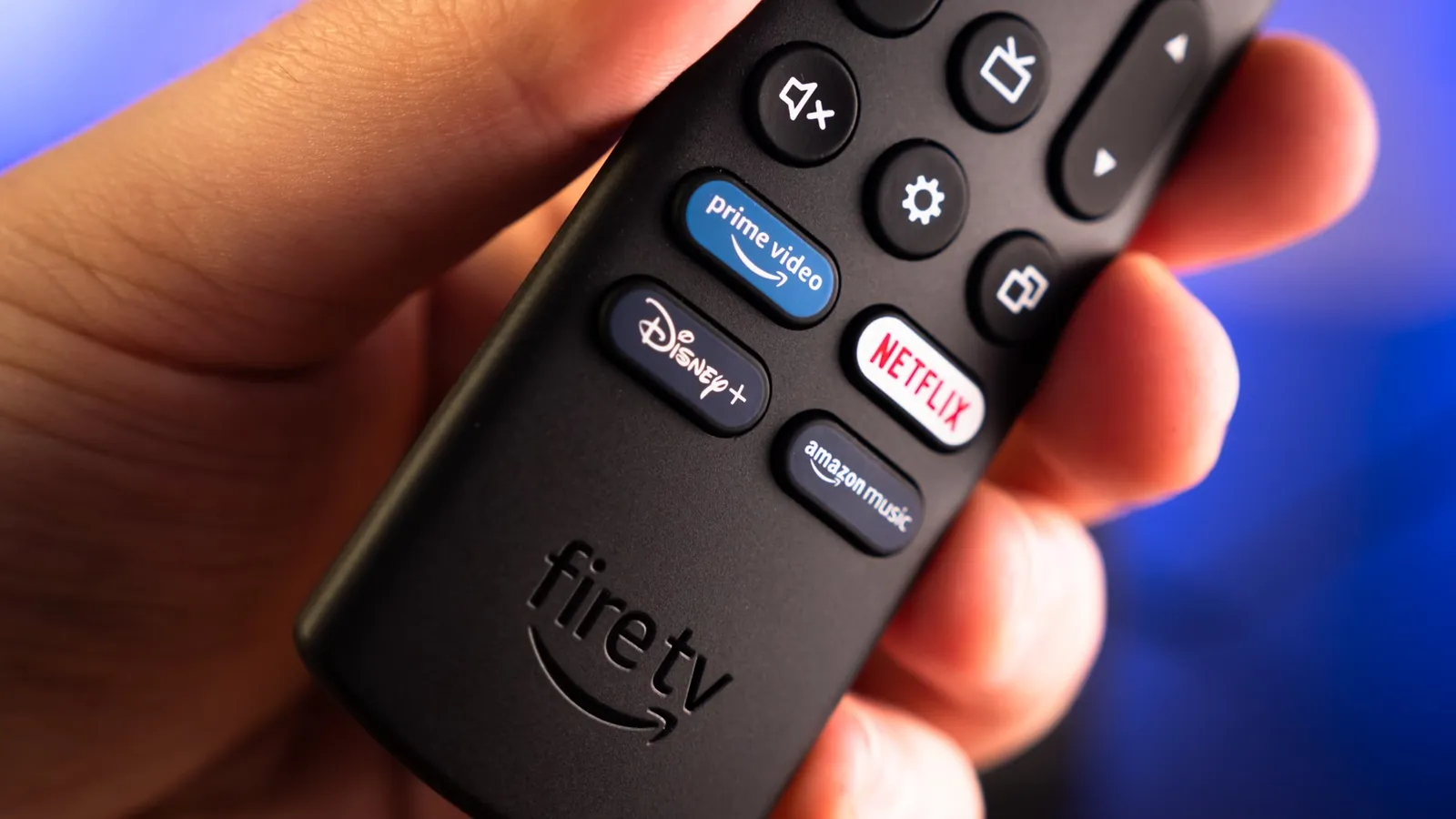
If you’re experiencing glitches, start by performing a full system restart. Use the remote to go to Settings, select My Fire TV, and then choose Restart. If the remote doesn’t respond, unplug the power cord directly from the device or the wall outlet. Leave it disconnected for a full minute to ensure all electrical charge dissipates from the internal capacitors. This clears the system cache and forces a fresh reload of the operating system.
Check all physical connections next. Ensure the HDMI cable is pushed firmly into both the back of your television and the cube. If you use an HDMI extender, try removing it to connect the device directly to the TV port. A damaged or loose cable is a frequent source of “no signal” messages.
This fix is intended for users who have a working power outlet and a functioning TV input. If the device shows a red light or no light at all, it may indicate a failed power adapter. You should never attempt to open the casing of the power brick or the cube itself. If it remains dead after trying a different known-working power outlet, contact the manufacturer’s support team for a potential warranty replacement.
Reset your network connection
When your video buffers or apps fail to load, the issue usually stems from the network settings. Navigate to Settings and select Network to see your current signal strength. If the icon shows only one or two bars, your device is struggling to reach the router. Try moving the router closer or removing obstacles like large speakers or metal shelves that sit between the two devices.
If the signal is strong but the connection is slow, select your network name and press the Menu button on your remote to forget the network. Once forgotten, scan for the network again and re-enter your password. This forces the device to establish a clean handshake with your router. If you have both 2.4GHz and 5GHz bands available, prioritize the 5GHz band for faster streaming speeds.
This method works best for users who have access to their router settings and Wi-Fi credentials. If you’re in a crowded apartment building, many neighbors using the same channel can cause interference. You may need to log into your router’s admin panel to change the Wi-Fi channel to one that’s less congested. If you lack the technical knowledge to change router settings, contact your internet service provider to perform a remote reset of your network equipment.
Update software and clear cache
For persistent app crashes, clearing the cache of the specific application is the most effective step. Go to Settings, select Applications, and then choose Manage Installed Applications. Find the app that’s giving you trouble and select Clear Cache. Don’t select Clear Data unless you’re prepared to sign back into the app, as this will delete your saved preferences and login details for that specific service.
If the problem happens across multiple apps, check for a system update. Go to Settings, select My Fire TV, and then About. Select Check for System Update. Keeping the software current is vital because Amazon frequently releases patches that fix bugs affecting app stability and remote responsiveness.
This is the right path for users who have a stable internet connection but still face specific app errors. If an app continues to fail after you clear the cache and update the system, uninstall and reinstall the application entirely.
If you aren’t comfortable managing app data or system updates, you can simply wait for an automatic update, though this may take several days. Never use third-party “cleaner” apps from the store, as these often consume more resources than they save and can introduce security risks to your device.
Avoid harmful troubleshooting steps
Don’t use a power strip or USB hub to power the device. These often fail to provide the consistent voltage required, which leads to random reboots. If you must use an extension, ensure it’s a high-gauge, direct-to-wall cord.
Avoid placing the device inside a media console drawer. The lack of ventilation causes the processor to throttle, which makes the interface feel slow and laggy. If the unit is hot to the touch, move it to an open shelf immediately.
Don’t use uncertified HDMI cables. Cheap, thin cables can’t handle the data rate for 4K video, leading to black screens or flickering images. Always verify the cable packaging explicitly lists “48Gbps” or “Ultra High Speed” certification.
Never factory reset the device as a first step. This deletes all your apps and accounts, costing you significant time to set everything up again. Only perform a reset if you have already verified your internet connection and power supply are stable.
Correct your setup habits
| If you’re doing this | Do this instead | Why |
|---|---|---|
| Powering via TV USB port | Use the wall adapter | TV ports often lack enough power |
| Hiding the device behind the TV | Place it in front | It needs line-of-sight for commands |
| Using a crowded Wi-Fi channel | Use 5GHz or Ethernet | Reduces interference from other devices |
| Leaving all apps running | Close apps when finished | Frees up system memory for speed |
Most users assume a TV’s USB port provides a universal power source, but many ports don’t supply enough power for streaming sticks. If your device reboots during high-action scenes, it’s likely starving for power and requires you to use the included wall power adapter.
Obstructions cause more than just remote lag. Placing a device behind a metal TV chassis can create a Faraday cage effect, which may significantly degrade your Wi-Fi signal. If you must hide the unit, use an HDMI extender cable to bring the receiver into clear view.
Finally, don’t rely on automatic app management. If your interface feels sluggish after two hours of use, force-close background apps manually. This simple reset clears the cache and prevents memory leaks that otherwise force a full system restart.
Frequently asked questions
How long does a factory reset take?
A full factory reset typically takes 10 to 15 minutes to complete. The process erases all user data and restores the device to its original out-of-the-box state. Note that you’ll need to reconnect to Wi-Fi and sign back into your account afterward.
Why is my remote not connecting?
Your remote often loses connection due to low batteries or physical interference. First, replace the batteries with fresh ones to rule out power issues. If the problem persists, contact support for further troubleshooting assistance.
Is it safe to leave the device on 24/7?
Yes, it’s designed to stay plugged in and on at all times. The device is built to enter a low-power sleep mode automatically when you aren’t using it. You don’t need to unplug it daily to save electricity or protect the hardware. Constant power cycling is actually more likely to cause software errors than leaving it in its standard sleep state for long periods.
What happens if the device overheats?
If the device overheats, it will automatically dim the screen, slow down the menu navigation, or shut itself off to protect the internal components. You’ll likely see a warning message on your television screen if the temperature reaches a critical level. If this occurs, immediately turn off the device, unplug it, and let it cool down in a well-ventilated area for at least 30 minutes before trying to use it again.
How often should I update the software?
The device is designed to update automatically in the background, but you can manually check for updates in the settings menu if you experience performance issues. While the device is designed to update automatically in the background during the night, a manual check ensures you aren’t stuck on an old, buggy version. Always keep the device connected to the internet to allow these background processes to finish correctly, which keeps the system running smoothly.
Can I use a third-party power adapter?
No, you should only use the power adapter that came in the box with your device. Third-party adapters often have different voltage outputs that can damage the internal power circuitry of the cube. If you have lost your original adapter, you must purchase an official replacement from the manufacturer to ensure the device receives the exact power it needs to function safely and reliably.
Conclusion
If these quick fixes don’t restore your streaming, it’s a good idea to reach out to Amazon’s support team directly. They’ll help you determine if there’s a deeper hardware problem. Don’t hesitate to contact them, as they’re usually happy to guide you through any remaining technical hurdles you haven’t cleared yet.