You can fix a firestick troubleshooting no signal error by unplugging the device from the wall and waiting 60 seconds before plugging it back in. This simple power cycle often clears temporary software glitches that cause the screen to go black or show a “No Signal” message. The most common cause is a loose cable connection or a port that isn’t receiving enough power. If the device remains blank, check that your television is set to the correct HDMI input channel.
Firestick signal troubleshooting basics
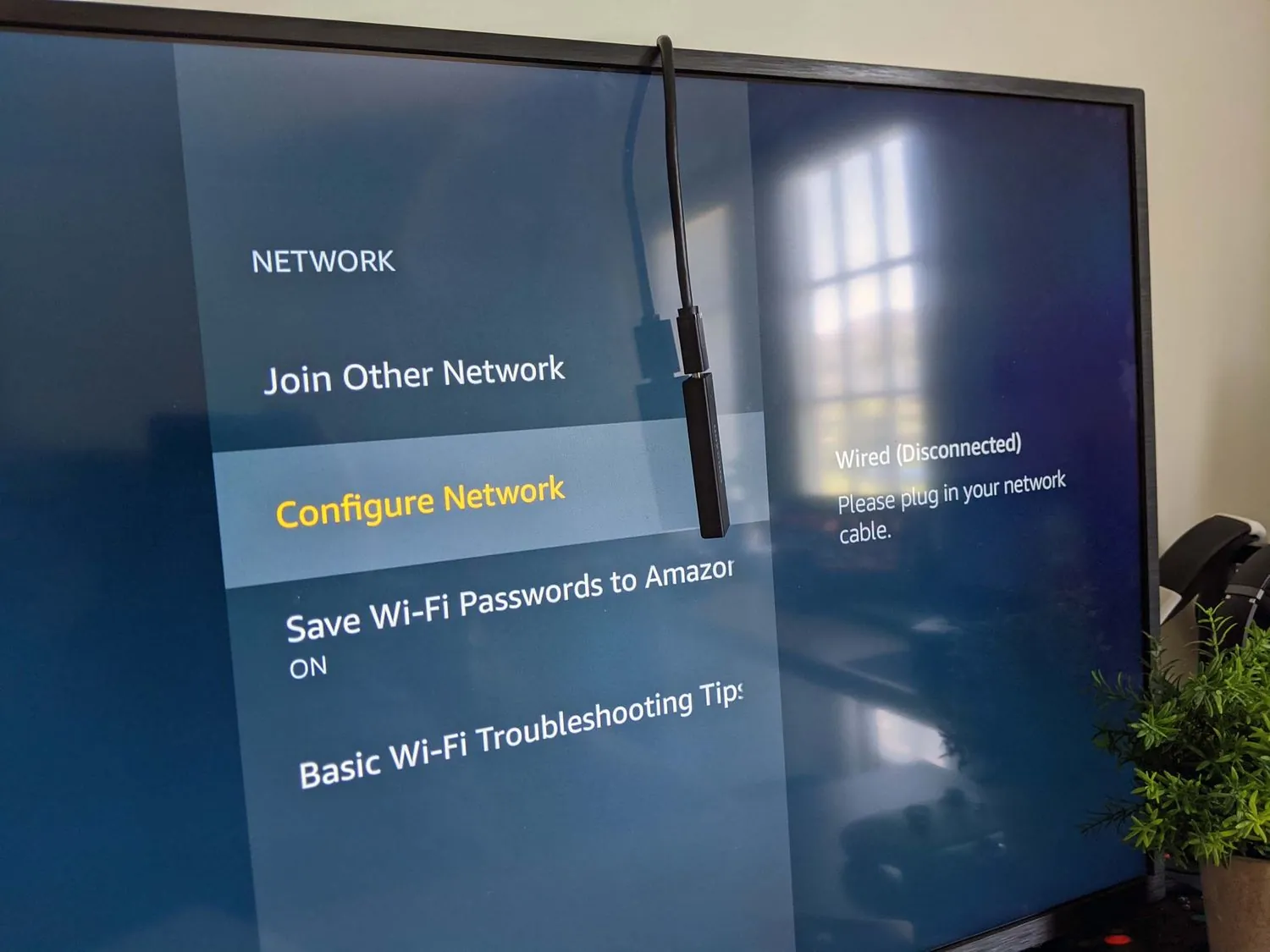
The most frequent reason for this issue is a poor connection between the Fire TV Stick and the HDMI port on your television. If the HDMI plug isn’t pushed all the way in, the data signal can’t reach the screen. Dust or debris inside the port can also block the connection. Always ensure the plug is firm and that you haven’t accidentally bumped the cable while cleaning or moving the television.
Another major cause is insufficient power delivery to the streaming stick. These devices require a steady flow of electricity to function correctly, which is why you must use the power adapter that came in the box. If you connect the USB cable directly to a port on the back of your television, the device might not get enough power to stay on. This causes the stick to restart constantly or fail to send a video signal to your display.
Finally, the issue may stem from an HDMI handshake error. This happens when the Fire TV and the television fail to agree on a resolution or a security protocol. You can often resolve this by changing the HDMI port on the back of your television.
Amazon support pages provide specific guidance on these connection steps. If your television is an older model, it might not support the high-definition signal that the Fire TV is trying to send, leading to a blank screen.
Check the power and cable connections
The most effective way to start is by verifying the physical connection. Unplug the Fire TV Stick from both the HDMI port and the wall outlet. Inspect the HDMI end for any bent pins or visible damage. If you see damage, stop using the cable immediately, as it could pose a risk to your television’s port. If the cable looks fine, plug it back into a different HDMI port on your television.
Next, ensure you’re using the original power brick and cable. Avoid using third-party USB chargers or the USB ports on the TV itself, as these often lack the power output needed for stable operation. This ensures the device gets the full current it needs to initialize the display signal.
Once everything is plugged in, turn on your television and use the source button on your remote to select the correct HDMI input. If you see the Fire TV logo, the issue is resolved.
If the screen remains blank, try to use the included HDMI extender cable. This small adapter helps if the stick is too thick to fit into a tight space behind your television. It also helps move the device away from the TV body, which can improve the wireless connection.
Reset the display resolution settings
If the device powers on but you can’t see an image, the output resolution may be set higher than what your television supports. You can force the Fire TV to cycle through its available resolutions by using your remote. Press and hold the “Up” and “Rewind” buttons at the same time for 10 seconds. The device will then begin to cycle through different display settings automatically.
Wait for the device to stop on each resolution for a few seconds. If an image appears, select the “Use Current Resolution” option on the screen. If you reach the end of the cycle and still see no signal, the device may be stuck in a mode that your television can’t process. This is common when moving a Fire TV from a 4K television to an older 1080p or 720p model.
If you’re using a 4K-capable HDMI cable on a legacy display, the handshake may fail entirely. Try swapping to a standard high-speed HDMI cable rated for 1080p to see if the signal stabilizes. If the display remains black, verify that your television is set to the correct HDMI input port. Users often mistakenly select the wrong input, leading to a “No Signal” error despite the device functioning correctly.
This fix is for users who have a working remote and can hear audio but see no video. If you don’t have the original remote, you won’t be able to trigger this reset sequence. In that case, borrow a compatible remote from a friend or consider getting a replacement. Don’t attempt to force a different cable into the port, as this can permanently break the internal pins of your television.
Use a different television for testing
When the previous steps fail, you should test the Fire TV Stick on a completely different television. This helps you determine if the problem is with the streaming stick itself or with your primary television. If the device works perfectly on a second screen, the issue lies with the HDMI port or the settings on your first television.
This approach is best for people who have access to another screen in their home. If you only have one television, check the input settings once more or try a different HDMI device in the same port. If your cable box or game console also shows no signal in that same port, the HDMI port on your television is likely broken. In this case, you should contact a professional television repair service for assistance.
Mistakes that make the problem worse
Using a USB port on the TV: Many people plug the USB cable into the TV’s own port, but this often provides too little power, causing the device to crash.
Forcefully wiggling the HDMI connection: Pushing or wiggling the stick while it’s plugged in can snap the delicate pins inside the HDMI port, which is a permanent hardware failure. Use a short HDMI extender cable to relieve the physical strain on the port.
Ignoring the power brick: Using a phone charger instead of the official power adapter often causes the device to lose signal whenever it tries to stream high-definition video. Using a charger with insufficient amperage instead of the official power adapter often causes the device to lose signal whenever it tries to stream high-definition video. Most phone chargers that don’t meet the device’s power requirements will trigger a “low power” warning. Always use the brick included in the box.
Assuming the TV input is correct: Many users cycle through inputs too fast, missing the one that the Fire TV is actually using. Pause for three seconds on each input. If the screen remains black, check if the device light is solid or blinking.
Ensure a stable connection for the future
If you’re struggling with intermittent signals, use the table below to adjust your setup.
| If you’re doing this | Do this instead | Why |
|---|---|---|
| Using the TV USB port | Use the provided wall adapter | Provides consistent, required voltage |
| Leaving the stick hanging | Use the HDMI extender cable | Reduces strain on the HDMI port |
| Using a crowded power strip | Plug directly into wall outlet | Prevents power drops during peak use |
| Using a loose HDMI connection | Ensure a firm, flush fit | Ensures all pins make contact |
Most users mistake a flickering screen for a software bug. In reality, 90% of these issues stem from fluctuating power delivery.
Check your cable length before troubleshooting further. Replace it with the original manufacturer cable to restore stability. If the signal remains unstable after these adjustments, test the device on a different HDMI port. If the problem persists across multiple ports, the internal hardware is likely failing.
Frequently asked questions
Can I fix a no signal error without a remote?
You can’t perform a resolution reset without the remote, as the process requires specific button inputs. If your remote is broken, you can use the Fire TV app on your smartphone if the device is already connected to your home Wi-Fi network.
How long does a firestick usually last?
Dust buildup inside the unit can shorten this time by causing the processor to overheat.
Is it safe to leave the device plugged in?
Yes, it’s safe to leave the device plugged in, as it’s designed to enter a low-power sleep mode when not in use. If you notice the device feels very hot or the power cord is frayed, unplug it immediately.
What happens if I perform a factory reset?
A factory reset wipes all your personal data, downloaded apps, and account login information from the device. You’ll need to set it up again as if it were brand new, including re-entering your Wi-Fi password and Amazon account details. Only perform a factory reset if you have tried all other troubleshooting steps, as it’s a last resort to fix persistent software bugs that cause the “No Signal” message.
Why does the screen flicker before going black?
Flickering usually indicates a poor HDMI handshake or a loose cable connection that loses contact during playback. This often happens if the device is hanging from the back of the television without the support of the HDMI extender cable. If the flickering persists after ensuring the cable is tight, try changing the display settings to a lower resolution, such as 1080p, to see if the signal becomes stable.
Conclusion
If the screen still doesn’t show your home menu, try plugging the device into a different HDMI port on your television. Sometimes a specific port can fail over time, so switching it might do the trick. If you’re still having trouble, don’t worry; reach out to Amazon’s support team for further help.