Is your Fire TV acting up right when you want to relax and watch your favorite show? You’re not alone—these devices sometimes run into glitches that can be frustrating.
But don’t worry, you don’t have to be a tech expert to fix them. Whether your Fire TV won’t turn on, the remote isn’t responding, or the screen is stuck on black, this guide will walk you through simple troubleshooting steps that anyone can follow.
Keep reading, and you’ll have your Fire TV back up and running smoothly in no time. Your next binge-watch session is just a few easy fixes away!
Restart And Power Fixes
Restart and power issues cause many common Fire TV problems. These fixes solve freezing, lag, or no signal problems fast. A simple restart often refreshes the system and clears temporary bugs. Power checks ensure the device gets enough electricity to run properly.
Follow the steps below to restart and check the power of your Fire TV device. These methods are easy and do not need special tools or skills.
Soft Restart Steps
A soft restart resets your Fire TV without deleting data. Press and hold the Select and Play/Pause buttons on your remote for about 5 seconds. Release the buttons when the screen goes black and the device restarts. Alternatively, go to Settings > My Fire TV (or Device & Software) > Restart. This method fixes slow responses and minor glitches.
Power Connection Check
Check the power adapter and cable for damage or loose connections. Make sure the power cord is firmly plugged into your Fire TV device and the wall outlet. Avoid using USB ports on your TV for power; use the original power adapter instead. A weak or unstable power source can cause the device to turn off or freeze.
Force Restart Methods
If your Fire TV is unresponsive, a force restart may help. Unplug the power cord from the device and wall outlet. Wait at least 30 seconds to drain residual power. Plug the power cord back in and turn on the device. This method clears deeper system errors that a soft restart cannot fix.
Remote Control Solutions
The Fire TV remote is the key to a smooth streaming experience. Problems with the remote can disrupt your viewing. This section offers simple solutions to common remote control issues. Follow these easy steps to get your remote working again quickly.
Resetting The Remote
Resetting the Fire TV remote clears minor glitches. Press and hold the Home button for about 10 seconds. Release it and wait for the remote to reset. If this does not work, remove the batteries and press every button once. Then, put the batteries back and try again.
Pairing Issues
Pairing problems happen if the remote loses connection with the Fire TV. To fix this, hold the Home button for 10 seconds to start pairing mode. Check the Fire TV screen for pairing confirmation. If it fails, restart your Fire TV device and try again. Keep the remote close to the Fire TV while pairing.
Battery Troubleshooting
Weak or dead batteries cause many remote problems. Replace old batteries with fresh ones to improve performance. Use high-quality alkaline batteries for longer life. Remove batteries if the remote will not be used for a long time. Check the battery contacts for dirt or corrosion and clean them gently if needed.
Network And Connection
Network and connection issues often cause streaming interruptions on Fire TV devices. Checking your internet setup can solve many common problems quickly. A stable and strong Wi-Fi connection ensures smooth streaming without buffering or dropouts.
Understanding how to check your Wi-Fi status and improve signal strength helps keep your Fire TV working properly. Running network diagnostics pinpoints connection problems fast. These simple steps improve your viewing experience significantly.
Wi-fi Status Check
Start by verifying your Fire TV’s Wi-Fi connection. Go to Settings > Network on your device. The current network should appear connected. If it shows disconnected or limited, reconnect to your Wi-Fi.
Look for the signal strength bars next to your network name. More bars mean a stronger connection. If you see fewer bars, your Fire TV may have trouble streaming content smoothly.
Running Network Diagnostics
Fire TV has a built-in tool to test your internet connection. Highlight your Wi-Fi network in the Settings > Network menu. Press the Play/Pause button on your remote to start diagnostics.
The test checks your connection speed and stability. Slow speeds or frequent drops show up here. Use this information to decide if your internet needs troubleshooting or your Fire TV requires a reset.
Improving Signal Strength
Place your router close to your Fire TV device. Walls and furniture can block the Wi-Fi signal. Avoid placing the router inside cabinets or behind large objects.
Try changing the router channel to reduce interference from other networks. Use a Wi-Fi extender if your home is large or has weak coverage areas. These steps boost your signal for better streaming quality.

Hdmi And Display Issues
HDMI and display issues often cause frustration with Fire TV devices. These problems can block your viewing experience or produce poor video quality. Troubleshooting these issues starts with simple checks and adjustments. Understanding common HDMI and display problems helps fix them quickly.
Checking Hdmi Connections
Start by examining the HDMI cable connecting your Fire TV to the TV. Ensure both ends are securely plugged in. Loose or partially connected cables often cause no signal or poor video. Inspect the cable for any visible damage or bends that might affect performance. Try unplugging and plugging the cable back in to reset the connection.
Trying Different Hdmi Ports
Sometimes, the HDMI port on your TV may have issues. Switch the Fire TV to another HDMI port on your television. This step helps identify if the port itself is faulty. Make sure to select the correct input source on your TV after switching ports. Testing different ports rules out port-specific problems and can restore your display.
Resolving Black Screen Problems
A black screen usually means no video signal reaches your TV. Confirm the Fire TV is powered on and the HDMI cable is connected well. Restart the Fire TV by unplugging it from power for 30 seconds and then plugging it back in. Check the TV input settings to confirm the correct HDMI source is selected. If the screen stays black, try a different HDMI cable to rule out cable failure.
Audio Troubleshooting
Audio issues can spoil your Fire TV experience. Clear sound is key for movies, shows, and games. Troubleshooting audio helps restore your device’s sound quickly. This section covers simple steps to fix common audio problems.
Volume And Mute Settings
Check the volume level on your Fire TV remote. Press the volume up button several times to increase sound. Make sure the mute button is not on. Sometimes, mute is accidentally activated.
Also, verify your TV or sound system volume. Use its remote to raise the volume. Lower volume on the Fire TV does not affect the TV’s own sound settings.
Audio Output Configuration
Fire TV offers multiple audio output options. Navigate to Settings > Display & Sounds > Audio. Select the correct output for your setup.
For example, use HDMI audio if your Fire TV connects to the TV directly. Choose Optical audio if you use a soundbar or receiver. Incorrect audio output causes no sound or poor quality.
Fixing No Sound Issues
Start by restarting your Fire TV. Unplug it from power for 30 seconds, then plug it back in. This resets temporary glitches.
Check all cables. Make sure the HDMI or audio cables are firmly connected. Try a different HDMI port on your TV if needed.
Update your Fire TV software. Go to Settings > My Fire TV > About > Check for Updates. Install any available updates to fix bugs.
If no sound persists, test with another app or channel. This identifies if the problem is app-related or device-wide.

App And Streaming Problems
App and streaming problems are common issues with Fire TV devices. These problems can cause apps to freeze, crash, or fail to load content properly. Streaming issues often result in poor video quality or constant buffering. Fixing these issues helps improve your viewing experience and keeps your Fire TV running smoothly.
Clearing App Cache
Cached data can cause apps to slow down or crash. Clearing the app cache removes temporary files and frees up space. To clear cache, go to Settings > Applications > Manage Installed Applications. Select the problematic app, then choose Clear Cache. This simple step often fixes app glitches and improves performance.
Updating Or Reinstalling Apps
Outdated apps can cause errors and streaming problems. Check for updates in the Appstore and install the latest version. If the app still misbehaves, uninstall it. Then reinstall the app from the Appstore. This process ensures you have a fresh copy without corrupted files. Updated apps run smoother and connect better to streaming services.
Resolving Buffering
Buffering disrupts your streaming and can be very frustrating. Check your internet speed to ensure it meets the app’s requirements. Use a wired connection or move closer to the Wi-Fi router for a stronger signal. Close other apps that use internet bandwidth. Restart your Fire TV to refresh the connection. These steps reduce buffering and improve video playback.
Account And Software
The Fire TV experience depends heavily on your Amazon account and software. Problems in these areas often cause streaming interruptions or app errors. Checking your account sync and software version can resolve many common issues quickly. Keeping your Fire TV up to date ensures smooth performance and access to new features. Sometimes, a factory reset helps fix persistent problems by restoring the device to its original settings. Below are simple steps to manage these account and software tasks effectively.
Syncing Amazon Account
Your Fire TV must be linked to the correct Amazon account. This connection allows access to purchased content and subscriptions. To verify account syncing, open Settings, then select Account & Profile Settings. Check that your account details are correct and active. If you spot errors, sign out and sign back in to refresh the connection. Syncing issues often cause app crashes or missing content. Keeping your account in sync prevents these problems.
Checking For Software Updates
Software updates fix bugs and add new functions. Outdated software can cause slow loading, buffering, or app failures. To check for updates, go to Settings > My Fire TV > About > Check for Updates. If an update is available, download and install it promptly. Make sure your Fire TV stays connected to the internet during this process. Regular updates improve device security and user experience.
Factory Reset Options
A factory reset erases all data and returns your Fire TV to default settings. Use this option only if other fixes fail. To perform a reset, navigate to Settings > My Fire TV > Reset to Factory Defaults. Enter your PIN if prompted, then confirm the reset. This step clears corrupted files and software glitches. After the reset, you must set up your Fire TV again from scratch.
Hardware Troubleshooting
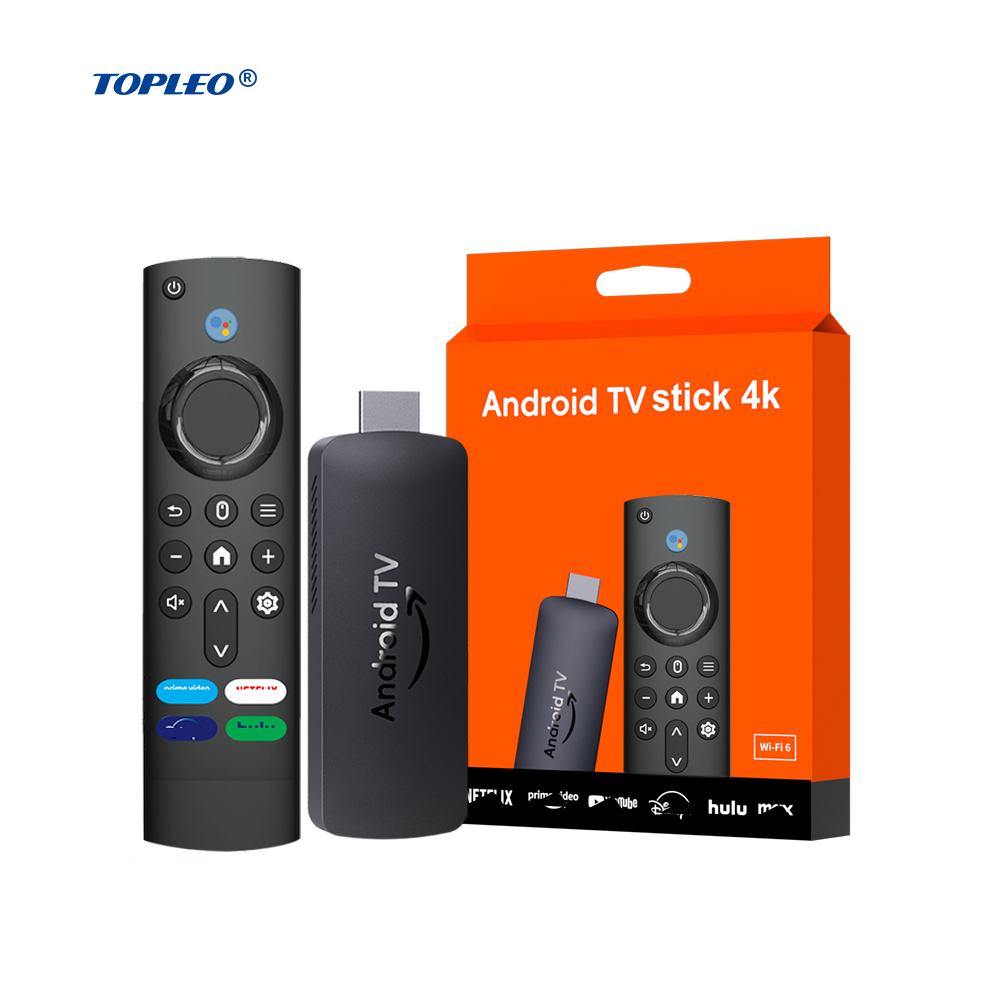
Troubleshooting Fire TV hardware issues requires careful observation and simple checks. Hardware problems can stop your device from working properly. Identifying these issues early can save time and prevent further damage.
Hardware troubleshooting focuses on signs of device failure, deciding when to replace the Fire TV, and knowing how to get support. Understanding these steps helps keep your streaming experience smooth and enjoyable.
Signs Of Device Failure
Look for unusual behavior like freezing or constant rebooting. The device may not power on or show a black screen. Overheating or strange noises can also indicate hardware trouble. Remote control problems might signal internal faults. Slow performance and app crashes may suggest hardware damage.
When To Replace Fire Tv
Replace the device if it no longer powers on or frequently crashes. If basic fixes like restarting or resetting fail, it may be time. Hardware damage from drops or water exposure usually means replacement. Upgrading to a newer model can improve speed and features. Consider replacement if repairs cost more than a new device.
Contacting Support
Reach out to Amazon Support for help with hardware problems. Provide details like model number and issue description. Use live chat, phone, or email for quick answers. Check warranty status before requesting repairs or replacements. Support can guide you through troubleshooting and repair options.
Frequently Asked Questions
How Do You Reset An Unresponsive Fire Tv?
To reset an unresponsive Fire TV, unplug it from power for 30 seconds. Then, reconnect and power it on. Use Settings > My Fire TV > Restart for a soft reboot if accessible. Holding Select and Play/Pause buttons on the remote for 5 seconds also triggers a restart.
What Is The Life Expectancy Of A Fire Tv?
The average life expectancy of a Fire TV device is about 3 to 5 years with regular use. Proper care can extend its lifespan.
Why Did My Fire Tv Suddenly Stop Working?
Your Fire TV may stop working due to software glitches, power issues, HDMI connection problems, or remote malfunctions. Try restarting, checking power, reconnecting HDMI, and resetting the remote to fix it.
What Are The Signs Of A Fire Stick Going Bad?
Signs of a Fire Stick going bad include frequent freezing, failure to power on, constant buffering, remote unresponsiveness, and HDMI detection issues.
Why Is My Fire Tv Not Turning On?
Check if the power cable is connected properly to both the Fire TV and the outlet. Try using a different power adapter or outlet to rule out power issues. A soft restart might also help fix this problem.
Conclusion
Troubleshooting your Fire TV does not have to be hard. Start with simple steps like restarting the device or checking the power connection. Make sure the remote works and the HDMI cable is secure. Keep your Wi-Fi strong and stable for the best experience.
Small fixes often solve common problems quickly. Stay patient and try each step carefully. This way, you can enjoy your Fire TV without long interruptions. Remember, clear steps lead to clear results.