Is your Firefox browser acting up right when you need it most? You’re not alone.
Whether pages won’t load, the browser crashes unexpectedly, or extensions stop working, these problems can be frustrating and slow you down. But don’t worry—this guide will help you fix common Firefox issues quickly and get your browser running smoothly again.
Keep reading, and you’ll discover simple solutions that save you time and stress. Your perfect browsing experience is closer than you think!
Common Firefox Issues
Firefox is a popular browser, but users often face some common problems. These issues can slow down your browsing or cause crashes. Understanding these problems helps you fix them quickly and keep Firefox running smoothly.
Slow Loading Times
Web pages may take too long to open. This happens due to many reasons. Too many open tabs or a slow internet connection can cause delays. Sometimes, outdated Firefox versions also slow down page loading. Clearing cache and updating Firefox often help speed things up.
Frequent Crashes
Firefox may close unexpectedly without warning. This can happen when there is a conflict with other software. Corrupted files or bad updates can cause crashes too. Restarting Firefox or running it in safe mode can identify the problem. Reinstalling the browser often solves crash issues.
Extensions Causing Problems
Browser extensions add features but can cause trouble. Some extensions may not work well with Firefox updates. They might slow down the browser or cause errors. Disabling or removing suspicious extensions often fixes problems. Always choose extensions from trusted sources.
High Memory Usage
Firefox may use too much computer memory. This slows down your entire system. Many open tabs or heavy websites increase memory use. Extensions and plugins also add to memory load. Closing unused tabs and disabling unnecessary extensions help reduce memory use.

Basic Speed Boosts
Firefox can slow down over time. Simple fixes can make it faster again. These basic speed boosts help Firefox run smoothly. They do not need special skills or tools. Just follow easy steps to improve your browser’s speed.
Clearing Cache And Cookies
Cache and cookies store website data. Too much of these files can slow Firefox. Clearing them frees space and speeds up loading times. Go to Firefox settings, find Privacy & Security, and clear cache and cookies. This step often fixes slow browsing issues quickly.
Updating Firefox
Updates bring important improvements and fixes. Older versions may run slower or have bugs. Check for updates in the menu under Help > About Firefox. Install the latest version to keep your browser fast and secure.
Disabling Unnecessary Extensions
Extensions add features but can also slow Firefox. Some extensions use too much memory or cause conflicts. Disable or remove extensions you do not need. Go to Add-ons in the menu, then choose Extensions. Turn off or delete extras to boost speed.
Restarting With Add-ons Disabled
This mode helps find if extensions cause slowdowns. Restart Firefox with add-ons disabled by holding Shift while starting. Use this safe mode to test performance. If Firefox runs faster, some add-ons may need removal or update.
Advanced Performance Tweaks
Firefox runs smoothly for most users by default. Yet, some may need extra speed and better performance. Advanced performance tweaks help improve your browsing experience. These tweaks adjust how Firefox uses your computer’s resources. Small changes can make Firefox faster and more responsive.
Adjusting Content Process Limit
Firefox uses multiple content processes to handle tabs. More processes can improve speed but use more memory. Fewer processes save memory but might slow browsing. Find the right balance for your system. Go to Firefox settings and search for “Content Process Limit.” Increase or decrease the number based on your computer’s power. Restart Firefox to apply changes.
Enabling Hardware Acceleration
Hardware acceleration lets Firefox use your graphics card. This speeds up video playback and animations. It reduces the load on your CPU. To enable, open Firefox settings and scroll to Performance. Check the box for “Use hardware acceleration when available.” Restart Firefox to see improvements. Some older computers may not support this well.
Modifying Network Settings
Firefox’s network settings affect how fast pages load. Changing some settings can speed up browsing. Type “about:config” in the address bar. Search for network-related entries like “network.http.pipelining.” Enable pipelining to send multiple requests at once. Be careful with changes; wrong settings may cause issues. Backup your settings before modifying.
Using Firefox’s Performance Settings
Firefox includes built-in performance options for easy tweaks. Open settings and find the Performance section. Uncheck “Use recommended performance settings” to unlock more options. Adjust content process limit and hardware acceleration here. Firefox shows memory usage and other helpful info. Use these controls to tailor Firefox to your needs.
Fixing Crashes And Freezes
Firefox crashes and freezes can disrupt your browsing experience. These issues often occur due to software conflicts, corrupted settings, or problematic add-ons. Fixing them quickly helps you get back to smooth browsing without hassle.
Checking For Conflicting Software
Conflicting software can cause Firefox to crash or freeze. Some security programs or other apps may interfere with Firefox’s operation. To check, close all other programs and see if Firefox runs better. You can also update or temporarily disable software that might conflict with Firefox. This simple step often solves many stability problems.
Resetting Firefox Settings
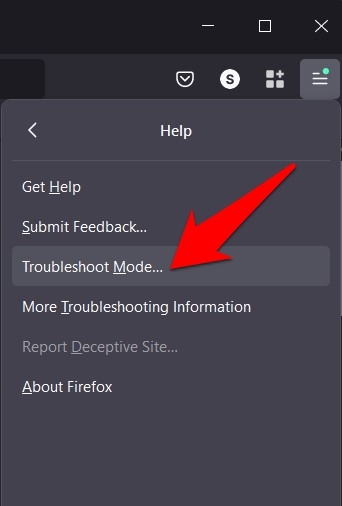
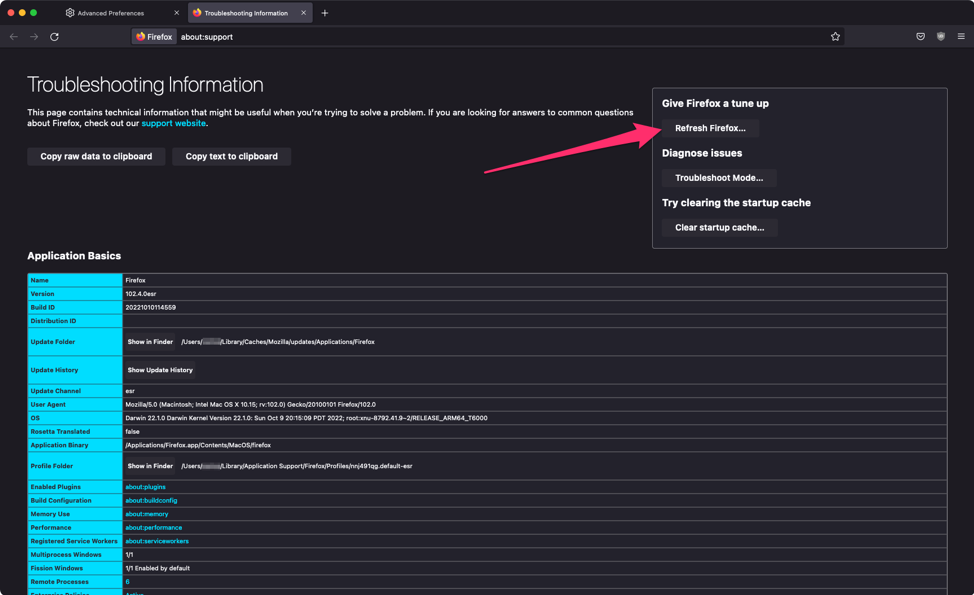
Resetting Firefox restores default settings without deleting your bookmarks and passwords. This step removes changes that might cause crashes or freezes. To reset, open Firefox menu, select Help, then choose Troubleshooting Information. Click on “Refresh Firefox” and follow the instructions. This process fixes many issues by clearing corrupted configurations.
Running Firefox In Safe Mode
Safe Mode starts Firefox with all add-ons disabled. It helps identify if extensions cause crashes or freezes. To enter Safe Mode, click the menu, then Help, and select “Restart with Add-ons Disabled.” If Firefox runs smoothly in Safe Mode, one of your add-ons is likely the problem. You can then disable or remove problematic extensions.
Managing Extensions And Plugins
Extensions and plugins add new features to Firefox. They improve browsing but can also cause issues. Managing these add-ons helps keep Firefox fast and secure. Regular checks prevent crashes and slowdowns.
Identifying Problematic Add-ons
Some extensions cause Firefox to freeze or crash. Look for add-ons that act strangely or slow the browser. Disable all add-ons, then enable them one by one. This helps find the troublemaker quickly. Watch for any error messages or warnings too.
Updating Or Removing Extensions
Old extensions may not work well with the latest Firefox. Check for updates often. Updated add-ons fix bugs and improve security. Remove any extensions you no longer need. This frees up memory and speeds up browsing.
Using Lightweight Alternatives
Heavy add-ons slow down your browser. Choose simple extensions that do the job well. Lightweight add-ons use less memory and CPU. This keeps Firefox running smoothly on all devices. Test different options to find the best fit for you.
Privacy And Security Impact
Privacy and security play a big role in how Firefox works. Changes made during troubleshooting can affect these features. It is important to understand the impact of these changes. This helps keep your browsing safe and private.
Some fixes may require turning off security features for a short time. Others need clearing data stored by websites. Adjusting settings can also improve security or cause risks if done wrong.
Disabling Tracking Protection Temporarily
Tracking Protection stops websites from following your online actions. Sometimes, disabling it helps solve loading or display problems. Turn it off only for the site causing trouble. Turn it back on right after. This keeps most of your browsing protected.
Clearing Site Data
Site data includes cookies and cache saved by websites. Clearing this data can fix errors and speed up Firefox. It removes saved preferences and logins for sites. Clearing site data improves privacy by deleting stored information. Remember to back up important info before clearing.
Adjusting Security Settings
Firefox offers many security options to control your browsing safety. You can change settings for cookies, pop-ups, and certificates. Increasing security may block some websites or features. Lowering settings can make browsing easier but less safe. Choose settings that balance safety and convenience for you.
Regular Maintenance Tips
Regular maintenance keeps Firefox running smooth and fast. Small tasks done often stop big problems later. These simple steps help you avoid slowdowns and crashes. Keeping your browser in good shape saves time and stress.
Keeping Firefox Updated
Updates fix bugs and improve security. New features also come with updates. Check for Firefox updates at least once a week. Use the automatic update setting to stay current. This helps protect your data and speeds up browsing.
Routine Cache Clearing
Cache stores files to load pages faster. Over time, cache builds up and slows Firefox. Clear cache regularly to free space and improve speed. Go to settings and clear cache with a few clicks. This step helps fix loading errors and display problems.
Monitoring Resource Usage
Firefox can use a lot of memory and CPU. Too many tabs or extensions can slow it down. Use the built-in Task Manager to see resource use. Close heavy tabs or disable unneeded add-ons. This keeps Firefox light and responsive during use.
Frequently Asked Questions
How Do I Fix Firefox Crashing Frequently?
Clear your browser cache and disable extensions one by one. Update Firefox to the latest version for better stability.
Why Is Firefox Running Slow On My Computer?
Too many open tabs or heavy extensions can slow Firefox. Closing unused tabs and disabling add-ons often helps speed it up.
How Can I Reset Firefox To Default Settings?
Go to Help > Troubleshooting Information and click “Refresh Firefox. ” This removes extensions and restores default settings safely.
What Should I Do If Firefox Won’t Open?
Check if Firefox is already running in the background. Restart your computer or reinstall Firefox to fix launch issues.
How Do I Solve Firefox Not Loading Web Pages?
Check your internet connection and clear browser cache. Disable proxy settings or firewall temporarily to rule out connection blocks.
Conclusion
Firefox issues can be solved with simple steps. Restart the browser or clear the cache. Check for updates to keep Firefox running smoothly. Disable add-ons if problems persist. Reset settings to fix stubborn errors. Always back up important data before major changes.
Troubleshooting helps keep your browsing fast and safe. Stay patient and try each fix one by one. Enjoy a better Firefox experience with these tips.