You can fix a fitbit versa 2 troubleshooting blank screen issue by performing a forced restart of the device. This problem usually happens because the firmware has become unresponsive or the battery has drained below the minimum voltage required to trigger the display. If the screen remains dark after a restart, you should check the charging cable for damage or debris. The device might also have a hardware failure if it doesn’t vibrate or show a charging icon after these steps.
Why your Fitbit Versa screen goes blank
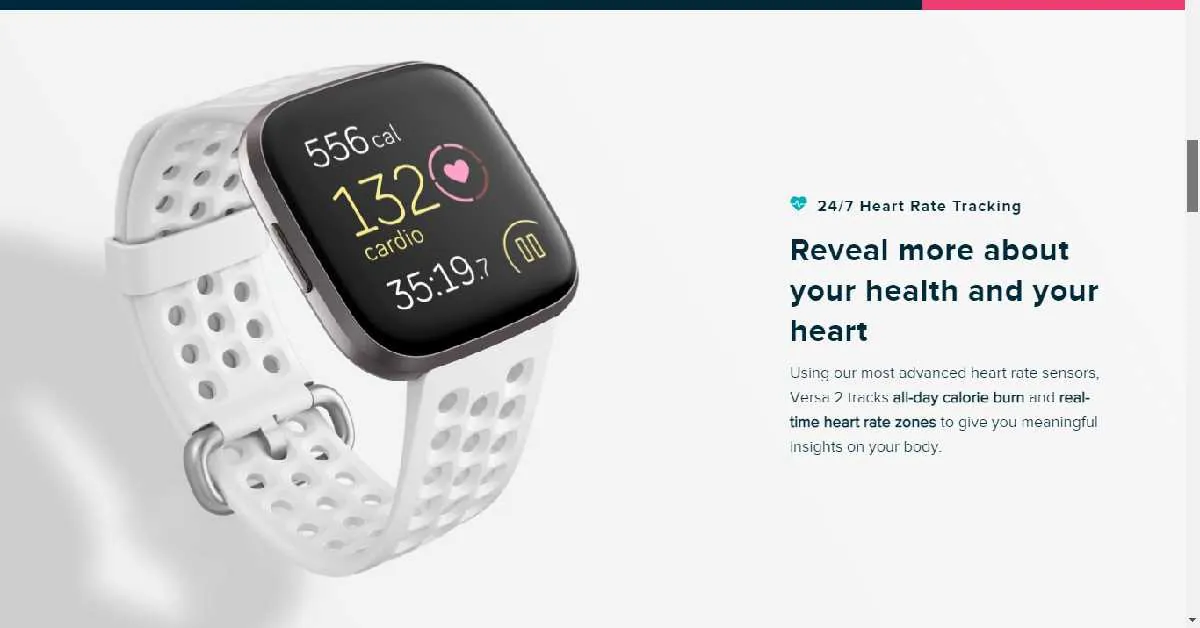
The most common reason for a blank screen is a software glitch where the operating system stops responding to input. This often happens after a failed firmware update or when the internal cache becomes overloaded. Because the system is in a “frozen” state, the screen stays dark even if the battery is fully charged. You can visit the official Fitbit help center to see the specific reset procedures recommended by the manufacturer for your model.
Another cause is a complete power depletion. If you leave the watch off the charger for several weeks, the battery enters a deep discharge state. In this condition, the device may not respond immediately when you place it on the charger.
It often needs to sit on the dock for at least 30 minutes to gain enough power to show the low-battery icon. If the screen is still black, the charger pins might be dirty or blocked by skin oils and debris.
Finally, hardware damage is a real possibility. If the watch was recently dropped or exposed to high-pressure water, the internal ribbon cable connecting the display to the motherboard may have loosened. This is a permanent fault that home users can’t repair. If the device doesn’t show signs of life after a long charge and a forced restart, the display panel itself has likely failed.
Force restart the device
A forced restart is the primary way to clear a frozen display. To do this, press and hold the left button on your watch for 10 to 12 seconds. Keep holding it until you see the Fitbit logo appear on the screen. If you don’t see the logo after 15 seconds, release the button and try the process one more time. This is for users who have a watch that’s physically intact but simply refuses to show an image.
If the watch vibrates but the screen stays black, the backlight might be broken. If the watch doesn’t vibrate at all, the issue is likely a lack of power. You must ensure the watch is connected to the original charging cable, as third-party chargers often have different pin alignments that fail to make a solid connection. If you have another compatible charger available, try that to rule out a faulty cable.
Many users mistake a dead battery for a system crash. If your device remains unresponsive after three attempts, plug it into a wall outlet for at least 30 minutes before trying again. If the screen displays a battery icon, the device was simply drained. If the screen remains completely dark after this charge, the hardware has likely suffered a terminal failure.
If you have never performed this, don’t worry; it doesn’t delete your data, as your information is synced to your account.
Clean the charging contacts
If the battery isn’t taking a charge, the metal pins on the back of the watch might be blocked by sweat, skin oils, or debris. Take a soft, dry toothbrush or a cotton swab with a tiny amount of rubbing alcohol to gently clean the four gold contacts on the back of the device.
Don’t use metal tools like needles or paperclips. These scratch the delicate gold plating, which strips away the protective layer and leads to permanent corrosion. This step is only for users whose devices aren’t showing the charging icon after ten minutes on the dock.
Once the contacts are clean, wipe them with a dry, lint-free cloth and wait for them to dry completely. Moisture left on the pins can cause a short circuit when the current hits. Place the watch back into the cradle and ensure the pins align perfectly with the ports.
If the screen remains blank after one hour of charging, try plugging the USB end of the cable into a different power source. A wall adapter provides a consistent voltage, whereas many computer USB ports throttle power to save energy.
If the watch still shows no activity, the battery has likely reached the end of its functional life. You can verify this by checking if the device gets warm while charging; if it stays cold, the internal circuit is no longer accepting power.
Check for hardware failure
Check your original receipt for the exact purchase date. If you’re within the 365-day window, don’t attempt any physical disassembly. Most manufacturers require the device to be intact to honor a warranty claim. If you have already pried the casing, the internal clips are likely snapped, which serves as an immediate visual indicator of tampering for support technicians.
This isn’t for users who are comfortable with electronics repair, because the Fitbit Versa 2 is a sealed unit designed to be water-resistant. Attempting to pry open the housing will destroy the waterproof seals, making the device unusable in any environment with moisture.
If you’re past the warranty period and the device is still blank, it’s often more cost-effective to upgrade to a newer model than to seek a professional repair, as parts for this specific unit are rarely sold to the public.
Common mistakes to avoid
Using a metal tool to clean pins: Metal scrapers scratch the delicate gold plating, creating microscopic pits that trap debris and cause intermittent connectivity. Use a soft, non-conductive wooden toothpick instead. If you see deep gouges, the unit is permanently compromised and will require a professional port replacement.
Holding the button for too long: Holding the power button past 20 seconds triggers a low-level firmware recovery mode. If you see the screen flicker or a command prompt appear, you have moved beyond a standard reset. Release the button immediately to avoid wiping your local cache.
Ignoring the charging indicator: If the battery icon doesn’t appear after 30 minutes, stop trying to power on the device.
Overheating the device: Never use a hair dryer to fix a blank screen. Excessive heat melts internal adhesive seals and creates an immediate fire risk.
Preventing future screen issues
| If you’re doing this | Do this instead | Why |
|---|---|---|
| Leaving the watch uncharged | Charge to 50% for storage | Prevents deep battery discharge |
| Cleaning with wet cloths | Use a dry, soft cloth | Protects the internal electronics |
| Charging via laptop ports | Use a wall power adapter | Provides a more stable current |
| Ignoring firmware updates | Update when prompted | Prevents known software freezes |
Most users mistake a dim screen for a hardware failure, but it’s often just a software glitch. If your screen flickers, restart the device before assuming the panel is damaged. A hard reboot clears the cache and resolves most temporary display errors.
When storing your watch for more than a month, avoid leaving it at zero percent. Lithium-ion batteries enter a deep discharge state if left empty, which can permanently kill the display controller. Aim for approximately 50 percent charge to keep the chemistry stable.
Finally, never use household glass cleaners or alcohol wipes on the glass. These chemicals strip the oleophobic coating, leading to permanent smudges that look like deep scratches. If you must remove stubborn grime, use only a slightly damp microfiber cloth and wipe gently. A single drop of water is sufficient; never spray liquid directly onto the watch face.
Frequently asked questions
How long should I charge the watch if the screen is black?
Leave the watch on the charger for at least 60 minutes if the screen is black. The battery must reach a specific voltage threshold before the processor can power the display. If the screen remains off after one hour, the battery may be dead or the cable faulty.
Can I use a third-party charger for my Fitbit?
No, you should avoid third-party chargers because they often use different pin alignments that can short-circuit the watch. These chargers rarely meet the strict voltage output required by the device’s power management chip. If you suspect your original cable is broken, look for a replacement that’s explicitly labeled as compatible with the Versa 2. Using an incorrect charger is a leading cause of permanent hardware failure in these devices.
Is it safe to leave the watch on the charger overnight?
Yes, it’s safe to leave the watch on the charger overnight because internal circuits stop power intake once the battery is full. The watch won’t overcharge or damage the battery. However, if the device becomes hot while charging, remove it immediately and unplug the cable.
Why does my watch vibrate but the screen stays black?
The vibration indicates that the processor is working, but the display panel or the backlight has likely failed. This usually occurs after a hard drop or exposure to water that has leaked past the seal. You can’t fix a hardware display failure at home, as the screen is fused to the frame. If the device is still under warranty, contact the manufacturer to request a replacement unit.
How do I know if my battery is dead?
The battery is likely dead if the watch never shows a charging icon even after you have cleaned the pins and tried a different power outlet. You can also tell if the watch only works while it’s plugged into the charger but dies instantly when you remove it. This confirms that the internal battery can no longer hold a charge and has reached the end of its chemical lifespan.
Conclusion
If your watch still won’t wake up, don’t lose hope just yet. Reach out to the official support team through the website to see if you’re still covered by a warranty. They’ll help you determine if it’s time for a replacement so you can get back to tracking your daily goals.
Related guides