Is your Fitbit not working the way it should? Maybe it’s not syncing, charging, or tracking your steps accurately.
You rely on your Fitbit to keep you motivated and on track, so when it acts up, it’s frustrating. Don’t worry—you’re not alone, and fixing it might be easier than you think. You’ll find simple, effective solutions to get your Fitbit back to perfect working order.
Keep reading to take control of your fitness tracker and make every step count again.

Syncing Problems
Syncing problems with Fitbit devices can be frustrating. Your data might not update correctly. Steps, heart rate, or sleep data may not appear on your phone. This section explains simple steps to fix syncing issues quickly.
Check Bluetooth Connection
Bluetooth must be on for Fitbit to sync. Turn Bluetooth off, wait a few seconds, and turn it back on. Make sure your Fitbit is close to your phone. Remove other Bluetooth devices nearby that may cause interference.
Restart Your Fitbit
Restarting your Fitbit can clear minor bugs. Press and hold the button or buttons until the logo appears. Let the device restart fully. This simple step often fixes syncing problems fast.
Update Fitbit App
Using the latest Fitbit app version is important. Open your app store and check for updates. Install the update if available. New versions improve syncing and fix bugs that cause problems.
Reinstall The App
Uninstall the Fitbit app from your phone. Restart your phone after uninstalling. Download and install the app again. Log in and try syncing your Fitbit once more.
Charging Issues
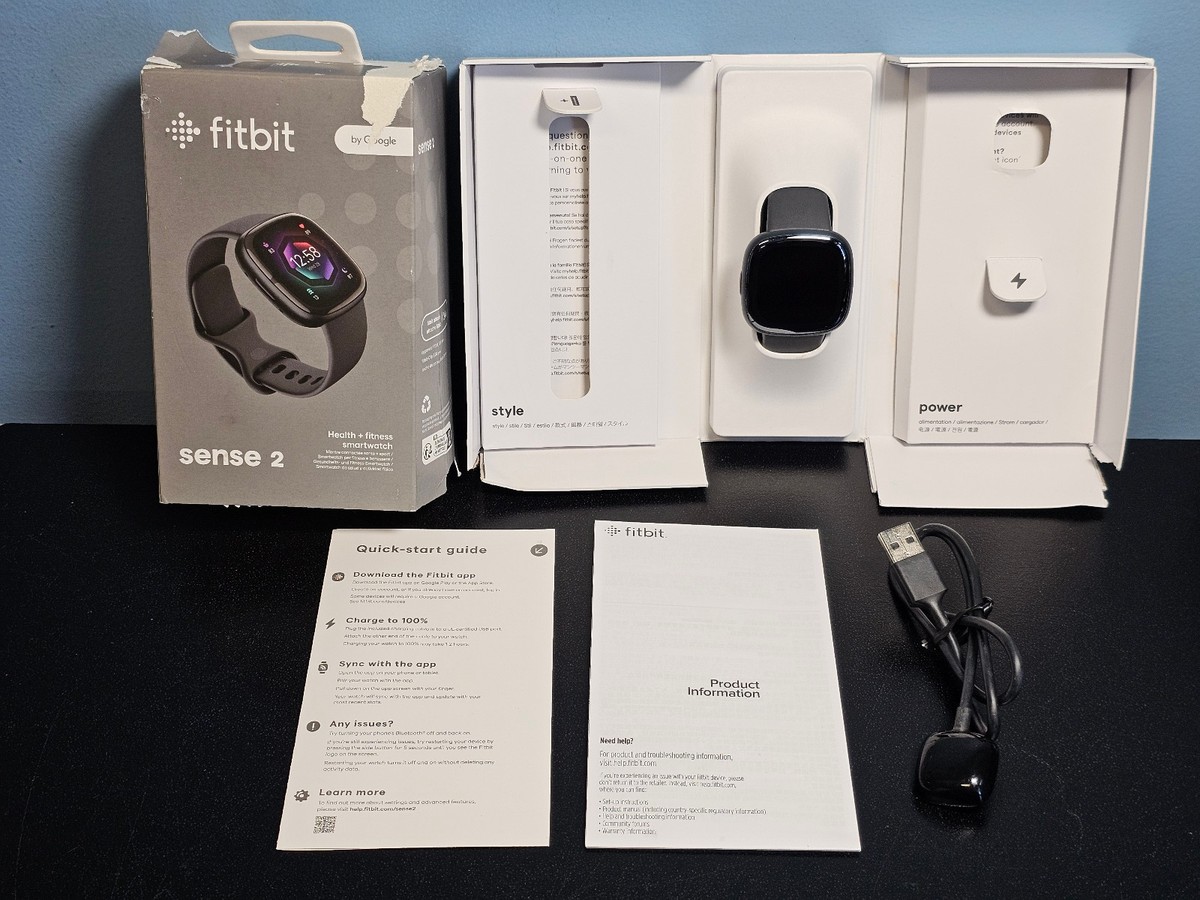
Charging issues are common problems with Fitbit devices. They stop working when the battery does not charge properly. This section explains simple steps to fix charging problems.
Clean Charging Contacts
Dirt or sweat can block the charging contacts on your Fitbit. Use a soft cloth to wipe the metal pins on both the device and the charger. Make sure the contacts are dry before trying to charge again.
Try A Different Charger
Sometimes the charger itself can cause issues. Test your Fitbit with another charger that fits your model. This helps find out if the charger is the problem.
Check Power Source
Ensure the power source is working well. Plug the charger into a different USB port or wall adapter. Avoid using low-power sources like old computers or cheap USB hubs.
Replace Battery If Needed
Fitbit batteries lose power after long use. If charging still fails, the battery may need replacing. Contact Fitbit support or a professional to check your battery health.
Screen And Display Glitches
Screen and display glitches can make using your Fitbit frustrating. Sometimes the screen may freeze, flicker, or not respond to touch. These issues can stop you from checking your stats or using features. Many times, simple steps can fix these problems fast. Follow the tips below to solve screen troubles and get your Fitbit working smoothly again.
Restart The Device
Restarting your Fitbit can clear minor bugs causing screen glitches. Press and hold the button or buttons on your device for about 10 seconds. Wait until the Fitbit logo appears, then release the buttons. This process refreshes the system and often fixes display problems. Restart regularly to keep your device running well.
Adjust Screen Brightness
Low or high brightness can cause screen flickering or dim displays. Open the Fitbit app or device settings to change brightness levels. Choose a middle setting for clear and comfortable viewing. Brightness adjustment helps save battery and improve screen visibility in different light conditions.
Factory Reset Options
If glitches continue, try a factory reset to restore original settings. This step deletes all data saved on your Fitbit, so sync your device first. Find the reset option in the device’s settings menu. Follow the instructions carefully to reset your Fitbit. This method often solves deep software issues affecting the screen.
Heart Rate Sensor Not Working
The heart rate sensor on your Fitbit is essential for tracking your fitness and health. Sometimes, the sensor may stop working properly. This can cause inaccurate readings or no readings at all. Fixing this issue can be simple. Follow these steps to get your heart rate sensor working again.
Wear Fitbit Correctly
Fitbit must sit snugly on your wrist. Not too loose, not too tight. Place it about one finger width above your wrist bone. Move the Fitbit slightly during exercise to keep good contact. Poor contact causes the sensor to fail.
Clean The Sensor
Dirt, sweat, and oils can block the sensor. Use a soft cloth with water to clean the back of the Fitbit. Avoid harsh chemicals or soap. Clean it regularly, especially after workouts. A clean sensor reads your heart rate better.
Check For Firmware Updates
Fitbit releases updates to fix bugs and improve sensors. Open the Fitbit app on your phone. Check the device settings for any available updates. Install the latest firmware to keep your Fitbit working well. Updates can resolve many sensor problems.
Activity Tracking Errors
Activity tracking errors can make your Fitbit less helpful. Wrong step counts or missed activities affect your daily progress. Fixing these issues helps you trust your device and meet your goals.
Calibrate Step Count
Calibrating your Fitbit improves step accuracy. Start by comparing its count to a manual step count. Walk a set number of steps, then check the difference. Adjust settings if your device allows calibration. This helps Fitbit better match your real movements.
Reset Daily Goals
Resetting daily goals can fix tracking problems. Open the Fitbit app and find your goals section. Set new targets that fit your current activity level. This refresh can clear errors and keep your progress accurate. Check your progress after resetting to confirm it works.
Verify Device Placement
Proper device placement is key for accurate tracking. Wear your Fitbit snugly on your wrist, above the wrist bone. Loose or wrong placement can cause false readings. Avoid wearing it too low or too high. Check placement often to maintain correct tracking.

App Crashes And Freezes
Fitbit app crashes and freezes can disrupt your daily fitness tracking. This issue makes it hard to sync data or check your progress. Many users face sudden app stops or screen freezes during use. These problems often stem from app bugs or device conflicts. Fixes are usually simple and quick.
Clear App Cache
Clearing the app cache removes old files that may cause crashes. It frees up space and can improve app speed. Go to your phone’s settings, find the Fitbit app, and clear its cache. Restart the app after this step. This often solves freezing issues and keeps the app running smoothly.
Update Operating System
Old phone software can cause app problems. Update your phone’s operating system to the latest version available. New updates fix bugs and improve app compatibility. Check your device settings and download any pending updates. This step helps prevent crashes and keeps the Fitbit app stable.
Contact Support
If problems continue, reach out to Fitbit support. They can guide you with detailed troubleshooting. Provide them with app version and device details. Support teams help solve complex issues quickly. Contacting Fitbit support ensures you get expert help when needed.
Notification Failures
Notification failures on your Fitbit can be frustrating. You might miss important calls, messages, or alerts. Fixing this problem usually takes just a few steps. Checking your settings and syncing options often solves it quickly.
Enable Notifications In Settings
First, check if notifications are turned on. Open the Fitbit app on your phone. Go to the device settings and find the notifications section. Make sure all notifications you want are enabled. If notifications are off, your Fitbit will not alert you.
Check Do Not Disturb Mode
Do Not Disturb mode stops all notifications. Swipe down on your Fitbit screen. Look for the Do Not Disturb icon. If it is on, tap to turn it off. Your device will start showing notifications again.
Sync Notification Preferences
Your Fitbit needs to sync with your phone to get notifications. Open the Fitbit app and pull down to refresh. This action syncs your device and app. Check notification settings again after syncing. This step often fixes missed alerts.
Frequently Asked Questions
How Do I Fix My Fitbit Not Syncing With The App?
Restart your Fitbit and phone to refresh the connection. Make sure Bluetooth is on and the app is updated.
Why Is My Fitbit Battery Draining So Fast?
Check for apps running in the background and lower screen brightness. Turn off always-on display to save battery.
What To Do If Fitbit Stops Tracking My Steps?
Clean the sensor area and wear the device snugly. Restart your Fitbit and check for software updates.
How Can I Reset My Fitbit Device Easily?
Press and hold the button for 10-15 seconds until the logo appears. For some models, use the settings menu to reset.
Why Is My Fitbit Not Charging Properly?
Ensure the charging cable and pins are clean and aligned. Try a different USB port or charger to test.
Conclusion
Fixing Fitbit issues does not have to be hard. Try simple steps like restarting or charging your device. Keep your app updated for best results. Check connections and settings often to avoid problems. Small fixes can save time and frustration.
Stay patient and follow clear instructions. Your Fitbit will work smoothly again soon. Enjoy tracking your health without interruptions.