Is your Cox modem acting up right when you need it most? Slow internet, constant disconnections, or no connection at all can be incredibly frustrating.
But before you call for help or consider costly replacements, there are simple steps you can take to fix the problem yourself. This guide will walk you through easy and effective Cox modem troubleshooting tips that anyone can follow. By the end, you’ll know exactly how to get your internet back on track quickly and with minimal hassle.
Keep reading—you’re just moments away from a smoother, faster connection.
Common Cox Modem Issues
Common Cox modem issues can disrupt your internet access and affect your daily activities. These problems often cause frustration and slow down your online experience. Understanding these issues helps you fix them faster.
Many users face similar problems with their Cox modem. Identifying the issue is the first step toward a solution. Below are the most common issues users encounter.
No Internet Connection
This issue happens when your modem is connected but cannot access the internet. It may show a solid light but no browsing is possible. Causes include service outages, bad cables, or incorrect settings. Restarting the modem often solves this problem.
Slow Internet Speeds
Slow speeds can make streaming, gaming, and browsing difficult. The problem might come from network congestion or outdated modem firmware. Check your plan speed and run a speed test. Resetting the modem or updating firmware can improve speeds.
Frequent Disconnections
Internet dropping frequently interrupts work and entertainment. Loose cables, overheating, or signal interference often cause this. Make sure cables are tight and the modem is in a cool spot. Updating firmware helps maintain a stable connection.
Modem Not Powering On
If the modem does not turn on, check the power outlet first. Faulty power adapters or damaged cables might be the cause. Try a different outlet and inspect the power cord. Replacing the adapter can fix this issue quickly.

Basic Troubleshooting Steps
Basic troubleshooting steps help fix common Cox modem problems fast. These steps are easy and can solve many connection issues. Follow each step carefully to get your internet working again.
Restarting The Modem
Turn off the modem by pressing the power button or unplugging it. Wait for 30 seconds to 1 minute. Plug it back in or turn it on. This clears temporary glitches and refreshes the connection.
Checking Cable Connections
Check all cables connected to the modem. Make sure the coaxial cable is tight and secure. Look for any damage on cables or connectors. Loose or damaged cables can cause signal loss.
Verifying Service Outages
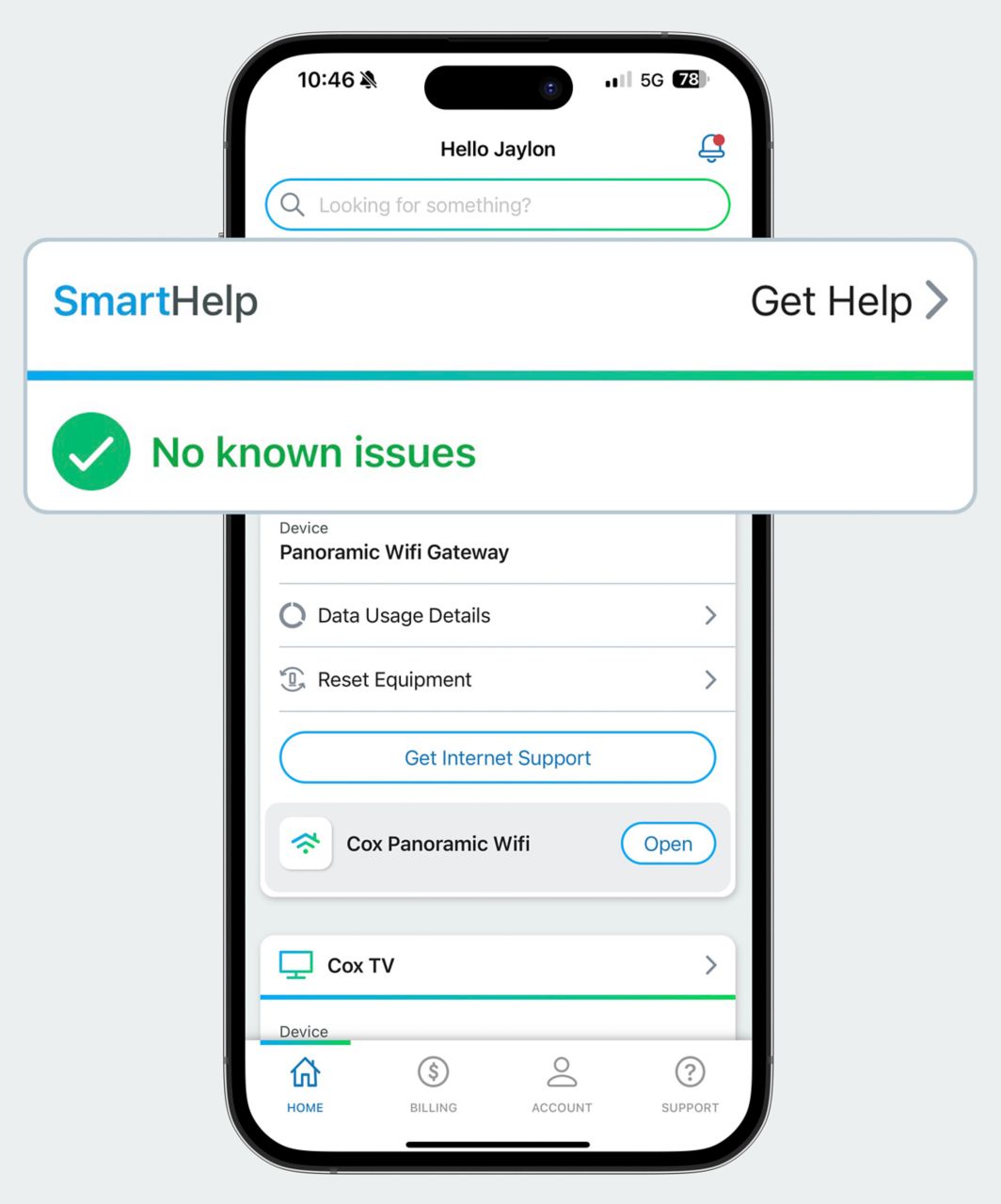
Check if Cox is having a service outage in your area. Visit the Cox website or use their app to find outage updates. Outages affect many users and stop the internet from working.
Resetting The Modem
Find the reset button on the back of the modem. Use a paperclip to press and hold it for 10 seconds. Release the button and wait for the modem to restart. This restores factory settings and can fix persistent issues.
Advanced Troubleshooting Tips
Advanced troubleshooting tips help solve modem problems that basic steps cannot fix. These tips focus on improving your Cox modem’s performance and connection stability.
Try these methods if your internet speed is slow or if your connection drops often. Each tip targets a different issue, making your modem work better.
Updating Modem Firmware
Firmware is the software inside your modem. It controls how the modem works.
Check if your modem’s firmware is up to date. New updates fix bugs and improve speed.
Access your modem’s settings through its web page. Look for the firmware update section.
Follow the instructions to download and install the latest firmware version.
Adjusting Modem Placement
Where you place your modem affects its signal strength.
Keep the modem in a central, open area. Avoid putting it near walls or inside cabinets.
Higher placement, like on a shelf, can improve signal coverage.
Place the modem away from metal objects and large appliances that block signals.
Checking For Interference
Other devices can cause signal interference.
Move cordless phones, microwaves, and baby monitors away from your modem.
Interference can lower internet speed and cause connection drops.
Try turning off other electronics one by one to find the source of interference.
Testing With A Different Device
Sometimes the problem is not the modem but the device.
Use another device to connect to the internet through your modem.
If the connection works well on the other device, the original device may need fixing.
This test helps isolate the problem and saves time in troubleshooting.
When To Contact Cox Support
Knowing when to contact Cox Support can save time and reduce frustration. Some modem issues need expert help. Recognizing these moments helps you get the right solution faster.
Persistent Connectivity Issues
If your modem keeps losing connection often, it is time to call Cox Support. Temporary fixes may not work. Constant drops in internet speed or connection show a deeper problem. Cox can run tests remotely to find network or signal issues.
Hardware Replacement Options
Modem hardware can fail over time. If you notice unusual noises, overheating, or no power, Cox Support can help. They guide you on replacing or upgrading your modem. Using the correct equipment ensures better internet performance and fewer problems.
Scheduling A Technician Visit
Some problems need hands-on help. Cox offers technician visits for complex issues. A tech can check wiring, modem setup, or external problems. Scheduling a visit ensures a quick and thorough fix for your connection.
Preventive Measures For Stable Internet
Keeping your Cox modem running smoothly helps avoid internet problems. Simple steps can keep your connection stable and fast. These tips protect your modem and improve your network’s performance. Follow these easy methods to enjoy better internet every day.
Regular Modem Maintenance
Clean your modem often to stop dust build-up. Dust can block vents and cause overheating. Restart your modem regularly to clear temporary glitches. Check cables and connectors for damage or loose fits. Updating your modem’s firmware improves security and speed.
Using Surge Protectors
Plug your modem into a surge protector. Power surges can damage electronic devices. A surge protector helps avoid sudden power spikes. It keeps your modem safe during storms or outages. This small step extends your modem’s life.
Optimizing Network Settings
Set your modem to the right channel to reduce interference. Use the best Wi-Fi frequency band for your devices. Secure your network with a strong password to prevent slowdowns. Limit the number of devices connected at once. Adjusting settings can improve speed and reliability.
Frequently Asked Questions
How Do I Reset My Cox Modem Safely?
To reset your Cox modem, press and hold the reset button for 10 seconds. This restores factory settings without damaging the device. Use a paperclip or similar tool for easy access.
Why Is My Cox Modem Not Connecting To The Internet?
Check all cable connections first. Power cycle the modem by unplugging it, waiting 30 seconds, and plugging it back in. Contact Cox if the problem continues.
How Can I Check My Cox Modem’s Signal Strength?
Access the modem’s web interface by typing its IP address in your browser. Look for signal levels in the status or diagnostics section. Good signals usually show as higher numbers.
What Causes Cox Modem Slow Speeds And How To Fix It?
Slow speeds often result from outdated firmware or network congestion. Restart your modem and router, and update firmware if possible. Call Cox support for persistent speed issues.
Can I Use Any Modem With Cox Internet Service?
Only modems approved by Cox work properly with their network. Using an unapproved modem can cause connection problems. Check Cox’s website for a list of compatible modems.
Conclusion
Troubleshooting your Cox modem can solve many common issues. Start by checking connections and power. Restart the modem to refresh its system. Reset to factory settings if problems persist. Contact Cox support for help if needed. Staying calm helps you fix problems faster.
Regular checks keep your internet running smoothly. Small steps can save you time and stress. Keep these tips handy for quick fixes. Enjoy a better, more reliable internet experience.