Whether you’re setting up a new camera or trying to restore a connection that has suddenly dropped, foscam troubleshooting is a process that usually centers on network stability, power supply, and firmware synchronization. Security cameras often face environmental challenges, signal interference, or software version mismatches that prevent them from communicating with your local router or the official mobile application. By methodically checking your hardware, verifying your network settings, and confirming your credentials, you can resolve the vast majority of connectivity issues without needing professional technical support.
Key Takeaways
- Power-cycle your camera by unplugging it for sixty seconds to clear temporary cache errors.
- Verify that your local network is broadcasting on a 2.4GHz frequency, as most older models don’t support 5GHz.
- Use a wired Ethernet connection during the initial setup to bypass Wi-Fi handshake failures.
- Check your router’s firewall settings to ensure that the ports required for video streaming aren’t blocked.
- Ensure your firmware is updated to the latest version to maintain compatibility with updated app protocols.
Why Is the Camera Offline?
The most common reason for a camera appearing offline is a loss of the IP address assignment. If your router uses dynamic addressing, a power flicker or a reboot can sometimes cause the router to assign a new address to the camera, leaving the app looking for the old one. Additionally, physical obstructions like brick walls or metal cabinets can drastically reduce the signal strength of your Wi-Fi, causing the device to disconnect whenever the local interference increases.
Checking Physical Connectivity
Before diving into complex software settings, look at the physical status of the device. If the status light is flashing red, the camera is likely struggling to find an IP address. If there’s no light at all, the power adapter may be faulty or the outlet might be dead. Always test the camera with a different power cable if you suspect an electrical failure, as cables are a common point of hardware fatigue in outdoor installations.
| Component | Status Indicator | Likely Resolution |
|---|---|---|
| Power Supply | No Light | Replace or test wall outlet |
| Ethernet Cable | Solid Green | Check router port connection |
| Wi-Fi Module | Flashing Red | Reset to factory defaults |
| Firmware | Constant Reboot | Initiate manual firmware update |
How to Perform a Factory Reset
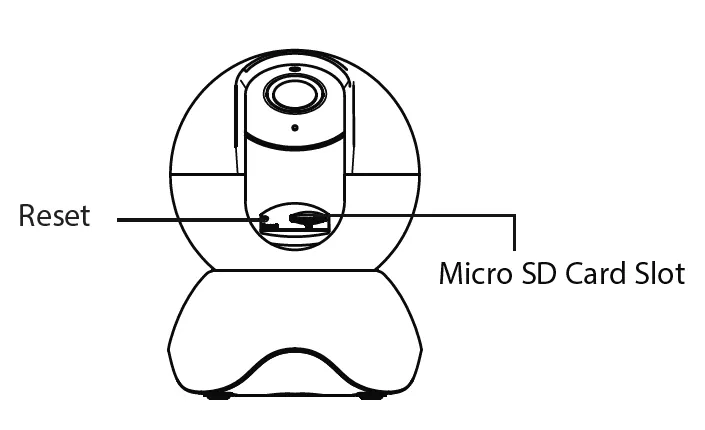
When standard troubleshooting fails, a hard reset is often the only way to return the camera to its out-of-the-box state. This wipes all custom configurations, including your Wi-Fi credentials and administrative passwords. Locate the reset button, which is usually recessed on the bottom or back of the camera housing. You’ll need a paperclip or a small pin to hold the button down for approximately fifteen to twenty seconds while the camera is powered on.
Post-Reset Configuration Steps
Once the device has rebooted, it will return to its default IP address or DHCP mode. You must then use the official Foscam app or a desktop browser to re-add the device to your account. During this process, ensure your smartphone is connected to the same local network that the camera will be using. This prevents authentication errors that occur when the phone and camera are on different subnets or VLANs.
Managing Network and Router Settings
Your router is the gatekeeper for all video data. If you have recently upgraded your internet service or changed your Wi-Fi password, the camera will remain disconnected until you update the settings inside the application. Many modern routers use “band steering,” which forces devices onto a 5GHz network. Since many Foscam devices are restricted to 2.4GHz, you may need to disable the 5GHz radio temporarily during the setup process to force the camera to lock onto the correct frequency.
Firewall and Port Considerations
If you can see the camera while inside your home but it disappears when you switch to cellular data, your router’s firewall settings are likely the culprit. You may need to enable UPnP (Universal Plug and Play) in your router’s administrative interface to allow the camera to open the necessary ports for remote access. According to the official Foscam support documentation, port forwarding is sometimes required for older models to function correctly when viewed from outside the local network.
Updating Firmware for Stability
Outdated firmware is a frequent cause of intermittent video feeds and failed app logins. Manufacturers release updates to fix bugs, improve security, and ensure compatibility with newer smartphone operating systems. You can check for updates through the device settings menu in the mobile application. If the app fails to update the camera, you can often download the firmware file directly from the manufacturer’s website and upload it via a web browser using the camera’s local IP address.
Dealing With SD Card Errors
If your camera is failing to record motion events, the issue may not be the camera itself, but rather the microSD card. Over time, the constant read-and-write cycles of continuous video recording can cause the card to fail or develop “bad sectors.” Try removing the card and formatting it using a computer. If the camera still shows a “Card Error” message, replace the storage media with a high-endurance card designed specifically for surveillance applications.
| Issue | Potential Cause | Recommended Action |
|---|---|---|
| Recording Fails | Corrupt File System | Reformat card via app |
| Motion Detection | Sensitivity Setting | Adjust threshold in settings |
| Video Lag | Network Congestion | Lower stream resolution |
| Night Vision | Low Power Output | Use original power supply |
Wireless Signal Interference Solutions
If your camera experiences frequent drops, consider the environment. Devices like microwaves, cordless phones, and even neighboring Wi-Fi networks can cause signal interference. If your camera is mounted outdoors, the distance from your router may be too great. Using a Wi-Fi range extender or a powerline adapter can bridge the gap. Pro Tip: Always place your router in a central, elevated location to ensure the signal reaches your cameras without passing through excessive concrete or metal barriers.
Foscam Troubleshooting for Mobile App Connectivity
Sometimes the problem lies within the app rather than the hardware. If the app is crashing or failing to load the camera list, try clearing the application cache or uninstalling and reinstalling the app entirely. Ensure that your mobile device has the necessary permissions enabled, such as local network access, which is required for the app to discover the camera during the initial pairing process.
Managing Password and Login Issues
Losing your password is a common frustration. If you have forgotten the administrative password, a factory reset is the only way to regain control. However, if you have forgotten your cloud account password, use the “Forgot Password” feature on the login screen to trigger an email reset. Never share your account credentials with third-party apps or unverified services, as this can compromise the security of your home network and your private video feeds.
Frequently Asked Questions
Why does my camera show as “Disconnected” in the app?
This usually happens because the camera lost its connection to the Wi-Fi router. First, ensure the power light is on. If it is, reboot your router and the camera. If the issue persists, the camera may have lost its Wi-Fi credentials after a power surge or an update, requiring you to re-add the device using the setup wizard in the mobile application.
How do I fix a camera that’s stuck in a boot loop?
A boot loop often indicates a corrupted firmware update or a power supply that’s no longer providing consistent voltage. Try using a different power adapter with the same voltage and amperage specifications. If the camera continues to restart, you may need to perform a firmware recovery by connecting the camera directly to a computer via an Ethernet cable and following the manufacturer’s manual update procedure.
Can I use a 5GHz network for my camera?
Most standard Foscam models are designed to operate exclusively on the 2.4GHz frequency band. While 5GHz offers higher speeds, it has a shorter range and struggles to penetrate walls. If your router uses a single SSID for both bands, the camera may fail to connect. You may need to temporarily disable the 5GHz radio in your router settings to ensure the camera connects to the 2.4GHz band.
Why is the night vision image blurry or distorted?
Blurry night vision is often caused by the camera lens being too close to a reflective surface, such as a window or a wall. The infrared light bounces off the surface and blinds the sensor. Ensure the camera is mounted away from objects that could reflect the IR beam. Additionally, check the camera lens for dust, spiderwebs, or moisture, which can scatter the light and create hazy images.
How do I update my camera if the app fails?
If the app can’t complete an update, use a web browser on a desktop computer. Access the camera’s interface by typing its IP address into your browser’s address bar. Navigate to the “System” or “Maintenance” tab, where you can manually upload the firmware file downloaded from the manufacturer’s website. This method is generally more stable than the mobile app and provides better feedback if the update process encounters errors.
Conclusion
If you’re still unable to stabilize your camera after following these steps, check your router’s logs for any blocked traffic or MAC address filtering that might be preventing the device from communicating with the server. If the hardware remains unresponsive, contact the manufacturer’s support team with your device’s serial number ready to determine if a warranty replacement is necessary for your specific model.