To get your screen working again, basic furrion tv troubleshooting usually starts with a simple power cycle to clear temporary software glitches. If your television won’t turn on or shows a blank screen, you should first unplug the power cord from the wall outlet for at least 60 seconds. This allows the internal capacitors to discharge fully, which often resets the main control board. If the power light doesn’t blink or change color after you plug it back in, you may have a loose cable or a faulty wall socket.
Troubleshooting common Furrion television failures
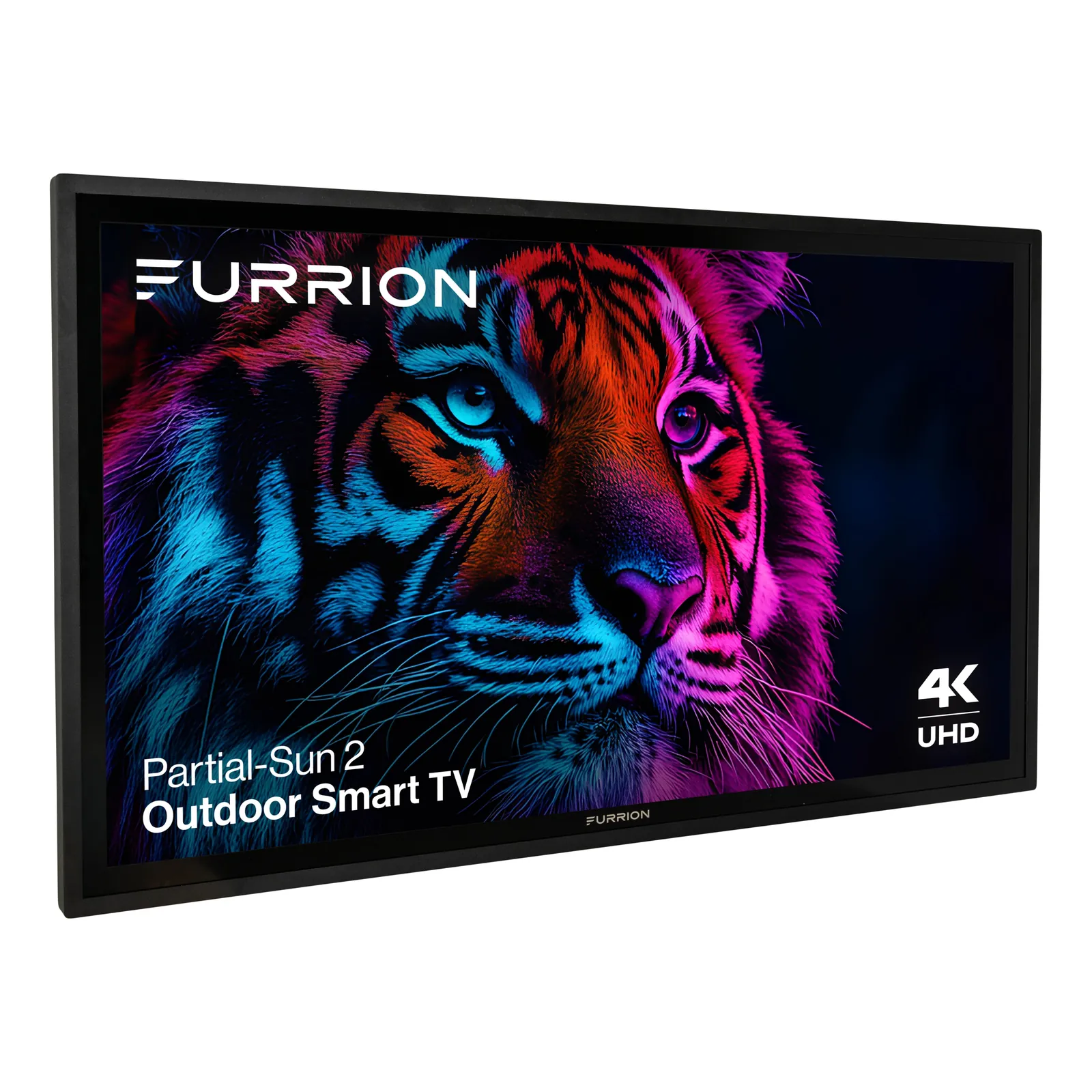
Most display issues happen because of a loss of signal or a software hang, rather than a broken panel. When the TV is on but the screen remains black, the issue is often a mismatch between the input source and the television’s current setting. You might have accidentally switched the input to an empty HDMI port, or the connected device—like a cable box or game console—has entered a sleep mode.
Another common cause involves power delivery. Because these units are often used in environments with fluctuating voltage, like RVs or boats, the internal power supply might trigger a protection mode if it detects a surge or a drop in current.
This is a safety feature designed to prevent permanent damage to the electronics. You can verify the power requirements for your specific model by checking the Furrion product support documentation to ensure your power source provides the correct voltage and amperage.
Finally, outdated firmware can sometimes cause the operating system to freeze. If the TV turns on but the menu is unresponsive, the system software may be stuck in a loop. Unless you see physical damage to the screen, like spider-web cracks or liquid spots, these issues are almost always related to external connections or power stability. If the screen is physically broken, it’s usually cheaper to replace the unit than to pay for a panel repair.
Check your external input connections
If your TV has power but shows no picture, you should verify that your cables are secure and selected correctly. Start by turning off both the TV and your source device, such as a DVD player or streaming stick. Unplug the HDMI cable from both ends and inspect the pins for any bent metal or debris. If the pins look clean, plug the cable back in firmly until you hear a click or feel it seat completely.
Once everything is connected, turn the TV on first, then power on your source device. Use the “Input” or “Source” button on your remote to cycle through the options. If you’re using HDMI 1, ensure the TV is set to “HDMI 1” and not “AV” or “Component.”
If the screen still shows “No Signal,” try using a different HDMI cable that you know is working. If a different cable fixes the issue, your previous cord was faulty. If it still doesn’t work, move the cable to a different HDMI port on the back of the TV to rule out a broken port.
Reset your power and display settings
When the picture is distorted or the volume isn’t working, a factory reset can often restore normal operation. You can usually find the “Reset” or “Restore Default” option within the Settings menu under the “System” or “General” tab. This action will erase your saved channels and picture adjustments, so be prepared to set them up again.
If the menu is too distorted to read, you may need to navigate by memory or use the physical buttons on the side of the unit to reach the reset screen.
If you can’t access the menu, look for a small pinhole on the back or side of the TV labeled “Reset.” You’ll need a paperclip to gently press and hold this button for 10 seconds while the TV is powered on. This performs a hard reset of the internal software.
If the TV doesn’t react at all to the remote or the physical buttons, the internal control board may have failed. At this point, avoid trying to open the casing. Opening the housing can void your warranty and exposes you to high-voltage components that remain dangerous even when the unit is unplugged. If a reset doesn’t fix the problem, contact a professional repair shop or the manufacturer for a warranty claim.
Verify the power source and cables
For TVs installed in mobile environments, the quality of the power supply is the most common point of failure. If your television works fine at home but struggles in a vehicle, the issue is almost certainly the power delivery system.
Check your battery levels or the shore power connection to ensure you have a steady 120-volt AC supply. If you’re using an inverter, ensure it’s outputting a clean sine wave, as “modified” sine wave inverters can cause flickering, buzzing, or total failure of the internal power board.
If you have access to a different outlet, plug the TV into that one to see if the problem follows the device or stays with the outlet. If the TV works in another room, your original outlet is likely the culprit. You should also inspect the power cord for any fraying or exposed wires.
If you find any damage to the cord, don’t use it. A damaged power cable is a fire hazard and requires replacement of the entire cord or the unit itself. If you’re unsure about the power supply, a technician can test the unit to determine if the part has failed.
Common mistakes to avoid
- Using improper cleaning agents: Never spray glass cleaner or water directly on the screen, as liquid can seep into the frame and cause short circuits.
- Blocking the ventilation slots: Placing the TV in a tight cabinet without airflow causes the components to overheat, which leads to premature failure of the backlight.
- Ignoring a burning smell: If you smell ozone or plastic, unplug the TV immediately; this indicates a short circuit that can lead to a fire.
- Forcing cables into ports: If an HDMI cable doesn’t fit, don’t use pressure, as this can snap the delicate internal pins and ruin the port.
How to prevent future display issues
You can keep your television running longer by managing how it handles power and physical stress. If you use the unit in an RV or boat, installing a dedicated surge protector between the outlet and the TV is the best way to prevent damage from power spikes.
| If you’re doing this | Do this instead | Why |
|---|---|---|
| Leaving the TV on constantly | Use the sleep timer | Reduces heat and wear on the backlight |
| Using a cheap extension cord | Use a heavy-duty surge protector | Prevents voltage drops and protects from spikes |
| Cleaning with paper towels | Use a dry microfiber cloth | Avoids scratching the delicate screen coating |
| Mounting with loose screws | Ensure a snug, level mount | Prevents vibration damage during travel |
Frequently asked questions
How long does a typical television last?
Most modern LED televisions are designed to last between 50,000 and 100,000 hours of use. This lifespan depends on maintaining a temperature-controlled environment and avoiding maximum backlight brightness. Actual longevity varies based on your specific usage habits.
Is it safe to leave my TV on all night?
It isn’t recommended to leave a modern TV on for long periods if you want to extend the life of internal components. Constant operation generates heat, which is the primary enemy of electronic circuits and the screen panel. Use the sleep timer to reduce wear.
Why does my screen flicker?
Flickering is almost always caused by a loose video cable or a failing power supply unit. Ensure your HDMI cables are pushed firmly into all devices to rule out signal interference. If the issue persists across all inputs, the internal power board may be failing.
Can I repair a cracked screen?
It isn’t practical to repair a cracked screen because the cost of the replacement panel is typically higher than buying a new television. The panel is the most expensive component of the unit. If your screen has a visible crack, you should consider a replacement.
What happens if I use the wrong power cable?
Using a power cable with the wrong voltage or amperage rating can damage the internal motherboard. Always use the original power cord or a certified replacement that matches the specifications on the back label. Using an incorrect cable creates a fire risk and may trigger safety shutdowns.
How do I update my TV firmware?
You can update the firmware by selecting “Software Update” in the “Settings” or “Support” menu while connected to the internet. If your model lacks internet access, download the update file from the manufacturer’s website onto a USB drive. Follow the on-screen prompts to install the software and improve stability.
Conclusion
If you have tried all the steps above and the television still refuses to function, your best move is to contact the manufacturer’s customer support line. They can tell you if your unit is still under warranty or point you toward an authorized repair center in your area. Avoid taking the back panel off yourself, as this doesn’t help with software issues and creates a risk of electric shock or permanent damage to the delicate internal components.