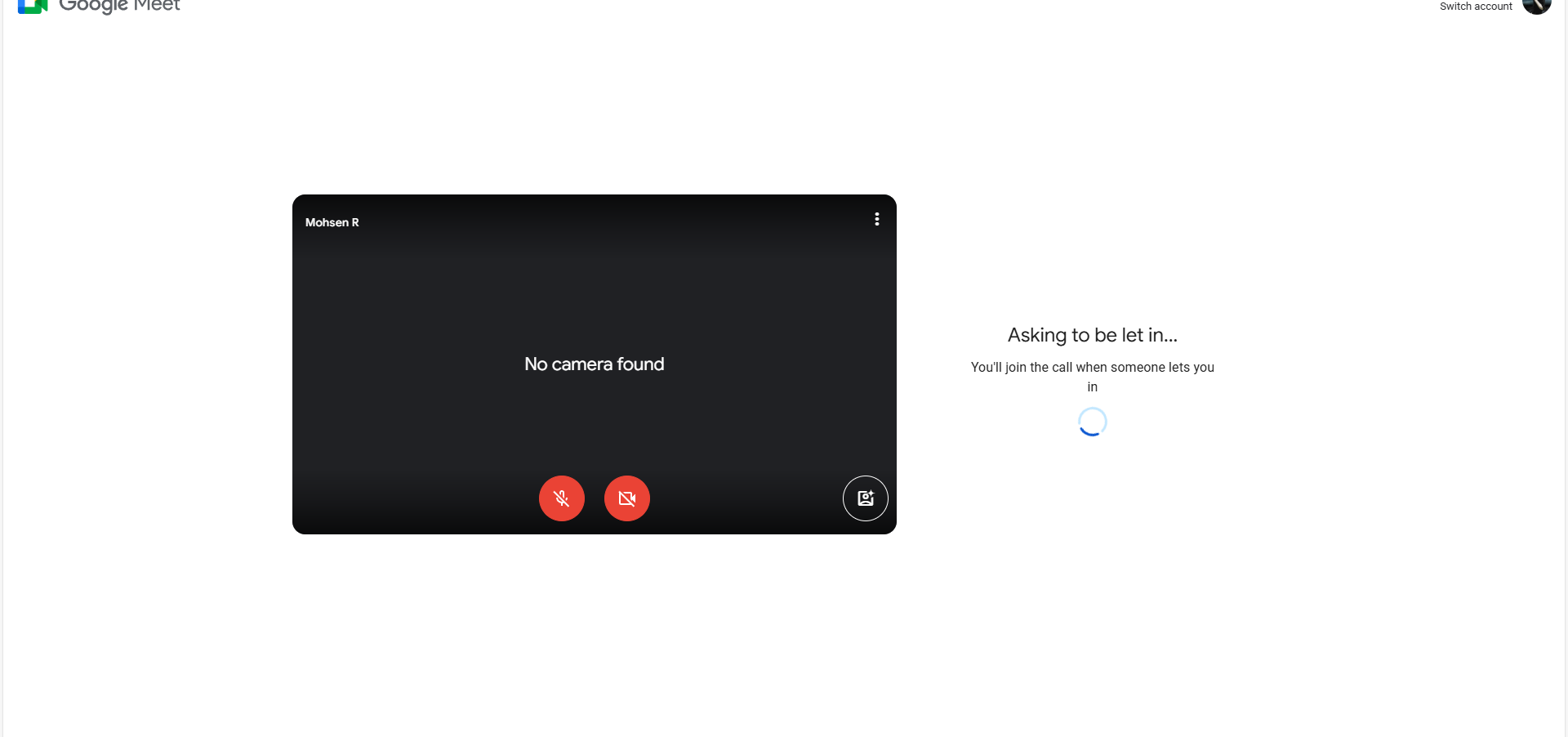
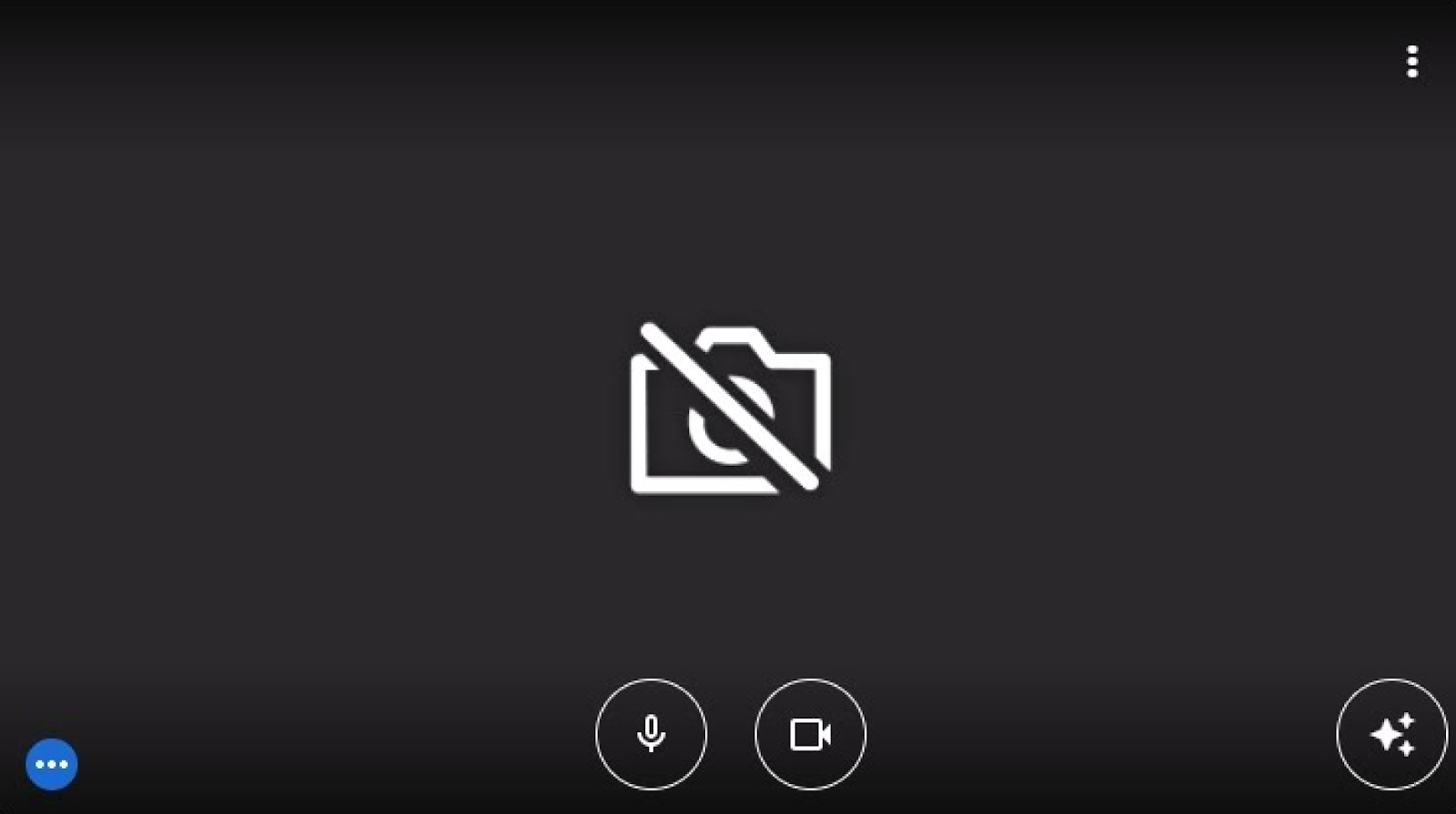
Are you facing the frustrating Google Meet black screen with a white dot on your camera? You’re not alone, and it can seriously disrupt your meetings and work.
Don’t worry—this problem has simple fixes that you can try right now. You’ll discover easy and effective troubleshooting steps to get your camera working smoothly again. Keep reading, and say goodbye to that annoying black screen for good!
Common Causes
Google Meet showing a black screen with a white dot can be frustrating. This issue stops your camera from working properly. Many factors can cause this problem. Understanding the common causes helps fix it faster.
Camera Access Permissions
Your browser needs permission to use the camera. Without access, the camera won’t show video. Check browser settings to allow camera use. Sometimes, permissions reset after updates or restarts. Granting access solves many camera issues quickly.
Browser Compatibility
Not all browsers work well with Google Meet. Some older browsers or less popular ones may cause video problems. Using the latest versions of Chrome, Firefox, or Edge improves camera performance. Browsers that don’t support WebRTC technology often show black screens.
Outdated Drivers
Camera drivers help your computer talk to the camera. Old or missing drivers can block the video feed. Updating drivers from the device manager or the manufacturer’s website can fix this. Keeping drivers current ensures smooth camera operation.
Hardware Conflicts
Other software or devices can interfere with the camera. Video apps running in the background might block camera access. USB hubs or faulty cables also create conflicts. Disconnecting unused devices and closing apps frees the camera for Google Meet.
Basic Fixes
Basic fixes can solve many common Google Meet camera issues. These simple steps often restore video quickly. Start with easy checks before trying complex solutions. This saves time and avoids frustration.
Restart Browser And Computer
Close your browser completely. Reopen it and try Google Meet again. Restart your computer if the problem remains. This refreshes system settings and clears temporary glitches. Many users find this step effective.
Check Camera Connections
Ensure your camera is properly plugged in. For external webcams, check the USB connection. Try unplugging and plugging it back. For built-in cameras, confirm they are not blocked. Clean the lens gently if needed. A loose or dirty camera can cause a black screen.
Close Background Apps
Other apps may use your camera. Close apps like Skype, Zoom, or Teams. This frees the camera for Google Meet. Check your taskbar or system tray for running apps. Closing these can fix the white dot or black screen issue.
Browser Settings
Browser settings play a big role in fixing the Google Meet black screen white dot camera issue. Sometimes, the problem happens because the browser blocks the camera. Other times, the browser stores old data that causes errors. Checking and adjusting your browser settings often solves these problems. Follow these steps to make sure your browser works well with Google Meet.
Enable Camera Permissions
Your browser needs permission to use the camera. Without it, Google Meet shows a black screen with a white dot. Open your browser settings and find the privacy or site settings section. Look for camera permissions. Make sure Google Meet or meet.google.com is allowed to use the camera. If it is blocked, change it to allow. Refresh the Google Meet page after changing the setting.
Clear Cache And Cookies
Cache and cookies store data from websites to load them faster. Sometimes, this data becomes outdated or corrupted. This can cause camera issues on Google Meet. Clearing cache and cookies removes old data. Go to your browser’s settings. Find the option to clear browsing data. Select cache and cookies. Clear them and restart the browser. Open Google Meet again to check if the camera works.
Update Browser
Using an old browser version can cause compatibility issues. Google Meet works best with the latest browser updates. Check your browser’s version in the settings menu. If an update is available, install it right away. Updates fix bugs and improve security. After updating, restart the browser. Try Google Meet to see if the camera issue is gone.

Camera Driver Updates
Camera driver updates play a key role in fixing Google Meet black screen white dot issues. Outdated or faulty drivers can stop your camera from working properly. Updating or reinstalling these drivers often resolves the problem quickly.
Keeping your camera drivers current ensures they work well with your system and apps. It also helps avoid glitches and improves video quality during meetings. Follow the steps below to check and update your camera drivers.
Check For Driver Updates
Start by opening the Device Manager on your computer. Find the “Cameras” or “Imaging devices” section. Right-click your camera device and select “Update driver.”
Choose the option to search automatically for updated driver software. Windows will look online for the newest driver version. If an update is found, it will install automatically. Restart your computer after the update.
If no update appears, try visiting your camera manufacturer’s website. They often offer the latest driver files for download. Installing drivers from there can fix compatibility issues.
Reinstall Camera Drivers
Reinstalling drivers can fix corrupted files causing the black screen issue. Open Device Manager again and locate your camera.
Right-click the camera and select “Uninstall device.” Confirm the uninstallation and restart your PC. Windows will detect the camera and reinstall its driver automatically.
Test your camera on Google Meet after reinstalling. If the problem continues, download and install the driver from the manufacturer’s site manually.
Advanced Solutions
Some Google Meet camera problems need deeper fixes. These advanced steps can fix the black screen with a white dot issue. They tackle browser and system settings that affect your camera.
Use Incognito Mode
Incognito mode disables extensions and cache. This helps find if extensions block your camera. Open a new incognito window and join Google Meet.
If the camera works, an extension causes the issue. Disable or remove extensions one by one to find the culprit.
Try Different Browser
Some browsers handle camera permissions better. Switch to Chrome, Firefox, or Edge for testing. Different browsers have different settings and support.
Test your camera on Google Meet using another browser. This helps find if the problem is browser-specific.
Disable Hardware Acceleration
Hardware acceleration uses your GPU to improve performance. It can cause video issues in some cases. Turn it off in your browser settings.
In Chrome, go to Settings > Advanced > System and turn off hardware acceleration. Restart the browser and check Google Meet again.
Alternative Workarounds
Sometimes, the usual fixes for the Google Meet black screen with a white dot do not work. Alternative workarounds can help you continue your video calls without much trouble. These methods offer simple ways to bypass camera issues and keep your meetings running smoothly.
Use External Webcam
Using an external webcam can solve the black screen problem fast. Plug the webcam into your computer’s USB port. Then select it as the camera in Google Meet settings. External webcams often work better than built-in ones. This method avoids hardware or driver issues on your laptop’s camera.
Switch To Google Meet App
Try the Google Meet app instead of the browser version. The app can handle camera permissions more smoothly. It also updates automatically to fix bugs. Using the app reduces chances of the black screen with a white dot. Download it from your device’s app store and sign in to join meetings.
Frequently Asked Questions
Why Does Google Meet Show A Black Screen With A White Dot?
This usually happens due to camera permission issues or software glitches. Check if your browser or app has camera access enabled. Restarting Google Meet often fixes the problem.
How Can I Fix The Black Screen Camera Issue On Google Meet?
Try closing other apps using the camera and refresh your Google Meet page. Updating your browser or app can also resolve this glitch. Restarting your device helps sometimes too.
Can Browser Settings Cause Camera Problems In Google Meet?
Yes, incorrect browser settings can block camera access. Ensure your browser allows Google Meet to use the camera. Clear cache and cookies to remove any conflicting data.
Does Outdated Software Cause The White Dot Camera Problem?
Outdated browser or app versions can cause camera errors. Keep your software updated to avoid bugs. Updates often include fixes for camera-related issues.
How Do I Check If My Camera Works Outside Google Meet?
Open your device’s camera app to test it. If the camera shows a normal image there, the problem is with Google Meet. Otherwise, your camera hardware or drivers may need attention.
Conclusion
Troubleshooting the Google Meet black screen white dot camera issue can be simple. Check your camera settings and browser permissions first. Restart your device to clear temporary glitches. Update your browser and camera drivers regularly. Close other apps that might use the camera.
Test the camera in another app to see if it works. These steps often fix the problem quickly. Stay patient and follow each step carefully. Your video calls will run smoothly again soon.