Is your PC microphone not working when you need it the most? You’re not alone, and fixing it might be easier than you think.
Whether your voice sounds muffled, your mic isn’t detected, or it just won’t pick up any sound, these issues can be frustrating. But don’t worry—this guide will help you quickly find the cause and get your microphone back in perfect shape.
Keep reading to discover simple steps you can take right now to solve your PC microphone problems once and for all.
Common Mic Issues
Microphone problems can stop you from talking or recording clearly on your PC. Common issues affect many users. Knowing these problems helps fix them fast. Here are some frequent mic problems and how they show up.
No Sound Detected
Your PC may not hear your voice at all. This happens if the mic is not plugged in right or is muted. Sometimes, the wrong device is set as the default recording source. Also, outdated or missing drivers can cause this issue.
Distorted Audio
Sound may come out fuzzy, unclear, or crackly. This can be due to a bad cable or connector. Background noise or too much volume can also distort your voice. A dirty microphone or damaged hardware causes poor sound quality.
Mic Not Recognized
The PC may not detect your microphone at all. This can happen if the USB port or audio jack is faulty. Sometimes, the mic is disabled in the system settings. Missing drivers or software conflicts block recognition too.
Low Volume Levels
Your voice might sound very quiet or hard to hear. This happens if the mic volume is set too low in settings. The microphone could be too far from your mouth. Hardware issues or interference can also reduce volume levels.
Basic Checks
Basic checks are the first step in fixing PC microphone issues. These steps help find simple problems fast. Most mic problems come from loose connections or wrong settings. Start with these easy checks to save time and avoid frustration.
Verify Mic Connection
Check if your microphone is plugged in securely. Look at the cable and port for a snug fit. USB mics should be connected to a working USB port. For 3.5mm jacks, try different ports on your PC. A loose or wrong connection stops your mic from working.
Check Mute Settings
Make sure the microphone is not muted. Check the mute button on the mic itself. Look at your PC’s sound settings to see if the mic is muted there. Also, check the app you use for any mute options. Muted mics produce no sound, even if everything else is fine.
Inspect Physical Damage
Look over your microphone for visible damage. Check the cable for cuts or frays. Look at the mic body for cracks or dents. Damage can block sound or cause the mic to stop working. If you find damage, the mic might need repair or replacement.
Test With Another Device
Try using the microphone with another computer or device. This test shows if the problem is with the mic or your PC. If the mic works on the other device, the issue is with your PC settings or hardware. If it doesn’t work, the mic may be faulty.
Software Settings
Software settings play a key role in fixing PC microphone problems. Many issues happen because of wrong settings. Checking these settings can save time and effort. Adjusting sound controls and permissions helps the microphone work properly. Follow the tips below to fix common software-related microphone issues.
Adjust Input Volume
Start by checking the microphone’s input volume. Low input makes sound too quiet or not heard. Open your sound settings and find the input section. Slide the volume bar up to increase sound pickup. Test the microphone after adjustment. Set it high enough to catch your voice clearly.
Select Correct Device
PCs may have multiple microphones or audio devices. Choose the right one to avoid confusion. Go to the sound control panel and look for input devices. Select the microphone you want to use. This prevents the computer from using the wrong device by mistake. Confirm the selection and test the mic again.
Update Audio Drivers
Old or faulty drivers can cause microphone issues. Drivers let your computer and microphone communicate. Check for updates using the device manager or manufacturer’s website. Install the latest drivers to fix bugs and improve performance. Restart the PC after updating to apply changes.
Configure Privacy Permissions
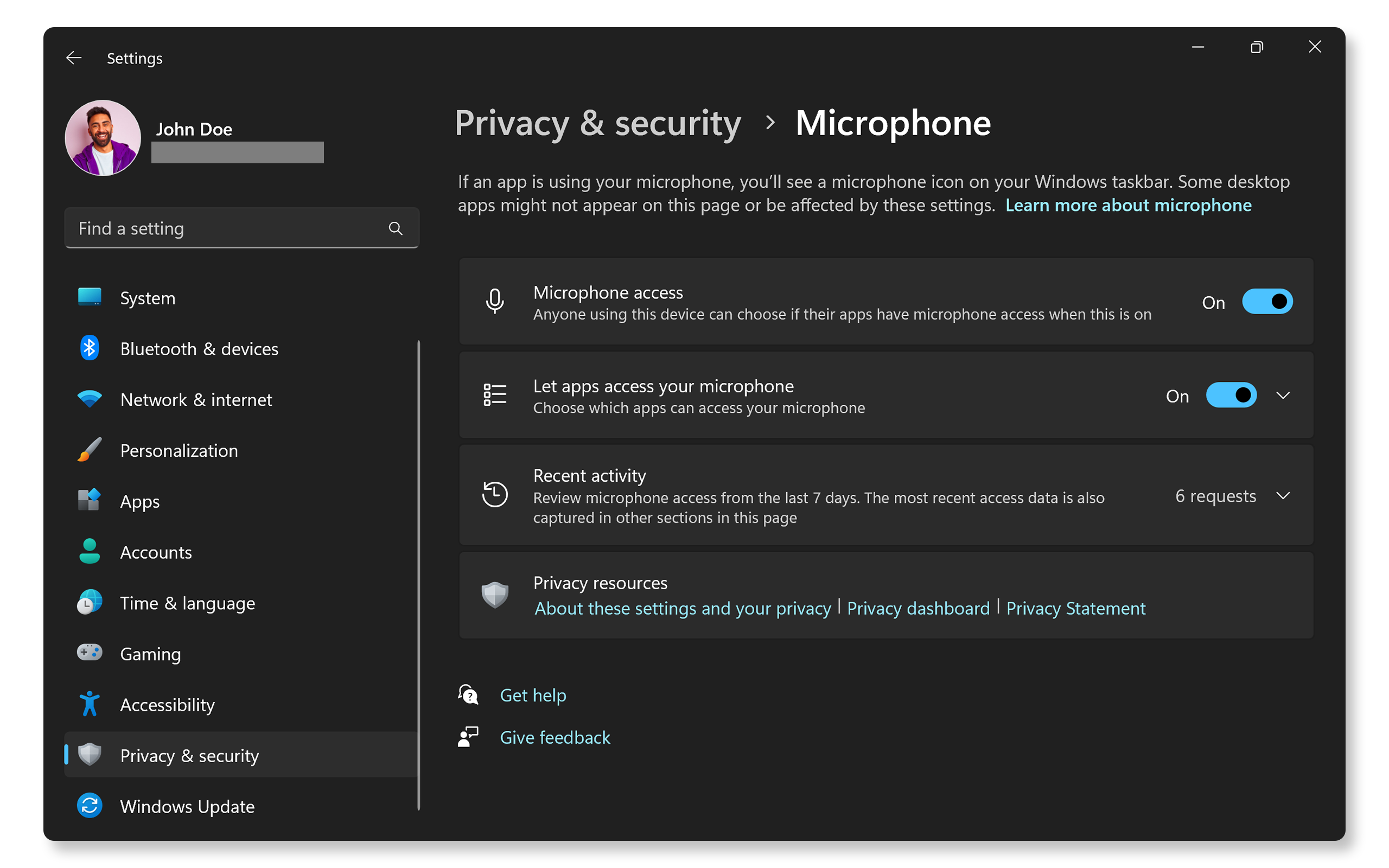
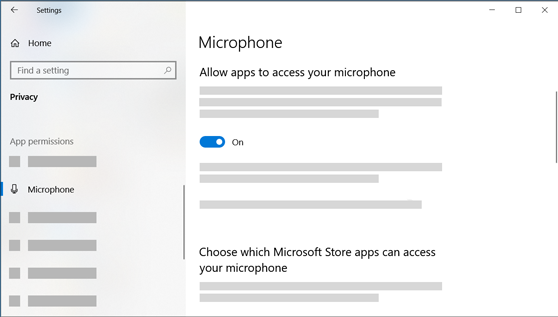
Privacy settings may block microphone access. Windows and other systems require permission for apps to use the mic. Open privacy settings and find microphone permissions. Allow access for the apps that need it. Turn on microphone access for the system if it’s off. This step ensures apps can hear your voice.
Advanced Solutions
Advanced solutions help fix tricky PC microphone problems. These steps go beyond basic checks and fix deeper issues. Follow these tips to improve your mic performance and sound quality.
Use Troubleshooter Tools
Windows has built-in tools to find mic problems. Open Settings and go to Update & Security. Select Troubleshoot and pick Recording Audio. The tool scans your system and suggests fixes. It can solve driver or configuration errors fast.
Reset Sound Settings
Sometimes sound settings cause mic issues. Resetting them clears wrong options. Go to Sound settings and select Sound Control Panel. Under Recording tab, right-click your mic and choose Properties. Click the Advanced tab and hit Restore Defaults. This resets all sound parameters to factory settings.
Disable Exclusive Mode
Exclusive Mode lets apps control your mic alone. This can block other programs from using it. To stop this, open your mic Properties again. Under Advanced tab, uncheck “Allow applications to take exclusive control of this device.” Save changes and test your mic again.
Check For Background Apps
Some background apps use your mic without you knowing. They can cause conflicts and poor sound. Open Task Manager and look for audio or communication apps. Close apps that might access the mic. Restart your PC and check if the mic works better.
External Factors
External factors can affect your PC microphone’s performance. These factors often cause poor sound quality or unclear voice capture. Understanding and managing these elements can improve your audio experience significantly.
Simple changes around your setup can reduce noise and enhance clarity. Small tweaks help you get the best sound from your microphone. Focus on controlling the environment and equipment to fix common issues.
Reduce Background Noise
Background noise disturbs your microphone’s sound quality. Turn off noisy devices near your PC. Close windows to block outside sounds. Soft materials like curtains or carpets absorb echo and noise. Quiet rooms improve voice clarity greatly.
Improve Mic Placement
Place the microphone close to your mouth. Avoid putting it near fans or vents. Keep it away from your keyboard sounds. Positioning affects how well the mic captures your voice. Find the spot with the clearest, loudest sound.
Use Pop Filters
Pop filters block harsh sounds from speech, like “p” and “b” noises. They stop bursts of air hitting the microphone. Pop filters improve sound smoothness and reduce distortion. Attach one easily to your mic for better audio.
Upgrade Hardware
Old or low-quality microphones limit sound quality. Consider buying a better external mic for clearer voice capture. Check that cables and connectors are in good condition. Higher quality equipment helps solve many sound problems fast.

Frequently Asked Questions
Why Is My Pc Microphone Not Working?
Check if the microphone is properly connected to the PC. Also, ensure it is not muted in settings or on the device itself.
How Can I Fix Low Microphone Volume On My Pc?
Increase the microphone volume in the sound settings of your computer. Clean the mic to remove dust that may block sound.
What Should I Do If My Pc Mic Is Not Detected?
Restart your PC and check the microphone connection again. Update or reinstall the audio driver from the device manager.
How To Test If My Pc Microphone Is Working?
Use the sound settings or a voice recorder app to test the mic. Speak and see if the input level moves.
Can Background Noise Affect Pc Microphone Performance?
Yes, background noise can lower sound quality. Use a quiet room or noise-canceling software to improve microphone clarity.
Conclusion
Troubleshooting your PC microphone need not feel hard. Check connections and settings first. Restart your computer if problems persist. Update drivers to fix common issues. Test the mic with different apps to isolate the problem. Simple steps often bring clear sound back.
Stay patient and try each fix carefully. Good audio makes communication easier and better. Keep these tips handy for future mic troubles.