Is your iPad screen acting up? Maybe it’s unresponsive, flickering, or showing strange lines.
These issues can be frustrating, especially when you rely on your device every day. But don’t worry—you’re not alone, and most screen problems have simple fixes. You’ll discover easy troubleshooting steps that anyone can follow. By the end, you’ll know exactly how to get your iPad screen working smoothly again.
Keep reading, because solving this could be easier than you think.

Screen Not Responding
The iPad screen not responding is a common issue. It stops reacting to your touch. This problem can be frustrating. It affects your ability to use apps and features. Several easy steps can help fix this problem. Try these methods before seeking professional help.
Force Restart Your Ipad
Force restart clears temporary glitches. It does not erase your data. For iPads with a Home button, press and hold the Home and Power buttons together. Keep holding until the Apple logo appears. For iPads without a Home button, quickly press Volume Up, then Volume Down. Next, press and hold the Power button until the screen turns off and the Apple logo shows. This simple step often restores screen responsiveness.
Clean The Screen
Dirt and oils can block touch sensitivity. Use a soft, lint-free cloth to clean the screen. Avoid using harsh chemicals or sprays. Slightly dampen the cloth with water if needed. Gently wipe the screen in a circular motion. A clean screen helps the iPad detect your touch better.
Remove Screen Protector
Sometimes screen protectors cause touch issues. They may be too thick or damaged. Carefully peel off the screen protector. Test if the screen responds without it. If the screen works better, consider replacing the protector. Choose a high-quality, thin protector for better touch sensitivity.

Display Issues
Display issues on an iPad can make using the device difficult. The screen might appear dim, flicker, or show strange colors. Sometimes, the display may freeze or not respond. These problems often stem from simple settings or software glitches.
Try these easy steps to fix your iPad’s display problems. They do not need special tools or technical skills.
Adjust Brightness Settings
Check your iPad’s brightness level first. A screen that is too dark or too bright can cause discomfort. Open the Control Center by swiping down from the top right corner. Drag the brightness slider to adjust the screen light. Set it to a comfortable level for your eyes.
Also, disable Auto-Brightness in the Settings. Go to Settings > Accessibility > Display & Text Size. Turn off Auto-Brightness to stop the screen from changing brightness on its own.
Check For Software Updates
Outdated software can cause display issues. Apple often fixes bugs in new updates. Open Settings and tap General. Then select Software Update. If an update is available, tap Download and Install. Keep your iPad software up to date for smooth display performance.
Reset Display Settings
Resetting display settings can solve persistent problems. This step returns display options to their defaults without deleting personal data. Open Settings and tap General. Choose Reset, then tap Reset All Settings. Enter your passcode if asked. The iPad will restart with fresh display settings.
Touchscreen Lag
Touchscreen lag on an iPad can slow down your work and play. It makes the screen respond late or not at all. This problem often frustrates users and lowers device performance. Simple steps can reduce or fix this lag.
Close Background Apps
Many apps running at once can slow your iPad. Each app uses memory and processing power. Close apps you don’t need right now. Swipe up from the bottom and pause. Slide apps off the screen to close them. This frees up resources for a faster touchscreen.
Free Up Storage Space
Low storage can cause your iPad to lag. Check your storage in Settings under General. Delete unused apps, old photos, or videos. Clear cache from apps that use much space. More free space helps your device run smoothly. Your touchscreen will respond quicker with more storage.
Disable Accessibility Features
Some accessibility settings can slow down your iPad. Features like Reduce Motion or VoiceOver may use extra resources. Turn off any accessibility options you don’t need. Go to Settings, then Accessibility. Disabling these can improve touchscreen speed and overall device performance.
Screen Flickering
Screen flickering on your iPad can be distracting and frustrating. It may happen randomly or during specific tasks. This issue often points to software glitches or app conflicts. Sometimes, simple fixes can stop the flicker and restore a smooth display.
Restart The Device
Restarting your iPad can clear temporary bugs. Press and hold the power button until the slider appears. Slide to turn off, then press the power button again to turn it back on. This simple step often stops screen flickering.
Check For App Conflicts
Some apps can cause screen flickering by clashing with the system. Close all open apps by swiping up from the bottom. Open apps one by one to find the problem. Uninstall any app that triggers the flicker.
Reset All Settings
Resetting all settings can fix deeper software issues. Go to Settings > General > Reset > Reset All Settings. This resets preferences without deleting your data. The screen flicker may stop after the reset.
Cracked Or Damaged Screen
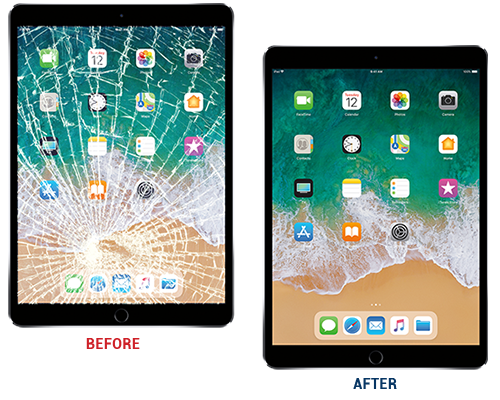
A cracked or damaged screen can make using your iPad very hard. The cracks might stop the screen from responding to touch. Small cracks can grow bigger and cause more problems. It is important to handle screen damage quickly to protect your device. Here are some simple steps to help you deal with a cracked or damaged iPad screen.
Use A Temporary Screen Protector
A temporary screen protector can hold broken glass pieces in place. It keeps the cracks from spreading further. This also protects your fingers from sharp edges. Apply the protector gently to avoid pushing glass shards deeper. This is a short-term fix until you get professional help. Using this method can make your iPad safer to use every day.
Contact Apple Support
Apple Support can guide you on the best repair options. They check if your iPad is still under warranty. Sometimes, screen repairs may be covered. Apple offers official repairs that keep your device safe. Contacting them ensures you get reliable advice. They can also tell you about authorized service providers near you.
Consider Professional Repair
Professional repair shops fix screens quickly and correctly. They use special tools and original parts. This keeps your iPad working like new. Avoid repair places that use cheap parts. Poor repairs can cause more damage or stop your iPad from working. A trusted technician will test your iPad after repair. This step is best for serious screen damage.
Preventive Tips
Preventing iPad screen issues starts with good care habits. Small actions can stop big problems. Follow simple tips to keep your screen clear and responsive. These steps save time and money on repairs.
Use A Quality Case
A strong case protects the iPad from drops and scratches. It cushions impacts and guards the screen. Choose a case with raised edges to shield the display. Avoid cases that block sensors or buttons.
Avoid Exposure To Extreme Temperatures
Heat or cold can damage the iPad screen. Keep the device away from direct sunlight or freezing places. Store the iPad in a moderate environment. Extreme temperatures reduce screen life and cause malfunctions.
Regularly Update Ipados
Updates fix bugs and improve screen performance. Install new iPadOS versions as soon as they are available. Updates protect against glitches that affect touch sensitivity. Regular updates keep your iPad running smoothly.
Frequently Asked Questions
Why Is My Ipad Screen Not Responding To Touch?
A frozen screen may need a restart. Press and hold the power button until it turns off. This often fixes touch issues quickly.
How To Fix Ipad Screen Flickering Or Flashing?
Screen flickering can be due to software bugs. Update your iPad to the latest iOS version. If it continues, try a hard reset.
What Causes Ipad Screen To Freeze Or Lock Up?
Too many apps running or low memory can freeze your screen. Close unused apps and restart your device to clear this problem.
How Can I Clean A Dirty Or Smudged Ipad Screen?
Use a soft, lint-free cloth slightly dampened with water. Avoid harsh chemicals to prevent screen damage and keep it clear.
What Should I Do If My Ipad Screen Shows Lines Or Cracks?
Screen lines or cracks often mean hardware damage. Visit an authorized service center for repair or screen replacement to avoid further issues.
Conclusion
Troubleshooting your iPad screen can save time and money. Start with simple steps like restarting or cleaning the screen. Check for software updates to fix bugs. If problems stay, consider professional help. Small fixes often solve big issues. Stay patient and try each tip carefully.
Your iPad can work well again with the right care. Keep this guide handy for future screen problems.