Are you struggling to get your iPhone hotspot to work when you need it most? You’re not alone.
When your hotspot won’t connect or keeps dropping, it can be frustrating and slow down everything you’re trying to do. But don’t worry—fixing your iPhone hotspot is easier than you think. You’ll discover simple, step-by-step solutions that will get your hotspot up and running quickly.
Keep reading, and you’ll never have to deal with pesky connection problems again.
Check Hotspot Settings
Checking your iPhone hotspot settings helps fix many connection problems. It ensures your hotspot works properly. Small setting errors can block other devices from connecting. Follow these simple steps to check and adjust your hotspot settings.
Verify Personal Hotspot Is Enabled
Open the Settings app on your iPhone. Tap on “Personal Hotspot.” Make sure the switch is turned on. If it is off, other devices cannot see your hotspot. Enabling it allows your iPhone to share its internet connection.
Set A Strong Password
In the Personal Hotspot settings, find the Wi-Fi Password option. Choose a password that is easy to remember but hard to guess. Use a mix of letters, numbers, and symbols. A strong password keeps your connection safe from unwanted users.
Confirm Device Visibility
Check if your hotspot name appears on other devices’ Wi-Fi lists. Your iPhone’s name shows up as the network name. If not visible, try toggling the Personal Hotspot off and on. This refresh helps devices find your hotspot quickly.

Restart Devices
Restarting devices often solves common iPhone hotspot problems quickly. It refreshes system settings and clears temporary glitches. This simple step can restore your hotspot connection without complex fixes.
Reboot Your Iphone
Turn off your iPhone by holding the power button. Slide to power off and wait for 30 seconds. Turn it back on by pressing the power button again. This restart refreshes network settings and can fix hotspot issues.
Restart Connected Devices
Turn off devices connected to your iPhone hotspot. Wait a few seconds before turning them back on. This action helps devices reconnect properly. It can fix problems caused by device errors or network conflicts.
Update Ios Software
Updating your iPhone’s iOS software can fix many hotspot problems. Apple often releases updates to improve network features and fix bugs. Keeping your device up to date helps the hotspot work smoothly.
Older software versions might cause connection issues or slow speeds. Updates also improve security, protecting your data when using the hotspot. Make updating a regular habit for better performance.
Check For Updates
Start by opening the Settings app on your iPhone. Tap on “General” and then select “Software Update.”
Your iPhone will check for any available iOS updates. If there is an update, you will see details about it. This step ensures you know if your device needs an update.
Install Latest Ios Version
Tap “Download and Install” to begin updating your iPhone. Make sure your device is connected to Wi-Fi and has enough battery life.
The update will download and install automatically. Your iPhone will restart during the process. After updating, test your hotspot again to see if the problem is fixed.
Reset Network Settings
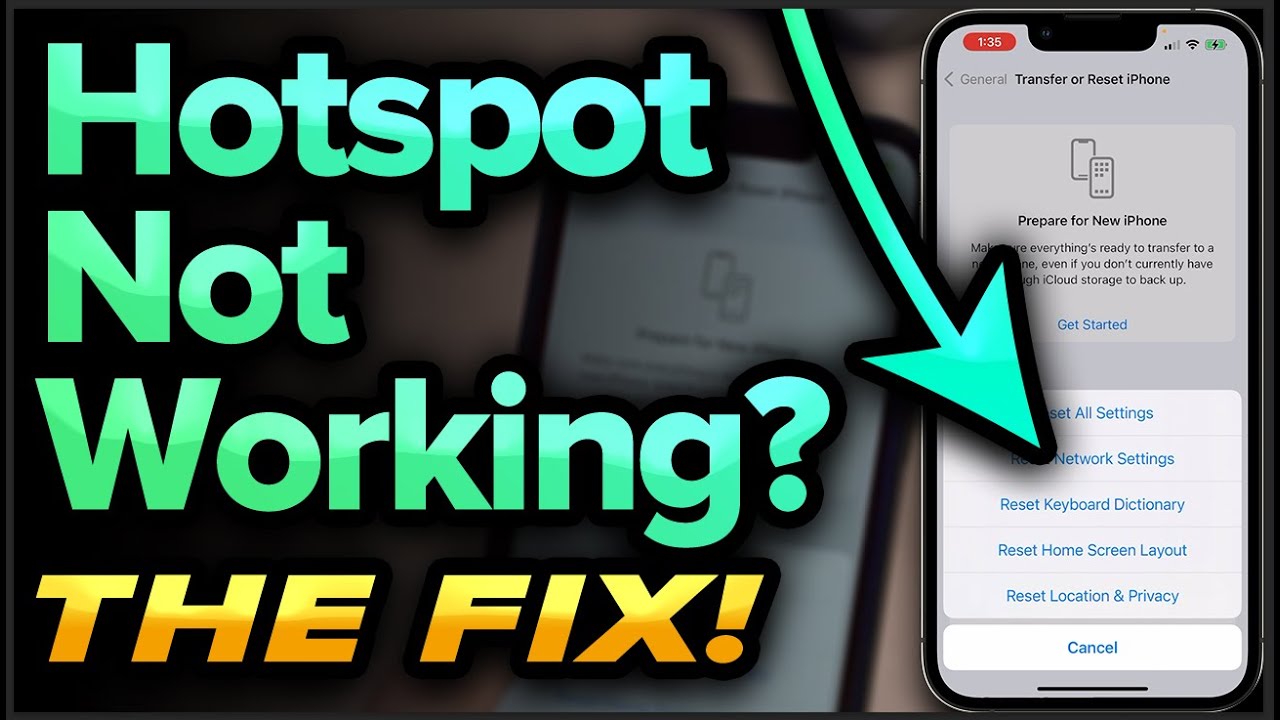
Resetting network settings on your iPhone can fix many hotspot problems. This step clears all Wi-Fi, Bluetooth, and VPN settings. It helps remove any wrong configurations causing connection issues. Resetting network settings does not delete your apps or personal data.
When To Reset
Reset network settings if your hotspot won’t connect. Also try it when the connection drops often. Use this step if other fixes do not work. It helps clear hidden errors in network settings. This reset is useful when Wi-Fi or Bluetooth have problems too.
How To Reset Network Settings
Open the Settings app on your iPhone. Tap on General, then tap Reset. Choose Reset Network Settings from the menu. Enter your passcode if asked. Confirm the reset by tapping Reset Network Settings again. Your iPhone will restart and clear old network data. After this, set up your hotspot again.
Manage Data And Carrier Settings
Managing data and carrier settings is key to fixing iPhone hotspot issues. Proper settings help keep your connection stable. It also prevents unexpected data loss. Adjust these settings to improve your hotspot experience.
Check Cellular Data Connection
Start by checking your cellular data connection. Make sure cellular data is turned on in Settings. Without data, the hotspot won’t work. Look for the signal bars on your phone. A weak signal can cause slow or no internet. Move to an area with better reception if needed.
Update Carrier Settings
Carrier settings control how your iPhone connects to the network. Updates can fix bugs and improve connection. To check for updates, go to Settings > General > About. A popup will appear if an update is available. Install it to ensure smooth hotspot use.
Review Data Plan Limits
Check your data plan limits in your carrier’s app or website. Some plans limit hotspot data separately. Exceeding your limit can slow or block your hotspot. Track your data use to avoid extra charges. Adjust your plan if needed to fit your hotspot needs.
Optimize Connection Methods
Optimizing connection methods can improve your iPhone hotspot experience. Different methods suit different needs. Choosing the right one helps keep your connection stable. It also improves speed and saves battery life.
Testing various connection types can identify the best option. Each method has pros and cons. Knowing these helps you connect with ease.
Use Wi-fi Vs. Usb Vs. Bluetooth
Wi-Fi is the most common way to connect devices. It allows multiple devices to join the hotspot. The speed is usually fast but depends on distance.
USB connection offers a direct link between your iPhone and computer. It provides a stable and faster connection. Battery drain is less compared to Wi-Fi.
Bluetooth uses less power but has slower speeds. It works well for small data tasks. Best for saving battery on both devices.
Switch Between Connection Types
Try different connection types to see which works best. Switch from Wi-Fi to USB for better stability. Change to Bluetooth if battery is low.
Changing methods can fix slow or dropped connections. It helps find the right balance of speed and power use. Keep your devices close to improve performance.
Troubleshoot Device Compatibility
Device compatibility is a key factor in iPhone hotspot issues. Not all devices can connect easily. Sometimes, the problem lies in the device or its software. Checking compatibility helps find the root cause.
Understanding which devices and operating systems support your iPhone hotspot is important. This step saves time and avoids frustration.
Supported Devices And Os Versions
iPhone hotspots work with many devices like laptops, tablets, and other phones. Most modern devices with Wi-Fi support can connect.
However, some older devices may not support the latest hotspot standards. Check your device’s Wi-Fi settings and network capabilities.
The iPhone requires certain operating system versions for hotspot features. iOS 13 and later work best for stable connections.
Ensure your device’s operating system is updated. Older OS versions might cause connection problems or limit features.
Forget And Reconnect To Hotspot
Sometimes devices remember old settings that block connections. Forgetting the hotspot resets these settings.
On your device, go to Wi-Fi settings. Find your iPhone hotspot network. Tap “Forget This Network.”
After forgetting, search for the hotspot again. Enter the password carefully. This often fixes connection issues.
Reconnecting clears saved errors. It lets your device start fresh with the iPhone hotspot.
Address Interference Issues
Interference can cause your iPhone hotspot to slow down or disconnect. Physical objects and other wireless signals often block or weaken the signal. Fixing these issues improves your hotspot’s speed and stability.
Avoid Physical Obstacles
Walls, furniture, and large objects block Wi-Fi signals. Keep your iPhone in an open space. Avoid placing it behind thick walls or metal objects. Holding the phone higher can also help. Clear the area around your device for better signal flow.
Minimize Wireless Interference
Other devices like microwaves, cordless phones, and Bluetooth gadgets create wireless noise. Turn off or move these devices away from your iPhone hotspot. Choose a less crowded Wi-Fi channel if possible. This reduces interference and improves connection quality.
Contact Support Options
Contacting support can help fix iPhone hotspot problems fast. Experts guide you step-by-step. They check settings and network issues. Support saves time and avoids frustration.
Apple Support Resources
Apple offers many support options for hotspot issues. Visit the Apple Support website for guides and tips. Use the Apple Support app to chat with experts. Schedule a call or a Genius Bar appointment. Apple technicians can diagnose device-specific problems quickly.
Carrier Assistance
Carriers provide help for data and network problems. Call your carrier’s customer service for hotspot troubleshooting. They check your data plan and network status. Some carriers offer online chat or store visits. Carrier support ensures your mobile data works well.

Frequently Asked Questions
How Do I Fix My Iphone Hotspot Not Connecting?
Restart your iPhone and the device trying to connect. Check if Personal Hotspot is turned on and has a strong signal.
Why Is My Iphone Hotspot Slow Or Lagging?
Slow speeds can be due to weak cellular signal or network congestion. Try moving to a better location or disconnecting unused devices.
How Can I Reset Iphone Hotspot Settings?
Go to Settings > General > Reset > Reset Network Settings. This clears old data and often fixes hotspot issues.
What Causes Iphone Hotspot To Keep Disconnecting?
Interference, weak signal, or battery saving mode can cause drops. Keep devices close and disable low power mode during use.
How Many Devices Can Connect To Iphone Hotspot?
An iPhone usually supports up to five devices connected at once. Too many connections may slow down your hotspot speed.
Conclusion
Troubles with your iPhone hotspot can be fixed with simple steps. Check your settings carefully and restart your device. Keep your iPhone software updated to avoid common issues. Make sure your cellular plan supports hotspot use. Try connecting other devices to see if the problem continues.
Small changes often bring quick results. Stay patient and follow these tips to get back online fast. Your iPhone hotspot should work smoothly again soon.