Every year, millions of homes around the world welcome a little helper: the iRobot vacuum. These robotic cleaners, such as Roomba and Braava, make cleaning floors much easier. However, just like any other device, they sometimes run into problems. If your iRobot stops working or starts acting strange, it can be frustrating. But before you call customer support or buy a new robot, there are many troubleshooting steps you can try yourself.
This guide will walk you through the most common iRobot issues and how to fix them. You’ll learn about error codes, connectivity problems, maintenance, and even when it’s time to get help. Whether you are new to iRobot or have used them for years, these tips can save you time and money.
Understanding Your Irobot Model
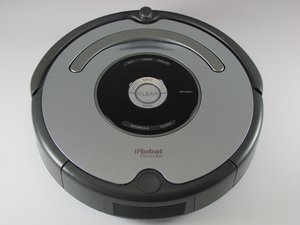
Before starting any troubleshooting, it helps to know which iRobot model you have. Each model has unique features and different ways to show errors.
Roomba is the most popular line, with models like 600, 900, i Series, and s Series. The Braava family focuses on mopping. Some models use buttons and sounds, while others use displays or app messages.
Knowing your model lets you find the right solutions. Check the label under your robot or use the iRobot HOME app to confirm the model number.
Differences Between Key Models
Here is a quick look at how some main Roomba models compare:
| Model | Navigation | Wi-Fi | Self-Empty | Typical Issues |
|---|---|---|---|---|
| Roomba 600 Series | Random | No/Yes | No | Battery, brushes, error beeps |
| Roomba i7/i3 | Smart Mapping | Yes | Optional | Navigation, app issues |
| Roomba s9+ | Smart Mapping | Yes | Yes | Self-empty bin clogs |
| Braava Jet m6 | Smart Mapping | Yes | No | Sprayer, Wi-Fi |
Common Irobot Problems And Quick Fixes
Let’s look at the most frequent issues and what you can do about them.
1. Robot Will Not Start Or Charge
Many users find their iRobot won’t turn on or charge. Here’s what to check:
- Power connection: Make sure the Home Base or charging dock is plugged in and the outlet works.
- Battery placement: For new robots, remove the yellow battery pull tab.
- Contact points: Dust or dirt on the charging contacts (both on the robot and dock) can stop charging. Clean them with a dry cloth.
- Battery age: If your robot is more than 2-3 years old, the battery may need replacing.
If the robot still does not charge, try resetting it (see the reset section).
2. Error Beeps, Lights, Or Messages
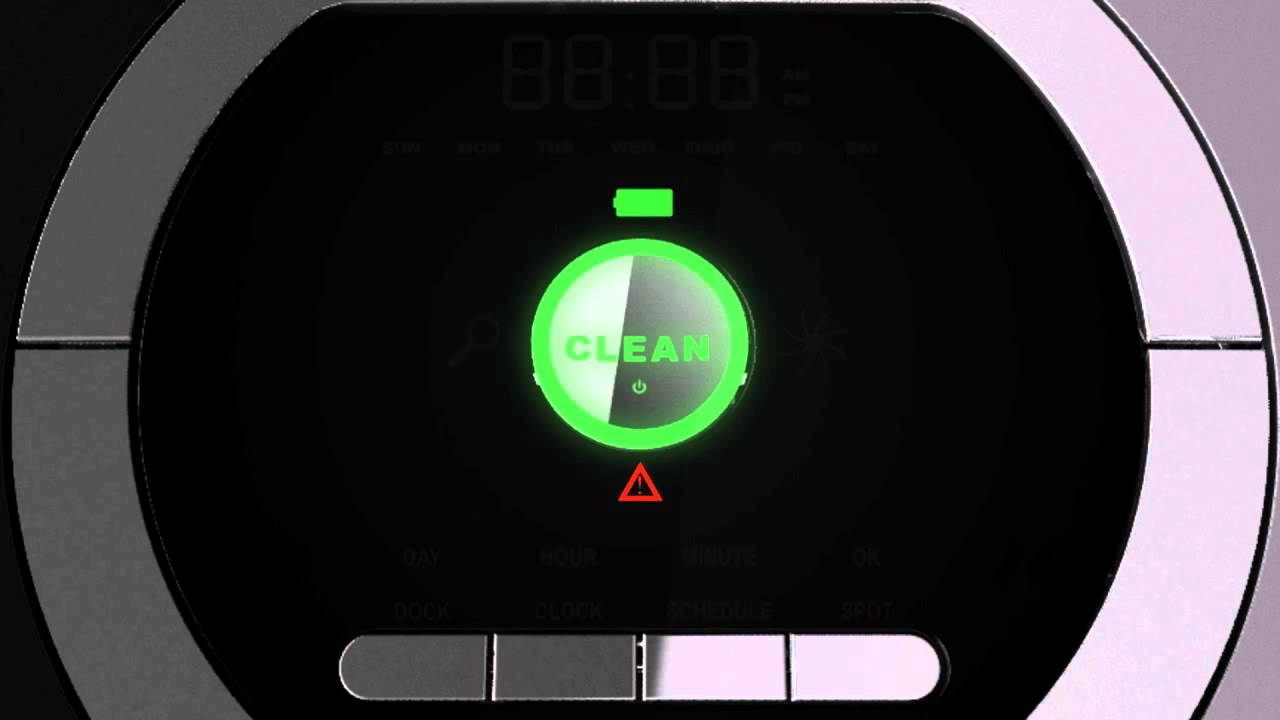
IRobot devices use sounds, lights, or app messages to show problems. For example, Roomba might beep in a sequence or flash an error code.
- Count the beeps or read the code. Each pattern means something.
- Check the app. If you use the iRobot HOME app, it often gives a clear message and solution.
- Look up the error. The user manual or iRobot’s website lists what each beep or code means.
For example, Error 5 means a side wheel is stuck, while Error 9 points to a bumper problem.
3. Wheels Or Brushes Not Spinning
If your robot moves in circles, leaves dirt behind, or makes grinding noises:
- Turn off and flip over the robot.
- Remove the brushes (main and side). Clear any hair, string, or debris.
- Check the wheels. Small stones or dust can jam them.
- Reinstall everything. Run the robot and see if it works.
For Braava mops, make sure the mop pad is properly attached and the wheels are clean.
4. Connectivity Issues (wi-fi/app)
Many newer iRobots connect to Wi-Fi and the iRobot HOME app. Common problems include:
- Robot not found during setup: Make sure your phone is on the same Wi-Fi network (2.4 GHz for most models).
- Robot goes offline: Move the dock closer to your router.
- App errors: Update both the app and your phone’s operating system.
- Reset network: Most robots have a Wi-Fi reset button (see the manual).
Sometimes, the problem is with your home network, not the robot.
5. Robot Gets Stuck Or Lost
If your Roomba or Braava keeps getting trapped:
- Remove clutter: Cords, clothing, or small objects can block the robot.
- Use virtual walls or keep-out zones: These can block off problem areas.
- Check for low furniture: Some robots get wedged under sofas or beds.
- Clean sensors: Dirty sensors can make the robot “think” it’s stuck.
If the same spot causes trouble, try watching the robot to see exactly what happens.

Understanding Irobot Error Codes
Error codes are one of the most useful troubleshooting tools. Different models show errors in different ways. Some use beeps, others use voice or app messages.
Common Roomba Error Codes
Here are some frequent Roomba codes and what they mean:
| Error Code | What It Means | How to Fix |
|---|---|---|
| Error 1 | Stuck wheel | Clear debris, move to open area |
| Error 5 | Left or right wheel jammed | Clean wheels and axles |
| Error 9 | Bumper stuck | Tap bumper, remove dirt |
| Error 14 | No bin detected | Reinstall or clean bin contacts |
| Error 17 | Navigation problem | Move to new location, clean sensors |
| Error 26 | Battery issue | Reseat or replace battery |
Tip: If your robot won’t clear an error, reset it. Sometimes a quick restart solves stubborn issues.
Braava Jet Error Codes
Braava Jet models use different signals, but the app usually explains the error. Common issues are pad detection, sprayer clogs, or wheel jams.
- For pad detection, make sure you use official pads or compatible brands.
- For sprayer errors, fill the tank and run the cleaning cycle with water only.
Resetting And Restarting Your Irobot
Sometimes, a simple reset solves major problems. There are two main ways: a soft reset (restart) and a factory reset (erases all data).
How To Soft Reset
- For most Roombas, press and hold the CLEAN button for 10–20 seconds. Release when you hear a tone.
- For Braava Jet, hold the CLEAN button until the lights blink.
This does not erase maps or schedules.
How To Factory Reset
- In the iRobot HOME app, open settings and choose “Remove/Reset robot.”
- On some Roombas, hold Home + Spot Clean + CLEAN until the lights swirl.
A factory reset removes all saved maps and schedules.
When to reset: Use a soft reset for charging or app problems. Use a factory reset if the robot still acts strangely after other fixes.
Cleaning And Maintenance For Fewer Problems
Regular care can prevent many iRobot issues. Dust, hair, and dirt build up fast, especially if you have pets.
Weekly Maintenance
- Empty the bin after every run.
- Clean brushes and wheels. Remove hair and debris.
- Wipe sensors (especially cliff sensors under the robot) with a soft cloth.
- Check the filter. Tap out dust, but replace every 2 months.
Monthly Maintenance
- Clean charging contacts on both robot and dock.
- Wash the bin if your model allows it (never wash the robot itself).
- Check for worn parts, such as side brushes or extractors.
Braava Jet Care
- Rinse the mop pads after each use.
- Run clean water through the sprayer to avoid clogs.
- Check wheels for hair or dirt.
Pro tip: Set reminders in your phone or calendar to keep up with maintenance. Many users forget and then have more problems.
Irobot Battery Troubleshooting
Battery issues are common, but often easy to fix.
Short Run Time
If your Roomba stops after just a few minutes:
- Charge fully. Leave it on the dock for at least 2 hours.
- Clean the robot. Dusty wheels or brushes make the motor work harder.
- Replace the battery. Most batteries last about 2 years.
Not Charging
- Check charging contacts for dirt.
- Try a different outlet.
- Reseat the battery. Remove it and put it back in.
Battery Error Codes
- Error 26: Battery not detected. Reseat or replace.
- Error 11: Overheating. Let the robot cool down.
Insider insight: Many users try to save money with cheap third-party batteries. These often fail or trigger errors. Use official or well-reviewed replacement batteries for best results.
Troubleshooting Irobot Navigation And Mapping
Advanced iRobots use smart mapping and navigation. Sometimes, the robot gets lost, cleans the wrong areas, or can’t find the dock.
Solutions For Mapping Errors
- Clean sensors. Dirty sensors make the robot “blind.”
- Clear obstacles. New furniture or clutter can confuse mapping.
- Re-map. In the app, delete the old map and let the robot create a new one.
When Docking Fails
If the robot can’t find its Home Base:
- Move the dock to an open area, away from stairs or clutter.
- Check for sunlight. Strong light can confuse the sensors.
- Reset the map if the robot always gets lost.
Multiple Floor Troubles
Robots with smart mapping can remember several floors, but you must start them from the Home Base on each floor, or they can get confused.
Non-obvious insight: Sometimes, Wi-Fi routers with the same network name on different floors cause problems. If your robot has trouble, try using unique Wi-Fi names for each floor.
Irobot App And Smart Home Integration Problems
The iRobot HOME app adds many features—scheduling, maps, and smart home integration. But it can sometimes stop working.
App Not Connecting
- Update the app and your phone’s OS.
- Restart your phone and the robot.
- Forget and re-add the robot in the app.
Voice Assistant Issues
If Alexa or Google Assistant won’t control the robot:
- Unlink and relink accounts in the app.
- Check permissions. The app needs access to your home network.
- Restart your router.
Notifications Not Working
- Check app settings. Make sure notifications are on.
- Update the app.
Useful tip: Sometimes, app problems are caused by phone battery savers or security apps. Exclude the iRobot app from restrictions to avoid issues.
Fixing Irobot Self-empty Bin Problems
High-end Roombas, like the i7+ and s9+, have self-empty bins. These can jam or fail.
Common Self-empty Issues
- Bin not emptying: Check for clogs in the chute or base. Remove the bag and look for blockages.
- “Empty Bin” error: Make sure the bag is installed correctly.
- Loud noises: Something may be stuck in the vacuum path.
To fix, unplug the base, open the chute, and clear any debris. Replace the bag if it’s full.
Non-obvious insight: Some users overfill the robot’s dustbin, which makes the self-empty system work harder and more likely to jam. Empty the bin manually if you see this happening.
When To Contact Irobot Support
If you’ve tried all these steps and your robot still has problems, it may need professional help.
Signs You Need Support
- Repeating errors that don’t clear with resets.
- Physical damage (broken wheels, cracked sensors).
- Battery swelling or leaking.
- App problems that affect multiple devices.
Before contacting support, write down your model number, serial number, and error codes. This speeds up the process.
You can reach iRobot support through their website, app, or phone. They often offer warranty service, repair, or replacement if your robot is still covered.
Preventing Irobot Problems: Smart Habits
A little prevention avoids many headaches. Here are some habits for smooth robot cleaning:
- Tidy before cleaning: Pick up cords, socks, and small toys.
- Check the robot after each run: Empty the bin and look for stuck items.
- Schedule regular maintenance: Add reminders for deep cleaning.
- Update software: Keep your robot and app up to date.
- Use the right replacement parts: Cheap brushes or filters can cause jams.
Pro insight: Some users set the robot to run while they’re home for the first week. This helps spot trouble areas (like rugs or thresholds) before the robot gets stuck alone.
Irobot Troubleshooting: Quick Reference Table
For fast help, here’s a summary of common issues and their main fixes:
| Problem | Likely Cause | First Steps |
|---|---|---|
| Not charging | Dirty contacts, dead battery | Clean contacts, try new battery |
| Beeping or error code | Jammed part, dirty sensor | Check code, clean robot |
| Won’t connect to app | Wi-Fi issue | Restart app, reset Wi-Fi |
| Gets stuck | Clutter, low furniture | Clear space, use keep-out zones |
| Navigation fails | Dirty sensors, map error | Clean sensors, remap |
| Self-empty not working | Clog, bag issue | Clear chute, check bag |
Keep this handy for fast reference before you dig into the details.
Frequently Asked Questions
Why Does My Roomba Keep Stopping And Beeping?
When your Roomba stops and beeps, it’s usually signaling an error. Common causes include stuck wheels, blocked brushes, or the bin not installed properly. Check the error pattern (beeps or light), clear any debris, and consult the app for more details.
How Often Should I Clean My Roomba?
You should empty the bin and check for debris after every run, especially if you have pets or lots of dirt. Brushes and sensors should be cleaned weekly, and the filter replaced every 2 months. Regular cleaning keeps your Roomba running smoothly.
What Should I Do If My Irobot Won’t Connect To Wi-fi?
Make sure your phone and the robot are on the same Wi-Fi network (usually 2.4 GHz). Restart your router, update the app, and reset the robot’s Wi-Fi settings if needed. Try moving the dock closer to your router for a stronger signal.
Is It Safe To Use Third-party Batteries Or Parts?
While some third-party parts work well, cheap or low-quality batteries can cause errors or even damage your robot. It’s safest to buy official iRobot parts or well-reviewed alternatives. If you’re unsure, check the iRobot website or Wikipedia for more details.
My Roomba Keeps Missing Some Rooms. What Can I Do?
If your Roomba skips rooms, try resetting the map in the app and let it remap your home. Clear obstacles and ensure doors are open. For older models, move the dock to a central location. Clean all sensors so the robot can navigate properly.
Keeping your iRobot in top shape doesn’t have to be hard. With these troubleshooting steps, you can solve most problems at home and enjoy a cleaner floor every day. And remember, a little regular maintenance goes a long way in preventing future issues.