If your internet suddenly stops working, it’s easy to feel lost—especially when the modem’s lights are blinking in strange patterns. Netgear modems are reliable, but sometimes things go wrong. Maybe you see a red light, or your connection drops during a video call.
Don’t worry. With the right troubleshooting steps, most problems can be solved at home, without waiting for a technician. This guide will help you understand your Netgear modem, fix common issues, and prevent problems in the future. You’ll also learn some less obvious tips that even tech-savvy users can miss.
Understanding Your Netgear Modem
Before you start fixing, it helps to understand how your Netgear modem works. A modem’s main job is to connect your home to the internet. It translates signals from your internet provider so your devices can use them. Most modems today are connected to a router, which sends WiFi signals to your phone, laptop, and other devices.
Key Parts And Lights
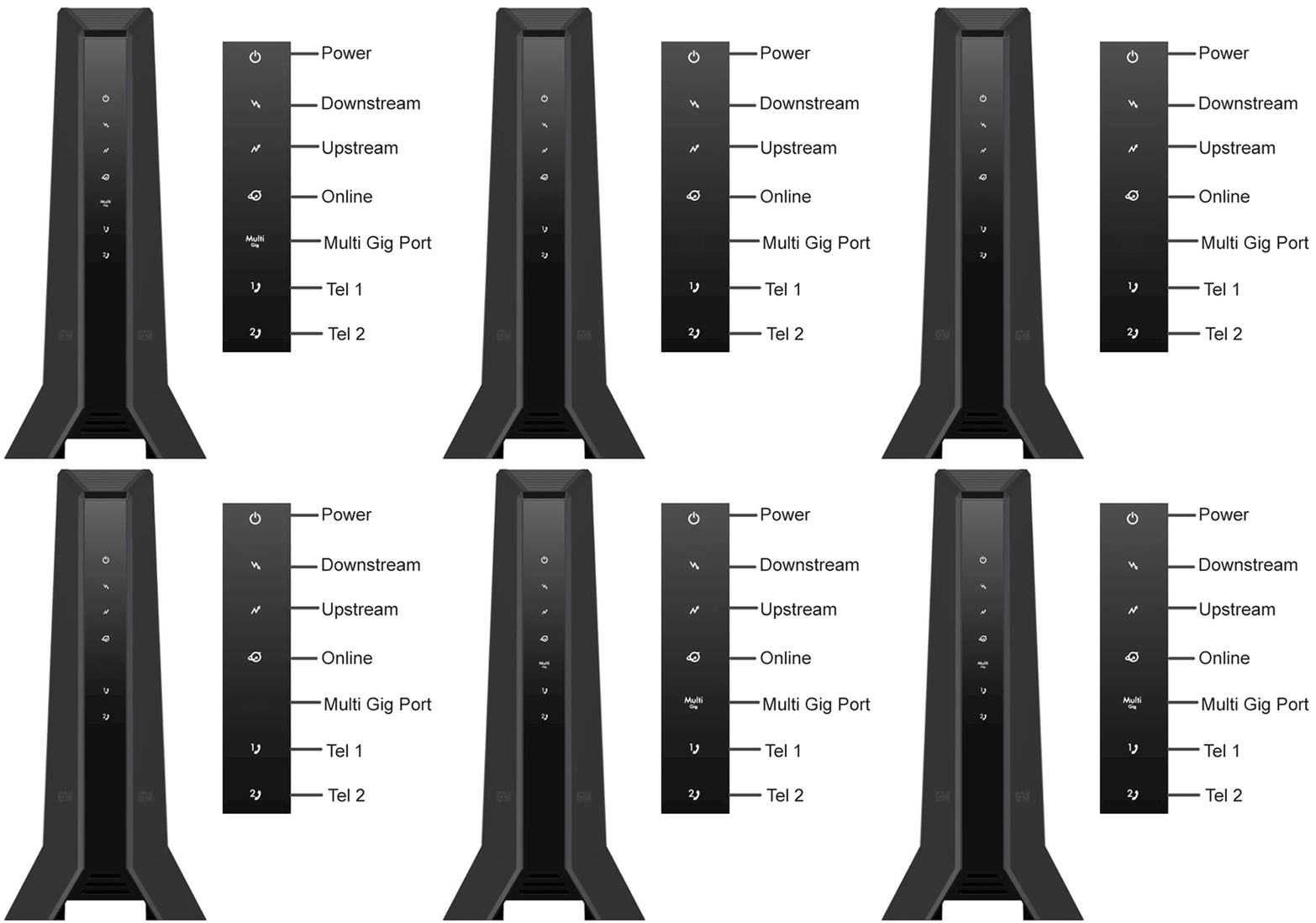
Look at your modem. You’ll notice several LED lights on the front. Each one tells you about a different part of the connection:
- Power: Shows if the modem is on.
- Downstream/Upstream: Shows the signal from your internet provider.
- Online: Means the modem is connected to the internet.
- LAN: Tells if a device (like your computer) is plugged in.
- WiFi (on combo units): Indicates wireless signal.
If a light is off, blinking, or red, it means something is wrong. The exact meaning can change based on the model, but generally:
- Green/White light: Working correctly.
- Amber/Yellow light: Starting up or has a weak signal.
- Red light: There’s an error.
Some Netgear models have extra lights for specific features, but the basics are the same. Always check the modem’s manual if you’re not sure what a light means.
Common Netgear Modem Problems
Most Netgear modem issues fall into a few main categories. Here are the most frequent problems you might encounter:
- No internet connection even when the modem is powered on.
- Slow internet speed compared to your plan.
- Frequent disconnections—the connection drops and comes back.
- WiFi signal not working (for modem-router combos).
- Modem not powering up or lights not turning on.
- Red or blinking lights on the modem.
Let’s look at how to solve these problems step by step.
Basic Troubleshooting Steps
Before jumping to advanced fixes, try these simple checks. They solve a surprising number of modem issues.
1. Check Power And Cables
- Make sure the power adapter is firmly plugged into both the modem and the wall outlet.
- Check the coaxial or DSL cable (the thick cable from the wall) for tightness and damage.
- If you use a splitter (to share the cable with your TV), try removing it and connecting the modem directly.
- Make sure the Ethernet cable (to your router or computer) is secure.
Loose cables are the most common cause of connection problems. Even a small wiggle can cause trouble.
2. Restart The Modem
- Unplug the modem’s power cord.
- Wait 30 seconds.
- Plug it back in and let it fully restart. This can take 2–3 minutes.
Restarting clears temporary errors and resets the connection with your internet provider.
3. Check For Service Outages
Sometimes, the problem isn’t your modem—it’s your provider. Use your phone’s data or another connection to check your provider’s website or call their support line. Many providers list current outages online.
4. Inspect The Modem’s Lights
After restarting, check the lights:
- If the power and online lights are solid, your modem should be working.
- If any light is blinking or red, there may be a deeper issue (explained below).
5. Test With A Single Device
Disconnect your router and connect one computer directly to the modem with an Ethernet cable. This helps you find out if the problem is the modem or the router.
If the internet works this way, your modem is fine, and the problem is with your router or WiFi.
Advanced Troubleshooting
If basic steps don’t fix the problem, try these more detailed solutions.
Checking Signal Strength And Quality
Your modem needs a strong, clean signal from your internet provider. If the signal is weak or noisy, you’ll have slow speeds or frequent drops.
How To Check Signal Levels
Many Netgear modems let you check signal levels by logging into the modem’s web interface:
- Connect your computer to the modem using Ethernet.
- Open a browser and enter 192.168.100.1 in the address bar.
- Log in (the default username is usually “admin”; password is “password” unless you changed it).
- Look for a section called “Cable Connection” or “Status.”
You’ll see signal levels for Downstream and Upstream.
Ideal Signal Ranges
Here’s a quick reference for healthy cable signal levels:
| Signal Type | Ideal Range | What’s Too High/Low? |
|---|---|---|
| Downstream Power | -8 to +8 dBmV | Below -8 or above +8 |
| Upstream Power | 35 to 50 dBmV | Below 35 or above 50 |
| SNR (Signal to Noise Ratio) | Above 35 dB | Below 30 dB |
If your numbers are out of these ranges, call your provider. The problem might be outside your home—like a loose connection on the street.
Pro Tip: Even if your internet works, bad signal levels can cause random drops or slowdowns, especially at night or during storms.
Firmware Updates
Modem software (called firmware) can have bugs or security holes. Updating firmware can solve many problems.
How To Update Netgear Modem Firmware
- Log into your modem’s web interface (see above).
- Go to “Advanced” or “Administration” > “Firmware Update.”
- Click “Check” or “Update.” If an update is available, follow the steps.
If your modem is rented from your provider, they may control updates. In this case, call them if you think your firmware is old.
Non-obvious insight: Some issues—like random reboots or weird blinking lights—are often fixed by firmware updates, but many users never check for them.
Resetting The Modem To Factory Settings
If nothing else works, a factory reset returns your modem to its original settings.
- Find the small reset button (usually on the back).
- Use a paperclip to press and hold it for 10 seconds.
- The modem will restart and clear any custom settings.
Warning: You may have to re-enter your ISP login or WiFi settings after a reset. Have those details ready.
Checking For Interference And Splitters
Cable splitters, long cable runs, or poor quality cables can weaken your signal.
| Setup | Risk of Problems | Best Practice |
|---|---|---|
| One direct cable from wall to modem | Low | Best |
| Using a splitter | Medium | Remove if possible |
| Multiple splitters/long cables | High | Use shortest, direct cable |
If you must use a splitter, make sure it’s rated for internet and not just TV.
Isp Authentication And Provisioning
Some ISPs (like Comcast or Spectrum) require you to “activate” your modem. If you just bought a new modem, or replaced an old one, it might need to be provisioned.
- Open a browser and try to visit any site. If you see an activation page, follow the steps.
- If not, call your ISP with your modem’s MAC address (printed on a sticker) and ask them to activate it.
Beginner tip: Many people forget to activate a new modem, and wonder why it won’t connect.
Checking For Device Limits
Some Netgear modems and ISPs have a limit on the number of devices that can connect at one time. If you have lots of smart home devices, disconnect a few and see if the connection improves.
Looking For External Issues
Sometimes, outside factors cause modem problems:
- Storms and power surges can damage your modem or cables.
- Construction nearby can disrupt service.
- Animals (like squirrels) sometimes chew outdoor cables!
If you suspect external damage, contact your provider for a line check.
Specific Error Lights And Codes
Every Netgear modem uses a system of lights to show its status. Here’s what common light patterns mean and what to do about them.
Power Light
- Off: Modem not getting power. Check the power adapter and outlet.
- Blinking: Modem is starting up. Wait a few minutes.
- Red: Hardware problem. Try unplugging for 30 seconds. If it stays red, the modem may be broken.
Downstream/upstream Lights
- Blinking: Modem is trying to connect to the provider.
- Solid: Connection established.
- Off or Red: No signal from provider or cable problem. Check cables and call your ISP if needed.
Online Light
- Off: Not connected to internet. Check all connections and restart.
- Blinking: Modem is registering with ISP. Wait a few minutes.
- Red: Authentication error. Contact your ISP.
Wifi Light
- Off: WiFi is disabled. Log into the modem and enable WiFi.
- Blinking: Data is being sent/received.
- Red: WiFi error or overheating. Try restarting.
Common mistake: Ignoring light patterns or only checking WiFi devices. Always check the modem itself first.
Modem Vs. Router Issues
It’s important to know whether your problem is with the modem, the router, or both.
- If wired devices (plugged into the modem) have internet, but WiFi devices don’t, the problem is your router or WiFi setup.
- If nothing works, even when plugged into the modem, the modem or the provider is at fault.
Example: If your phone loses WiFi but your computer (connected by Ethernet) works, your modem is fine.
Netgear Modem And Isp Compatibility
Not every modem works with every internet provider. Before buying a new Netgear modem, check if it’s approved for your service.
Key Factors For Compatibility
- DOCSIS Standard: Most US cable providers use DOCSIS 3.0 or 3.1. Older modems might not work.
- Speed Tier: Make sure the modem supports the speed you pay for.
- Provider List: Check your ISP’s website for a list of supported models.
If your modem isn’t compatible, you’ll see frequent drops or might not get online at all.
Pro Tip: ISPs sometimes update their networks and “deactivate” older modem models. If your modem suddenly stops working after years of service, check for compatibility updates.
Netgear Modem Performance Tips
Once your modem is working, you want the best speed and reliability. Here are some tips:
- Place the modem in an open area (not in a closet or behind furniture) for better cooling and WiFi performance.
- Use the shortest possible cable from the wall to the modem.
- Keep the modem away from large metal objects and electronics that can cause interference.
- Restart the modem once a month to clear errors.
- Regularly check for firmware updates as explained above.
- Avoid overloading your network with too many devices at once.
Non-obvious insight: Many users never check if their cable is old or damaged. Replacing a worn-out coaxial cable can boost performance.
When To Replace Your Netgear Modem
No device lasts forever. Here’s how to know it’s time for a new modem:
- The modem is more than 5 years old (newer standards are much faster).
- It only supports DOCSIS 2.0 or lower (many providers require 3.0 or higher now).
- You see frequent drops, even after all troubleshooting.
- Your provider tells you the model is no longer supported.
- The modem gets hot or smells burnt.
Comparing Old And New Netgear Modem Features
Here’s a quick look at how features have changed in recent years:
| Feature | Older Modems (pre-2017) | Modern Netgear Modems |
|---|---|---|
| DOCSIS Version | 2.0 or 3.0 | 3.0 or 3.1 |
| Max Speed | Up to 300 Mbps | 1 Gbps or higher |
| WiFi Standard | 802.11n | 802.11ac/ax (WiFi 5/6) |
| Security Updates | Rare | Regular |
| ISP Compatibility | Limited | Wide |
Upgrading to a newer modem can fix hidden issues, improve speed, and boost security.
How To Contact Netgear Support
If you’ve tried everything and your modem still doesn’t work, it’s time to contact support. Here’s what to do:
- Gather information: Model number, serial number, and a description of the problem.
- Check warranty status: Netgear modems usually have a 1-year warranty.
- Prepare error details: Note which lights are on, and what troubleshooting you’ve done.
You can reach Netgear support through their website, by phone, or through their community forums. For official support, visit Netgear Support.
Beginner tip: Keep your purchase receipt. Netgear may ask for proof if you request a warranty replacement.

Preventing Future Problems
Solving the current issue is good, but avoiding future trouble is even better. Here’s how you can keep your modem running smoothly:
- Surge protectors: Use one to protect your modem from power spikes.
- Regular reboots: Restart the modem once a month, or after big storms.
- Dust and heat: Keep the modem clean and well-ventilated.
- Firmware: Set a reminder to check for updates every few months.
- Cables: Replace any that look worn, bent, or chewed.
Non-obvious insight: Even if your modem is in a safe spot, dust can block vents and cause overheating. Check and clean the vents every few months.
Frequently Asked Questions
Why Does My Netgear Modem Keep Disconnecting From The Internet?
Frequent disconnections often point to poor signal quality, outdated firmware, or bad cables. Check your signal levels in the modem’s web interface. If they’re out of range, call your ISP. Also, update your firmware and replace any old or damaged cables.
What Should I Do If My Netgear Modem’s Online Light Stays Off?
If the online light never comes on, your modem isn’t connecting to your provider. Double-check all cables, try restarting, and ensure your ISP account is active. If you just switched modems, call your provider to make sure it’s activated.
How Can I Tell If The Problem Is My Modem Or My Router?
Connect a computer directly to the modem with Ethernet. If you get online, the modem is fine, and the router is the problem. If you still can’t connect, the issue is with your modem or the provider.
Is It Safe To Reset My Netgear Modem To Factory Settings?
Yes, but know that a factory reset will erase custom settings (like WiFi names and passwords). Always write down important details before resetting. Afterward, you may need to reconfigure your network.
How Often Should I Replace My Netgear Modem?
Most modems last 4–6 years. Replace your modem if it’s outdated, only supports DOCSIS 2.0, or your ISP says it’s no longer supported. Upgrading can improve speed, reliability, and security.
conclusion
A reliable internet connection is essential for work, learning, and entertainment. Knowing how to troubleshoot your Netgear modem can save you time, frustration, and even money. By understanding your modem’s lights, checking cables, updating firmware, and knowing when to call for help, you can fix most issues yourself.
Remember, technology changes quickly—stay informed, keep your equipment updated, and you’ll enjoy a smoother online experience. If you ever feel stuck, don’t hesitate to reach out to Netgear or your internet provider for support.