Is your Roomba i7 not working like it used to? Maybe it’s stuck, won’t charge, or stopped responding altogether.
You rely on your Roomba to keep your floors clean without hassle, so when it acts up, it’s frustrating. But don’t worry—this guide is here to help you fix those common problems quickly and easily. Keep reading, and you’ll learn simple troubleshooting steps that get your Roomba i7 back to work, saving you time and stress.
Your clean home is just a few fixes away!

Battery Problems
Battery problems are common with the Roomba I7. They can cause the vacuum to stop working or not clean properly. Understanding these issues helps you fix them fast. This section covers two main topics: charging issues and battery replacement tips.
Charging Issues
Sometimes the Roomba I7 does not charge properly. The battery may not fill up, or it stops charging early. Dirt or dust on the charging contacts can cause this problem. Clean the contacts on both the robot and the charging base using a dry cloth. Make sure the charging base is plugged in and the power outlet works well.
Check if the Roomba is correctly placed on the charging dock. It should sit firmly with the contacts touching the dock. Avoid charging in very cold or hot places. Extreme temperatures can reduce battery performance.
Battery Replacement Tips
After long use, the battery may lose its ability to hold a charge. Replacing the battery can bring your Roomba back to life. Use only the official replacement battery for the Roomba I7. This ensures safety and proper fit.
Turn off the Roomba before removing the battery. Remove screws carefully and keep them safe. Insert the new battery the same way. Charge fully before using the robot again. Dispose of the old battery properly at a recycling center.
Navigation Errors
Navigation errors can disrupt your Roomba I7’s cleaning routine. These errors often stop the robot or make it miss spots. Understanding common navigation issues helps you fix them fast. Keep your Roomba running smoothly with simple troubleshooting steps.
Stuck Or Frozen Robot
Sometimes, the Roomba gets stuck or freezes during cleaning. It may catch on cables, rugs, or furniture legs. The robot may stop moving and show an error on the app. Clear the area around the Roomba. Gently lift it if it is stuck. Restart the robot by pressing the clean button.
Mapping Glitches
The Roomba I7 creates a map of your home to clean efficiently. Mapping glitches happen if the robot misses areas or cleans repeatedly. Bright lights or dark floors can confuse the sensors. Restart the cleaning cycle to reset the map. Run the robot in a well-lit room to improve mapping accuracy.
Sensor Cleaning
Sensors help the Roomba navigate around obstacles and stairs. Dust or dirt on sensors can cause navigation errors. Clean sensors with a soft cloth regularly. Use a dry cotton swab to reach small sensor areas. Avoid using water or liquids to clean sensors. Clean sensors keep your Roomba on track and error-free.
Connectivity Issues
Connectivity issues can stop your Roomba I7 from working correctly. These problems often cause frustration because they prevent the vacuum from connecting to your home network or app. Fixing these issues helps your Roomba clean more efficiently and follow your commands easily.
Wi-fi Setup Problems
Wi-Fi setup problems are common with Roomba I7. The device may not connect to your router. Check if your Wi-Fi network is 2.4 GHz, not 5 GHz. Roomba I7 supports only 2.4 GHz networks.
Make sure your password is correct. Enter it carefully during setup. Keep your Roomba close to the router during the process. Walls and distance can block the signal.
Restart your router and Roomba before trying again. Sometimes, this simple step fixes connection errors.
App Sync Failures
The Roomba app controls your vacuum remotely. App sync failures stop you from using key features. Ensure your smartphone is connected to the same Wi-Fi as your Roomba.
Update the Roomba app to the latest version. Old versions may not sync properly. Clear the app cache if the problem continues.
Try logging out and logging back into the app. This can refresh the connection and fix sync issues quickly.
Cleaning Performance
The cleaning performance of the Roomba I7 depends on regular care and simple fixes. Dirt and hair can reduce its power. Small problems can stop it from cleaning well. Check these parts often to keep your robot vacuum working at its best.
Brush Maintenance
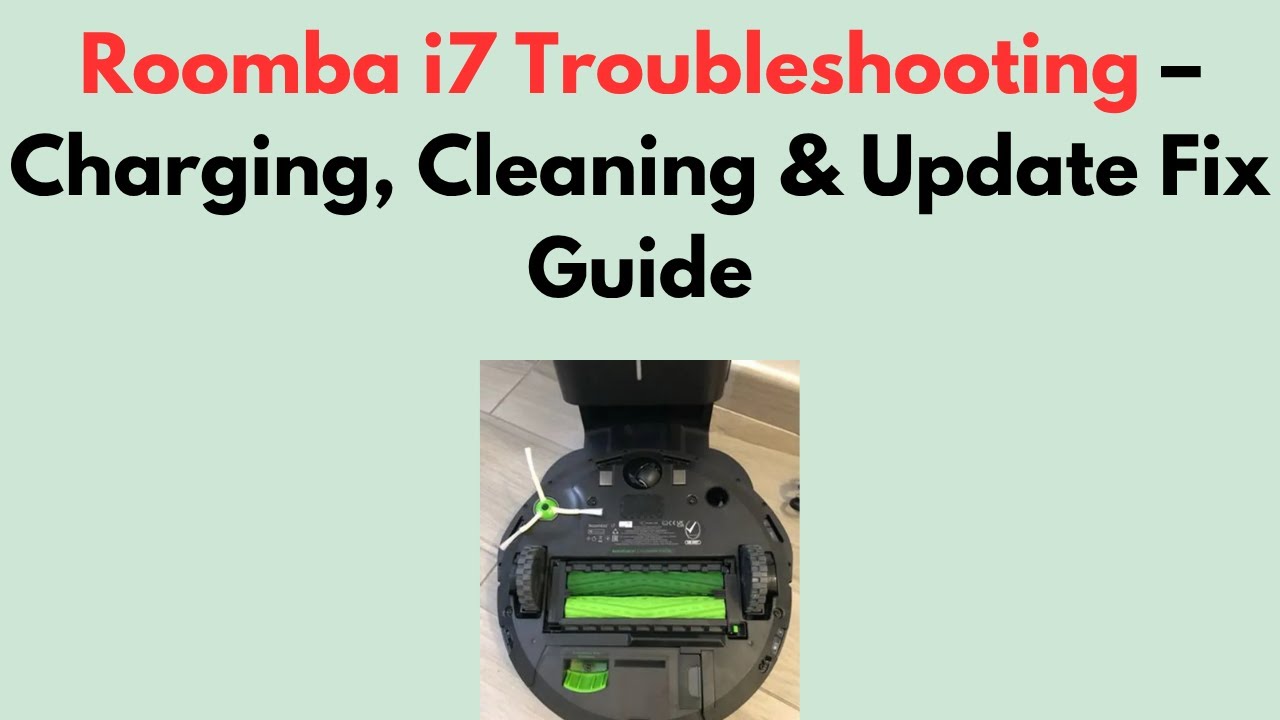
Brushes pick up dirt and hair from floors. Clean them regularly to avoid buildup. Remove tangled hair and debris by hand or with scissors. Worn brushes should be replaced. This keeps the Roomba I7 spinning smoothly and cleaning deeply.
Clogged Vacuum Path
The vacuum path moves dirt into the dustbin. Dust and crumbs can block this path. Check it for clogs and clear any blockages. Use a soft brush or cloth to clean inside the vacuum area. A clear path helps strong suction and better cleaning results.
Filter Replacement
Filters catch fine dust and allergens. Dirty filters reduce airflow and suction power. Remove and tap the filter gently to clean dust. Replace filters every two months for best results. Fresh filters keep the air clean and your Roomba I7 working well.
Error Codes And Alerts
The Roomba I7 uses error codes and alerts to tell you about problems. These messages help you fix issues quickly. Understanding these alerts saves time and keeps your robot working well.
Error codes show on the app or Roomba’s screen. They point to specific problems like stuck brushes or full dustbins. Recognizing common errors helps you solve them easily.
Common Error Messages
One common message is “Cliff Sensor Error.” It means the sensor is dirty or blocked. Clean the sensor gently with a soft cloth to fix it.
“Brushes Stuck” appears when hair or debris jams the brushes. Remove the brush and clear any dirt or hair around it.
“Battery Error” shows if the battery is low or not charging. Check the charging dock and battery connection.
“Wheel Stuck” means the wheel is blocked. Clear any dirt or objects around the wheels for smooth movement.
Resetting The Roomba I7
Resetting the Roomba I7 can fix many errors. It clears minor software glitches. First, press and hold the CLEAN button for 20 seconds.
The Roomba will play a tone and restart. This simple reset often solves alert problems. After reboot, check if the error returns.
Resetting does not delete your cleaning maps or schedules. It only refreshes the system for better performance.
Software Updates
Software updates keep your Roomba I7 running smoothly. These updates fix bugs and improve cleaning features. Regular updates help avoid errors and improve battery life.
Checking For Updates
Open the iRobot Home app on your phone. Connect your Roomba I7 to the app. The app will show if an update is available. You can also check the update status in the settings menu. Stay connected to Wi-Fi for accurate update checks.
Installing Updates
When an update is available, the app will notify you. Tap “Install” to start the update. Make sure your Roomba I7 is on its charging dock. Keep the robot and phone near the Wi-Fi router. Do not turn off the device during the update. The update process usually takes a few minutes.
Frequently Asked Questions
Why Is My Roomba I7 Not Charging Properly?
Check the charging contacts for dirt or debris. Clean them gently with a dry cloth. Make sure the charging station is plugged in and on a flat surface.
How Do I Reset My Roomba I7 For Troubleshooting?
Press and hold the CLEAN button for about 20 seconds. Release it when the light rings around the button swirl. This will reboot the robot and clear minor errors.
What Causes Roomba I7 To Get Stuck Frequently?
Cluttered floors or tangled cords often cause it to get stuck. Remove obstacles and keep cables out of the way. Also, check if the wheels or brushes are jammed.
How Can I Fix Roomba I7 Brush Issues?
Remove the brushes and clean them from hair or debris. Check the brush bearings for damage or wear. Replace brushes if they are broken or very worn out.
Why Does My Roomba I7 Show A “bin Error” Message?
The dustbin might be full or not seated correctly. Empty the bin and clean its sensors gently. Reinsert the bin firmly until it clicks into place.
Conclusion
Troubleshooting your Roomba i7 can save time and money. Small fixes often solve common problems quickly. Regular cleaning and maintenance keep it working well. Check sensors and brushes if it stops or slows. Restarting the device can clear many errors fast.
Use the app to update software for best results. Stay patient and follow simple steps carefully. Your Roomba i7 will clean your home smoothly again. Keep these tips handy for future issues. Easy care makes your vacuum last longer and work better.