Is your Super Box acting up and leaving you frustrated? You’re not alone.
When your device doesn’t work as it should, it can feel like everything is suddenly complicated. But don’t worry—fixing common Super Box problems is easier than you think. You’ll find simple, step-by-step solutions that anyone can follow. Keep reading, and you’ll be back to streaming your favorite shows without hassle in no time.
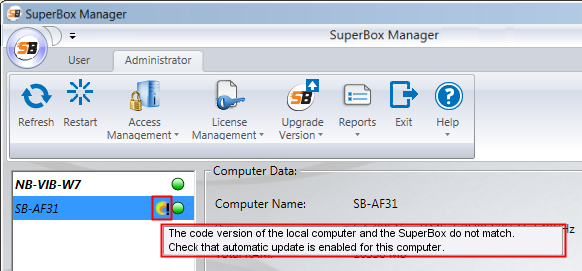
Credit: help.cimatron.com
Common Super Box Issues
Super Box users often face some common issues that affect their experience. These problems can be frustrating but are usually easy to fix. Understanding these issues helps you solve them quickly and enjoy smooth streaming.
Power Problems
Power issues are common with Super Box devices. Sometimes, the box does not turn on or keeps restarting. Check the power cable and the outlet first. Make sure the connection is tight and the power source works. Using the original power adapter is important. Avoid power surges by plugging into a surge protector.
Connectivity Failures
Connection problems stop the Super Box from accessing the internet. This issue can cause the device to freeze or fail to load channels. Restart your router and Super Box. Check if the Wi-Fi signal is strong. Try connecting with an Ethernet cable for a stable link. Reset network settings if needed.
App Crashes
Apps on the Super Box may crash or close unexpectedly. This can happen due to outdated software or corrupted data. Clear the app cache to fix this. Update the Super Box firmware and apps regularly. Uninstall and reinstall problematic apps to restore proper function.
Streaming Buffering
Buffering interrupts smooth video playback on Super Box. Slow internet speed often causes this issue. Close other apps that use bandwidth. Lower the video quality in the app settings. Move the Super Box closer to the router to boost signal strength. Restart the device to clear temporary glitches.
Resetting And Restarting
Resetting and restarting your Super Box can fix many common problems. It refreshes the system and clears temporary glitches. This process helps improve performance without complex steps.
Resetting can be soft or hard, depending on the issue severity. Both methods have clear steps to follow. Knowing when to reset saves time and avoids unnecessary actions.
Soft Reset Steps
Unplug the Super Box power cable from the outlet. Wait for 30 seconds to 1 minute. Plug the power cable back in and turn on the device. This simple action clears minor bugs and refreshes the system. Soft resets do not erase your settings or data.
Hard Reset Guide
Locate the reset button on your Super Box, usually a small hole. Use a pin or paperclip to press and hold the button. Hold for about 10 to 15 seconds until the device restarts. The hard reset restores factory settings and deletes all saved data. Use this only if soft reset does not fix the problem.
When To Reset
Reset if your Super Box freezes or stops responding. Try soft reset first for slow or lagging problems. Choose hard reset for severe issues like boot loops or forgotten passwords. Avoid frequent hard resets to protect your data. Always back up important files before a hard reset.
Improving Network Performance
Improving network performance is key to enjoying a smooth Super Box experience. Slow or unstable internet can cause buffering and interruptions. Small changes to your network setup often lead to better speed and stability. Follow these tips to enhance your connection and enjoy uninterrupted streaming.
Optimizing Wi-fi Signal
Place your Wi-Fi router in an open, central spot in your home. Avoid walls and metal objects that block signals. Keep devices close to the router for stronger connections. Change Wi-Fi channels to reduce interference from other networks. Use a Wi-Fi analyzer app to find the best channel. Reset your router regularly to clear temporary issues.
Using Ethernet Connections
An Ethernet cable provides a stable, fast connection. Connect your Super Box directly to the router with a cable. This reduces delays and signal drops common with Wi-Fi. Ethernet is best for streaming high-definition content. Check that your cable is not damaged or loose. Use a high-quality cable for better results.
Router Settings To Check
Access your router’s settings through its IP address in a browser. Ensure the firmware is up to date for security and performance. Enable Quality of Service (QoS) to prioritize streaming traffic. Disable unused features that may slow your network. Check for any bandwidth limits or parental controls that affect streaming. Save changes and restart the router to apply settings.

Updating Software And Apps
Updating software and apps on your Super Box is key to smooth performance. Regular updates fix bugs, improve features, and keep security tight. Staying current helps avoid crashes and slowdowns. Updates are often quick and simple.
Checking For Firmware Updates
Start by checking your Super Box firmware version. Go to the settings menu and find the system or about section. There you can see the current firmware. Look for an option to check for updates. If an update is available, download and install it. Keep your device connected to Wi-Fi during this process. Firmware updates improve device stability and add new functions.
App Update Procedures
Open the app store on your Super Box to update apps. Navigate to the update section or my apps area. You will see apps that need updates listed there. Select each app or choose update all for convenience. Wait for the download and installation to finish before using the app. Regular app updates fix errors and improve the user experience.
Benefits Of Keeping Software Current
Updated software and apps run better and faster. They help protect your Super Box from security risks. New features become available through updates. Updates also fix bugs that cause errors or crashes. Keeping everything current saves time and trouble later. Your viewing experience stays smooth and enjoyable.
Managing Storage And Cache
Managing storage and cache on your Super Box is key to smooth performance. Over time, apps build up cache and files that can slow the device. Clearing this clutter helps the system run faster and prevents crashes. Keeping enough free space also avoids interruptions and lag. Follow these simple steps to keep your Super Box clean and fast.
Clearing App Cache
Cache stores temporary files from apps. These files help apps load faster but can grow large. Clearing cache frees up space and fixes app glitches. Go to Settings, find Apps, select an app, and tap “Clear Cache.” Do this for apps that use a lot of space or act slow. This does not delete personal data.
Freeing Up Storage Space
Storage fills with downloads, videos, and unused apps. Delete files you no longer need. Remove apps you rarely use. Use a file manager to find big files. Back up important videos and photos to another device. Keeping free space above 20% helps the Super Box run better.
Preventing Overload
Regularly check storage and cache to avoid overload. Set reminders to clear cache every few weeks. Avoid installing too many apps at once. Close apps running in the background. Restart the device often to refresh memory. These habits keep your Super Box stable and fast.
Advanced Troubleshooting Tips
Advanced troubleshooting tips help fix complex issues with your Super Box. These steps go beyond basic fixes. They require careful action and some technical knowledge.
Follow these tips to solve problems that simple resets do not fix. They can save time and avoid further damage.
Factory Reset Risks
Factory reset erases all data and settings on your Super Box. It returns the device to original factory conditions. Use this only if other fixes fail.
Backing up important files is a must before resetting. The reset removes apps, accounts, and personal settings. It may fix software bugs but causes data loss.
After a reset, you need to set up the device again. This process takes time and patience. Be sure you want to lose all current data.
Checking Hardware Components
Hardware issues can cause many problems. Check cables and power supply for damage or loose connections. Use a different cable or port to test.
Look for signs of overheating or physical damage on the device. Dust can block vents and cause heating. Clean vents carefully to improve airflow.
Internal hardware faults need professional help. Avoid opening the device if you are not trained. This can void warranties or cause more damage.
Contacting Support
Contact Super Box support if problems persist. Provide clear details about your issue and what you tried. This helps the support team assist you faster.
Keep your device information ready, like model number and purchase date. Support may guide you through advanced steps or arrange repairs. Patience is key during this process.

Frequently Asked Questions
How Do I Reset My Super Box To Fix Issues?
To reset your Super Box, unplug it from power for 10 seconds. Then plug it back in and wait for the system to restart. This often clears minor errors.
Why Is My Super Box Not Connecting To Wi-fi?
Check if your Wi-Fi password is correct and the signal is strong. Restart your router and Super Box if connection issues continue. Make sure no network limits block the device.
What Should I Do If Super Box Apps Are Not Working?
Close and reopen the app to refresh it. Update the app or Super Box software to the latest version. Reinstall the app if problems persist.
How Can I Improve Super Box Video Streaming Quality?
Use a stable and fast internet connection for better streaming. Lower video quality settings if your internet is slow. Close other apps using bandwidth.
What Causes Super Box Freezing And How To Fix It?
Freezing happens when the device overheats or runs out of memory. Restart the box to clear memory and cool it down. Remove unused apps to free space.
Conclusion
Super Box troubleshooting can solve many common issues fast. Restart the device to clear small glitches. Check your internet connection for any drops. Update the software regularly to keep it running smooth. Clean the ports and cables for better contact.
Try these simple steps before calling for help. Staying calm helps you fix problems with ease. Keep this guide handy for quick reference anytime. Enjoy your Super Box without long interruptions. Troubleshooting becomes easier with practice and patience.