To restore a camera that’s failing to connect or display live video, you should first perform a power cycle on the device to resolve temporary software hangs, as ezviz troubleshooting often requires nothing more than a simple reboot. Most connection issues stem from a weak Wi-Fi signal or an outdated application version on your mobile device. If the status light on your camera is solid red or flashing rapidly, the unit has likely lost its handshake with your local network.
Troubleshooting Ezviz camera connection issues
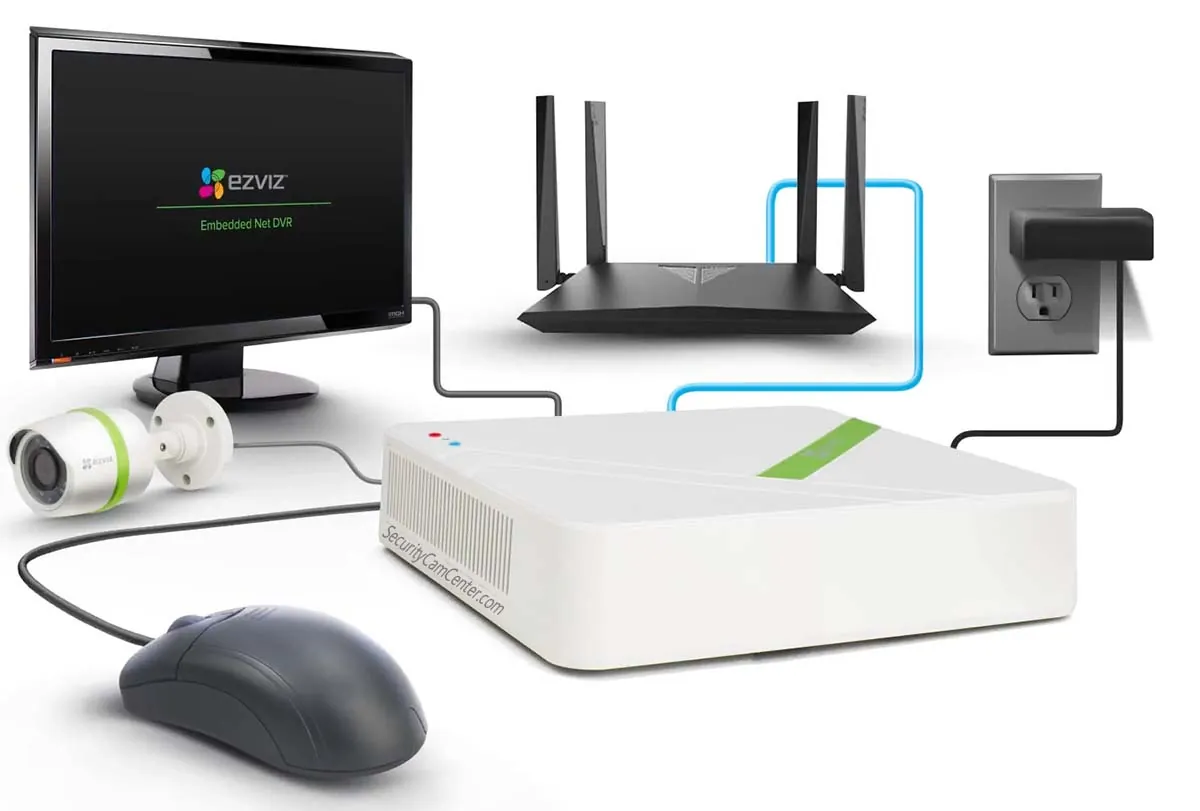
When your camera stops responding, the cause is usually a breakdown in the communication path between your router and the hardware. A common issue is a change in the Wi-Fi environment, such as a new router password or a shift in signal strength due to physical obstructions. If your internet bandwidth is currently saturated by other high-demand tasks, the camera may time out before it can transmit video data.
If you suspect bandwidth congestion, run a speed test while standing next to the camera. If your upload speed is below 2 Mbps, the device will likely fail to maintain a stable stream. You can resolve this by prioritizing the camera’s MAC address within your router’s Quality of Service (QoS) settings.
Another frequent cause involves the internal security certificates of the device. If the camera has been offline for a long period, it might need to re-authenticate with the server to ensure a secure connection. You can check the current status of your device firmware and network settings by visiting the official Ezviz support portal to compare your hardware version against the latest release.
Always ensure that your mobile phone is connected to the same 2.4GHz network frequency during the initial setup phase, as most of these cameras don’t support 5GHz bands. If your phone is on a 5GHz band, the setup app will fail to broadcast the necessary handshake signal to the camera, resulting in a persistent “device not found” error.
Power cycle the hardware
If your camera has become unresponsive, the fastest way to reset its internal processes is a full power cycle. Unplug the power adapter from the wall outlet for a few seconds before plugging it back in. This duration allows the capacitors to fully discharge, which clears any temporary errors in the camera’s memory.
Once the device restarts, wait for the status light to transition from a solid color to a slow flash, which indicates it’s ready to reconnect to your network.
This method is intended for users experiencing intermittent signal loss or software freezes. If the camera remains unresponsive after a power cycle, check the power cable for any signs of physical damage or fraying. If you notice exposed wires, don’t use the device, as this creates a fire hazard.
In such cases, contact the manufacturer’s support team for a replacement power supply unit. Never attempt to open the camera housing yourself, as this voids your warranty and exposes sensitive electronic components to static damage.
Refresh the network connection
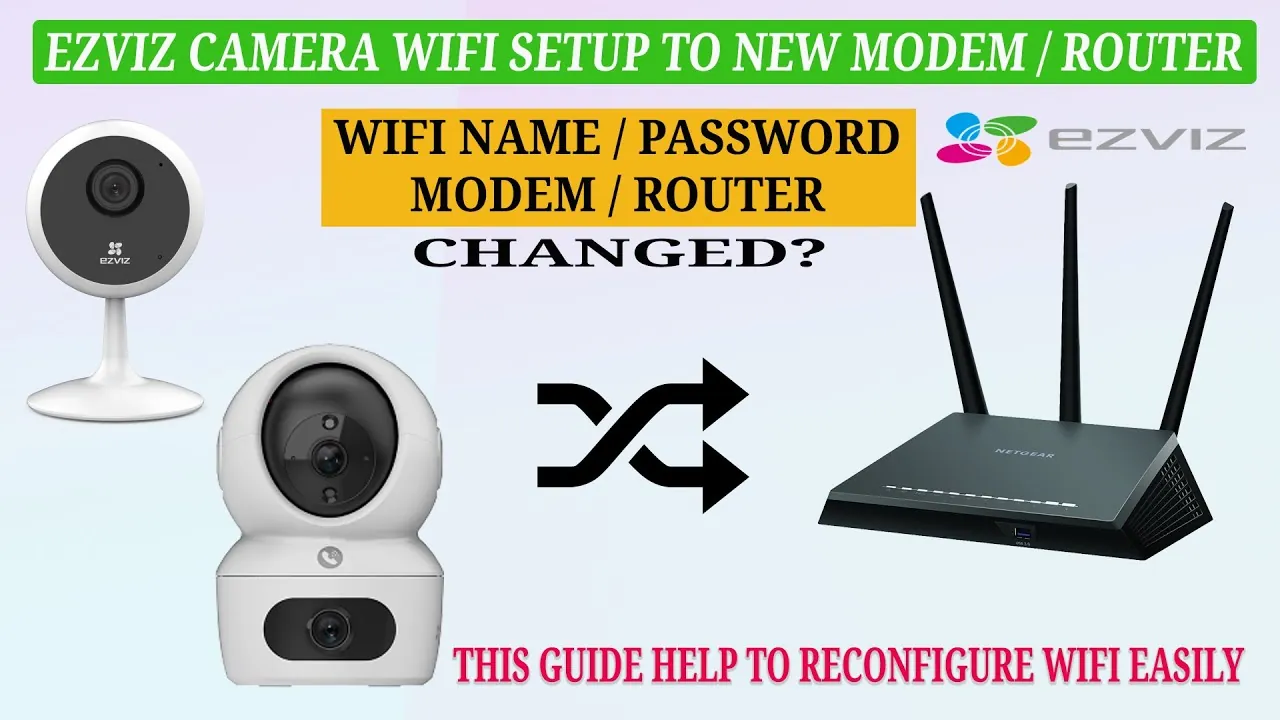
If the camera is powered on but the app shows an offline status, you must re-establish the link between the camera and your router. Open the app on your smartphone and navigate to the device settings menu to select the Wi-Fi configuration option. You’ll need to bring your mobile device close to the camera to ensure the pairing signal is strong enough to pass the network credentials through.
This step is for users who have recently changed their router password or moved the camera to a new room. If you’re using a signal extender or a mesh network, ensure the camera isn’t trying to jump between access points, as this causes frequent drops. Check your router’s client list; if the camera appears as “inactive” or “blocked,” you must whitelist its MAC address in your router settings before the app can finalize the connection.
If the camera still refuses to connect, try deleting the device from your app account entirely and performing a factory reset by holding the reset button for 10 seconds. This clears all previous configurations and returns the unit to its original out-of-the-box state.
A common mistake is attempting this reset while the camera is still connected to a power bank. Always use the original wall adapter to ensure the device receives the steady voltage required to complete the internal firmware handshake.
Update your mobile application
Sometimes the problem isn’t the camera itself, but the software you use to view the feed. An outdated application may lack the necessary protocols to communicate with the cloud servers, leading to a blank screen or a perpetual loading icon. Check your device’s app store to see if a newer version of the software is available and download the update immediately.
This is the recommended fix if you can see the camera status as online, but the video feed fails to load. Before updating, ensure your smartphone has a stable internet connection, preferably over Wi-Fi rather than cellular data. If the app continues to fail after the update, try clearing the cache in your phone’s application manager settings.
A common mistake is assuming an app update will automatically download in the background. If you have disabled auto-updates to save battery, you must manually trigger the process. If the app store shows “Open” instead of “Update,” you’re already on the latest version.
If you’re using an older smartphone model, the hardware might not support the latest high-definition video decoding required by newer firmware versions. In that case, you may need to view the feed through a desktop web browser to confirm if the issue is limited to your mobile phone. If the browser feed works, the bottleneck is your phone’s processor, not the camera.
Mistakes that cause further issues
Pressing the reset button while the device is performing a firmware update. This interrupts the write cycle, which can permanently corrupt the internal software and brick the unit. If the status light is flashing, don’t touch the power or reset pins until the light returns to a steady state.
Moving the camera too far from the router. Distance significantly reduces the data throughput required for high-definition streaming, leading to packet loss. If your signal strength drops below two bars, the device will struggle to maintain a handshake, causing frequent disconnects.
Using a third-party power adapter that doesn’t match the exact voltage and amperage specifications. Using a higher voltage can fry the internal capacitors, while lower amperage causes the device to reboot under load. Check the label on the original brick; if the numbers don’t match perfectly, don’t plug it in.
Ignoring the status light codes. These patterns tell you exactly where the connection fails. A solid red light usually indicates a hardware fault, while a blinking amber light signals a network authentication error. Recognizing these specific patterns saves hours of aimless troubleshooting.
Preventing future connection problems
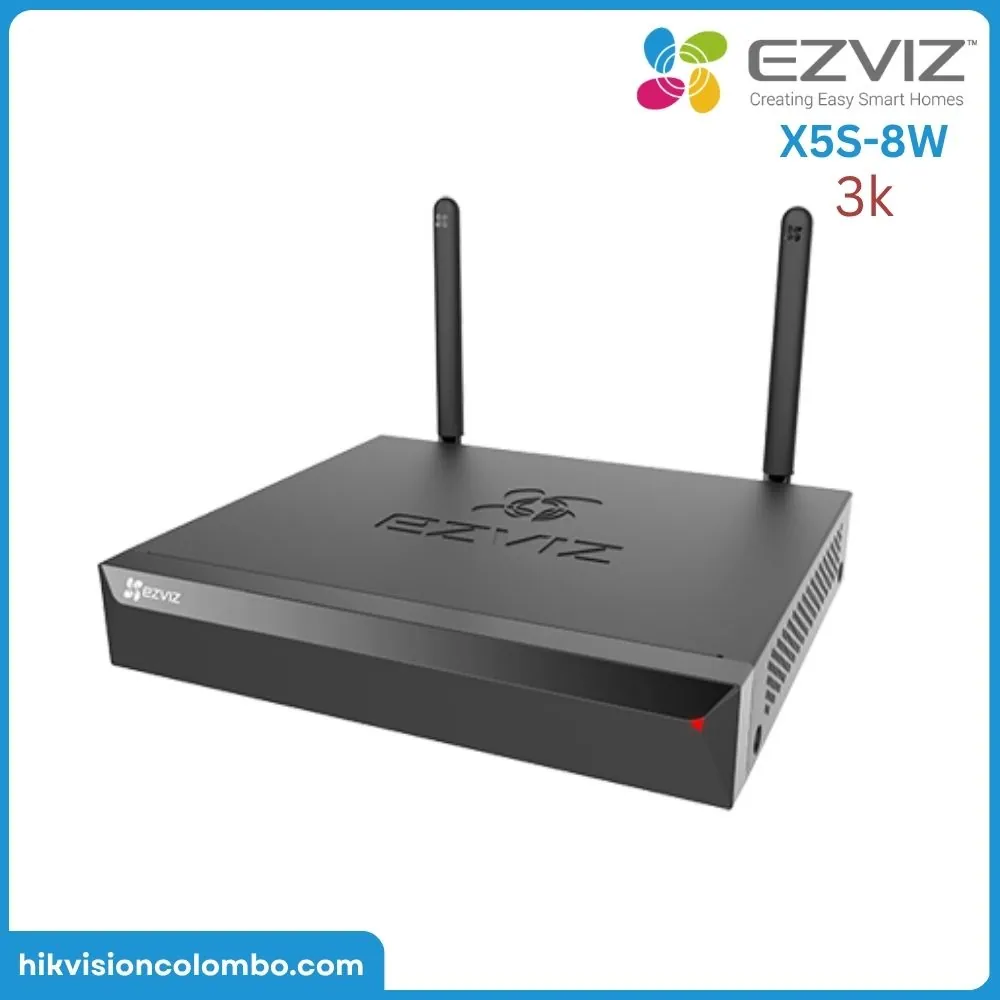
The most effective way to maintain a stable feed is to ensure your network environment remains consistent and your hardware stays within the manufacturer’s recommended operating range.
| If you’re doing this | Do this instead | Why |
|---|---|---|
| Using a crowded channel | Switch to a clear Wi-Fi channel | Reduces signal interference |
| Placing camera near metal | Move to an open area | Metal blocks wireless signals |
| Using a weak password | Set a strong, unique password | Prevents unauthorized network access |
| Leaving updates pending | Enable automatic app updates | Ensures compatibility with servers |
Most users mistake signal strength for signal quality. Even with full bars, high latency occurs if your router handles too many simultaneous devices. If you see buffering, check your router’s “Airtime Fairness” setting; if it’s disabled, your fastest devices will crawl to match the speed of your slowest ones.
Watch your distance. If your camera sits more than 30 feet from the router or behind two walls, the signal degrades exponentially. In these cases, a mesh Wi-Fi node is mandatory. If you experience frequent drops, check your router logs for “deauthentication” errors. These indicate your router is forcing a disconnect, usually due to an IP address conflict. Assign a static IP to your camera to solve this permanently.
Frequently asked questions
How long should a camera take to reconnect after a power cycle?
A camera typically takes 60 to 90 seconds to fully reboot and reconnect to your local network after power is restored. This assumes the Wi-Fi signal at the camera’s location is strong and the router is already active. If it takes longer than 3 minutes, the camera has likely failed to find the saved network credentials and may require a new manual configuration through the app.
Why does my camera show offline at night?
Your camera shows offline at night most often because the infrared night vision mode draws more power, which can cause a drop in performance if your power cable is too thin or long. This assumes you’re using the provided power adapter. If the voltage drop is too high, the camera will reboot repeatedly when the night vision turns on, making it look offline.
Is it safe to use an outdoor camera indoors?
Yes, you can use an outdoor camera indoors, though image quality may suffer due to wide-angle lenses. Ensure the camera is positioned away from nearby walls to prevent infrared reflection issues. Avoid placing these cameras in high-humidity areas like bathrooms, as the casing is built for rain rather than steam.
What happens if I lose my login credentials?
If you lose your login credentials, you can use the password recovery feature on the login screen to reset your account via email or phone number. This assumes you still have access to the recovery method you set up during your initial account creation. If you no longer have access to that email or phone number, you’ll need to contact the manufacturer’s support line to verify your identity and regain access.
How many cameras can I connect to one account?
You can connect as many cameras to one account as your internet upload speed and router capacity allow. Most standard residential routers support 20 to 30 active devices simultaneously. If your video feed becomes choppy after adding more cameras, your router’s processor or your internet bandwidth has likely reached its limit.
Conclusion
If these quick fixes don’t get your feed back online, don’t worry. You can always reach out to the support team through the app for personalized help. They’re great at identifying hidden network conflicts, so you’ll be back to monitoring your home safely in no time at all.