You can resolve most connection issues with feit electric floodlight security camera troubleshooting by power cycling the unit at the breaker and ensuring your 2.4GHz Wi-Fi signal is strong enough at the mounting location. The most common cause is a weak wireless signal or a temporary software glitch that prevents the camera from maintaining a handshake with your router. If the device remains unresponsive after a power reset, check the status of your home network before looking for hardware defects.
Why your Feit Electric security camera disconnects
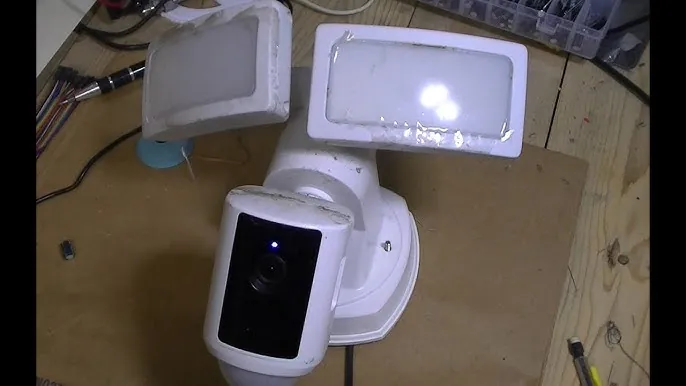
Most connectivity problems stem from the distance between your router and the camera or interference from other household electronics. Because these cameras rely on a 2.4GHz Wi-Fi band, thick walls, metal siding, or trees can significantly degrade the signal strength needed for a stable video feed. If your router is more than 30 feet away or separated by multiple interior walls, the camera may drop its connection intermittently.
Another major factor is the authentication process during the initial setup or after a power outage. If your router settings were recently updated or if you changed your Wi-Fi password, the camera can’t reconnect automatically until you refresh the settings within the app.
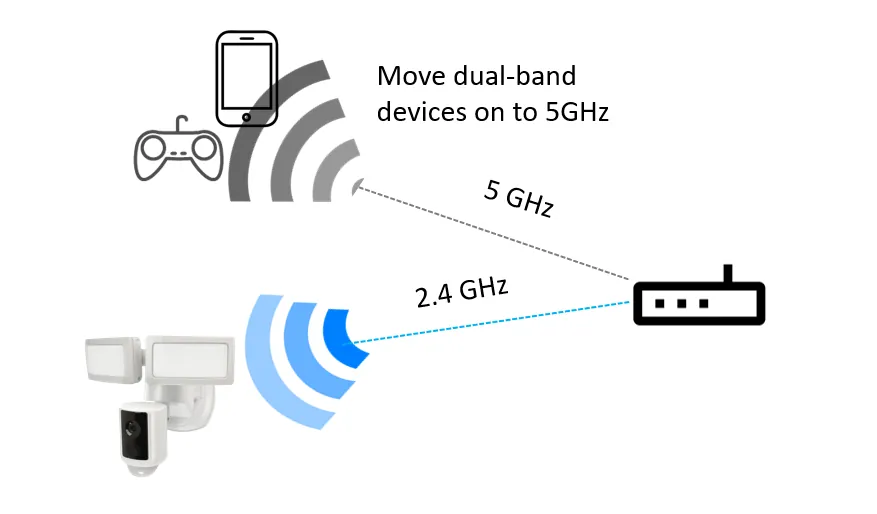
Additionally, some dual-band routers combine 2.4GHz and 5GHz signals under one name, which confuses the camera during the pairing process. Always ensure your mobile device is locked to the 2.4GHz band during the configuration steps to avoid this conflict.
Finally, hardware failure can occur if the unit is exposed to extreme moisture without proper sealing. While these devices are built for outdoor use, the Feit Electric product support guidelines emphasize that proper installation and weatherproofing are essential to prevent water ingress that causes short-circuits. If the lights work but the camera is dead, moisture may have compromised the internal electronics, which requires a professional inspection or a warranty claim rather than a simple software reset.
Reset the connection through the app
If your camera is powered on but the app shows it as offline, you should perform a soft reset before attempting a full factory wipe. Start by ensuring your smartphone is connected to the same 2.4GHz network you want the camera to use. Open the app, navigate to the device settings, and check if the firmware requires an update. An outdated firmware version is a common reason for sudden drops in connectivity.
If the app can’t see the camera, you must trigger a manual reset. Locate the reset button on the device housing, which is usually found under a small rubber flap to protect it from rain. Press and hold this button for 10 seconds while the unit is powered on. You’ll typically hear an audible tone or see the status light flash, indicating the camera is ready to be re-added to your account.
When re-pairing, keep your mobile device within 5 feet of the camera. If the pairing fails, verify that your router isn’t using a hidden SSID or a MAC address filter that blocks new devices. This fix is for users who have a stable internet connection but a camera that refuses to sync. If you can’t get the camera to enter pairing mode despite multiple tries, the internal Wi-Fi antenna may be faulty.
Check your power supply and wiring
A common mistake people make is assuming the camera is faulty when the issue is actually the power source. If the floodlights turn on but the camera fails to activate, the unit might be receiving insufficient voltage or the wiring at the junction box may be loose. Ensure the junction box is securely mounted and that the wire nuts are properly tightened to prevent intermittent power delivery.
If you aren’t comfortable working with electrical wiring, don’t attempt to open the junction box yourself. This work involves live electrical components that carry a risk of shock, so it’s best to hire a licensed electrician to verify the voltage. A technician will confirm whether the part has failed.
This fix is for users who suspect a hardware power issue. If you notice flickering lights or a camera that constantly restarts, it’s a sign of a loose neutral wire or a failing power module. If the unit is within the warranty period, don’t attempt to repair the internal circuitry yourself, as this will void your coverage. Contact the manufacturer to start a warranty claim instead of risking further damage.
The decision rule is simple: if the status light is completely dark, check the breaker first. If the light blinks amber, the unit is receiving power but the voltage is too low to complete the boot sequence, often due to excessive cable length. In this case, check for excessive cable length or insufficient wire gauge, which causes voltage drop and prevents the camera from fully initializing.
Common myths and troubleshooting mistakes
Assuming the camera works on 5GHz: These cameras only support 2.4GHz Wi-Fi. Trying to force a 5GHz connection will cause constant pairing failures. If your router uses a combined SSID, temporarily disable the 5GHz band in your router’s settings to ensure your phone and camera handshake on the 2.4GHz frequency during setup.
Using a signal booster blindly: Adding a Wi-Fi extender can increase signal strength but decrease throughput. This often introduces latency, making the video feed laggy or unusable. If your camera shows a “weak signal” error despite an extender, move the camera closer to the main router rather than adding another hop.
Ignoring the status light: The color and blink pattern of the status LED tell you exactly what is wrong. A solid red light usually indicates a boot failure, while a slow-flashing blue light indicates the device is ready for pairing. Consult your manual’s LED chart before power-cycling the unit.
Resetting the router every time: Frequent router reboots don’t fix a camera that has lost its specific authentication credentials. You must reset the camera itself by holding the physical reset button for ten seconds until the light cycles. If the camera still fails to connect after a hard reset, your local network firewall is likely blocking the device’s outbound traffic.
Prevent future connection drops
| If you’re doing this | Do this instead | Why |
|---|---|---|
| Using a shared network name | Split your 2.4GHz and 5GHz bands | Stops the camera from jumping to the wrong band |
| Installing far from the router | Use a Wi-Fi mesh system | Provides a stronger, dedicated signal path |
| Leaving the rubber flap open | Seal the reset button flap firmly | Prevents water from damaging the electronics |
| Ignoring app notifications | Check for firmware updates monthly | Keeps the security software current and stable |
Most users mistake a weak signal for a faulty camera. If your device shows an offline status, check your router’s signal strength at the mounting point. A reading below -70 dBm indicates you need a mesh node or a range extender.
If you have a dual-band router, force your camera onto the 2.4GHz band. This frequency travels through walls better than 5GHz. If your camera is within 20 feet of the router and still drops, interference from a microwave or cordless phone is likely the culprit.
In that case, change your router’s wireless channel to 1, 6, or 11 to avoid congestion. Ignoring these connection drops leads to gaps in your security footage that you can’t recover later. Always verify your upload speed is at least 2 Mbps per camera to ensure a stable, persistent connection.
Frequently asked questions
Can I use this camera without a Wi-Fi connection?
The camera requires a constant 2.4GHz Wi-Fi connection to stream video, send alerts, and save footage. Without an active internet connection, the floodlights function as standard motion-activated lights, but security camera features are disabled. The device will attempt to reconnect automatically once the signal returns.
How do I know if the camera is in pairing mode?
The camera enters pairing mode when the status light flashes. If the light is solid, hold the reset button for 10 seconds to force the device into discovery mode. Always wait for the audible chime or light pattern change before attempting to add the device to your mobile app.
How long does it take for the camera to reboot?
The camera typically takes 60 to 90 seconds to fully boot up and re-establish a connection after you cycle the power at the breaker. During this time, the status light may cycle through different colors or blink rapidly while it searches for your router. If the camera doesn’t show as online in your app after 3 minutes, it likely failed to handshake with your network and requires a manual reset.
Is it safe to install this camera myself?
Installation is safe if you have basic experience with home electrical wiring and follow the manufacturer guide. You must turn off the power at the main breaker before touching any wires to avoid electrical shock. If you’re uncomfortable with the wiring, call a licensed electrician.
What happens if the power goes out?
The camera will automatically attempt to reconnect to your Wi-Fi network once power is restored. It lacks an internal battery backup, so all recording and monitoring functions stop until the router and camera finish rebooting. Connection usually restores within 2 to 5 minutes.
Why is my video feed lagging?
Video lag is typically caused by weak upload speeds or heavy traffic on your home network. You generally need at least 2Mbps of consistent upload speed for smooth high-definition streaming. If your speed is low, move your router closer or limit other devices streaming high-bandwidth content.
Conclusion
Proper maintenance of your network environment is the most effective way to ensure your camera remains reliable. By keeping your firmware updated and ensuring a clean 2.4GHz signal, you minimize the need for manual troubleshooting and keep your home security system running smoothly. If you have exhausted these steps and the unit still fails to perform, contact the manufacturer’s support team for a formal hardware evaluation.