You can resolve most connection issues by power cycling your device and confirming your network signal strength, as feit smart dimmer troubleshooting usually centers on simple Wi-Fi or physical connection errors. When the light fails to respond, the most frequent cause is a temporary loss of communication between the switch and your wireless router. If the device remains unresponsive after a reset, you may need to check your home circuit or the physical wiring.
Fixing feit smart dimmer connection issues
Most problems with smart dimmers stem from signal interference or outdated network settings. If your router recently updated its firmware or you changed your Wi-Fi password, the switch will lose its connection and blink to indicate it’s waiting for a signal. This is a common issue for many smart home devices that rely on a stable 2.4GHz frequency.
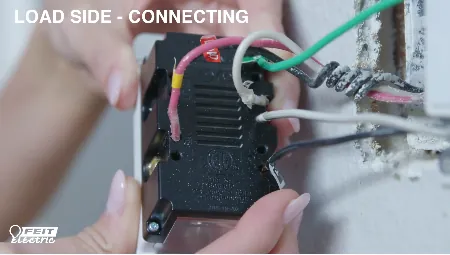
Physical wiring also plays a major role in how these devices perform. If the switch was installed without a secure neutral wire connection, it may suffer from power instability. This often manifests as flickering lights or the switch randomly resetting itself. Always ensure the wires are pushed firmly into the terminals before securing the faceplate to the wall.
Another factor is the distance from your router. If your dimmer is located in a room with thick walls or metal obstacles, the signal might be too weak to maintain a steady link. You can check your Feit Electric support documentation for specific signal requirements and installation guides. If you’re unsure about the wiring, it’s safer to contact a licensed electrician who understands local building codes and electrical safety standards.
Safety: Inside a mains-powered machine, the parts behind the outer cover can hold a dangerous electrical charge even after it has been unplugged — that’s why they sit behind a cover. Opening the housing, or testing or replacing anything behind it, is a job for a qualified technician, never a home repair.
Reset the device settings
To perform a factory reset, hold the main power button on the dimmer down for about 10 seconds until the indicator light starts flashing rapidly. This clears the old network configuration and puts the switch back into pairing mode. Once the light flashes, open your app to re-add the device as if it were brand new.
This fix is intended for users who have changed their internet service provider or moved their router to a new location. It’s also the first step if the app shows the device as “offline” even when your other home devices are working perfectly. If the light doesn’t flash after 10 seconds, check that the circuit breaker for that room is turned on.
If the device still fails to enter pairing mode, verify that your phone is connected to a 2.4GHz network rather than a 5GHz network. Most smart dimmers cannot “see” a 5GHz signal during the initial setup process.
If you have a combined network, you may need to disable the 5GHz band temporarily in your router settings to complete the pairing. If you notice the indicator light pulsing slowly instead of flashing rapidly, the device is in a firmware update loop. In this case, wait five minutes before attempting the reset again.
Check the physical switch wiring
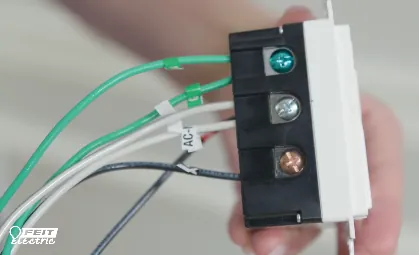
Confirm that the wall switch is receiving power by checking the circuit breaker in your electrical panel. If the lights on the dimmer are completely dark and don’t respond to a manual press, the circuit might be tripped. A switch that was installed incorrectly or has a loose wire will often show no signs of life at all.
This step is for those who are comfortable opening their electrical panel to check for tripped breakers. If the breaker is fine but the switch remains dead, look for any signs of loose connections behind the wall plate. Never touch exposed wires if you aren’t experienced with electrical work; if you see damaged insulation or burnt components, stop immediately and call a professional.
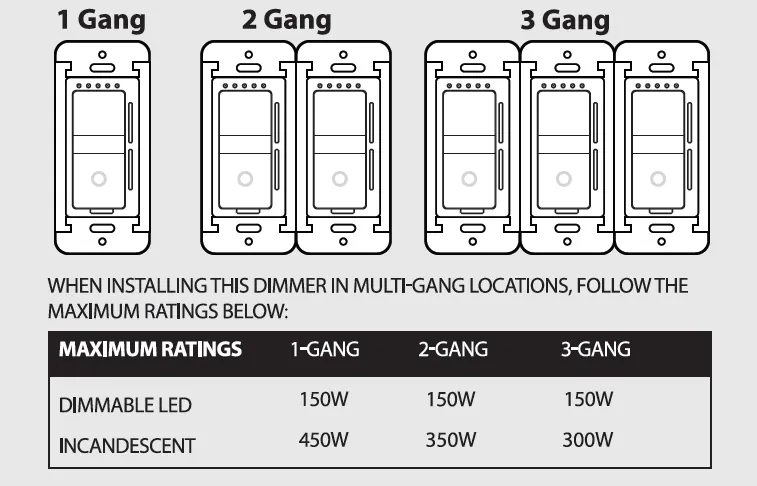
If you have multiple dimmers on the same circuit, ensure the total wattage of the light bulbs doesn’t exceed the limit specified by the manufacturer. Overloading a circuit can cause the dimmer to shut down as a safety precaution. You can find the maximum wattage rating printed on the side of the switch or in the manual provided with your unit.
When inspecting the wiring, look specifically for the ground wire and the neutral wire. A common mistake is swapping the load and line wires, which prevents the switch from receiving constant power. If the switch remains unresponsive, use a non-contact voltage tester to confirm current is reaching the box. In that case, the unit must be replaced entirely.
Correcting common installation mistakes
Some users try to use smart dimmers with non-dimmable light bulbs, which causes flickering or immediate failure of the switch electronics. A smart dimmer is designed to handle specific electrical loads, and using the wrong bulb type creates an incompatible circuit. Always verify that your bulbs are marked as “dimmable” before installing them in a fixture controlled by a smart switch.
- Using non-dimmable LED bulbs: These bulbs will hum, flicker, or burn out quickly because they can’t handle the voltage chopping used by the dimmer.
- Ignoring the neutral wire requirement: Most smart switches require a neutral wire. If your house lacks one, the switch can’t maintain a stable connection. Check your junction box for a bundle of white wires tucked into the back. If you only see black and red wires, you must purchase a “no-neutral” compatible switch.
- Overloading the circuit capacity: Adding too many high-wattage bulbs to one dimmer will cause the internal fuse to trigger or the device to overheat. Check the dimmer’s maximum wattage rating, usually found on the side of the unit. A common mistake is exceeding 600 watts on a standard switch, which risks a fire hazard.
- Installing near large metal objects: Metal wall plates or nearby appliances can block the Wi-Fi signal, leading to intermittent “offline” status in your app. If your device frequently drops connection, swap your metal faceplate for a plastic one to improve signal penetration.
Improving device performance
If you’re currently experiencing issues, compare your setup to these standard practices to improve reliability.
| If you’re doing this | Do this instead | Why |
|---|---|---|
| Using 5GHz Wi-Fi | Switch to 2.4GHz | 2.4GHz has a longer range and better wall penetration. |
| Mixed bulb types | Use identical bulbs | Different brands react differently to dimming, causing flicker. |
| Loose wire nuts | Use lever-style connectors | These provide a more secure, vibration-resistant connection. |
| Dimmer in a metal box | Use a plastic wall plate | Metal plates can shield and weaken the internal antenna. |
Most users assume that faster Wi-Fi speeds equate to better smart home stability. However, smart devices prioritize connection persistence over raw data throughput. If your device frequently drops offline, move it to a 2.4GHz network to prevent signal attenuation through drywall.
When wiring, avoid the common mistake of over-tightening wire nuts, which can fray copper strands and lead to intermittent power loops. If you notice a device flickering, check the neutral wire first.
Use this decision rule: if your device is within ten feet of the router, 5GHz is acceptable. If the device is behind a load-bearing wall or in a basement, force the connection to 2.4GHz. This simple switch prevents the constant re-pairing cycles that can shorten hardware lifespans.
Frequently asked questions
Can I use this dimmer without a neutral wire?
Most smart dimmers require a neutral wire to power their internal Wi-Fi chip. You can verify this by checking for a bundle of white wires inside your switch box. If you don’t see them, consult an electrician to see if one can be safely installed.
How long does it take to pair the device?
Pairing typically takes 60 to 90 seconds once the device enters discovery mode. Ensure your smartphone is within 10 feet of the switch during this initial setup process. If the app fails to find the switch within two minutes, check that your phone is on the correct Wi-Fi band.
Is it safe to install this myself?
Installation is safe if you’re comfortable turning off the main power and using basic hand tools. You must follow all local electrical codes to ensure a secure, compliant connection at every terminal. If you lack wiring experience or see damaged wires, you should hire a professional.
Why does my light flicker when dimmed?
Flickering usually occurs because the dimmer’s minimum load requirement isn’t met by your LED bulbs. Try adding a second bulb to the fixture to increase the total wattage. If the flickering persists, ensure your bulbs are specifically rated for use with electronic dimmers.
What happens if the power goes out?
Your dimmer will automatically reconnect to the Wi-Fi network once power returns and your router is online. You don’t need to perform a factory reset after a power outage. If it fails to reconnect after five minutes, verify that your router is broadcasting a 2.4GHz signal.
How many devices can I connect to one router?
Most routers support 15 to 30 smart devices, though this varies based on processing power and signal congestion. If you notice multiple devices dropping offline, you have likely reached your router’s capacity limit. Consider upgrading to a mesh Wi-Fi system if you plan to add more smart products.
Conclusion
If the device remains unresponsive after these steps, the hardware may have reached the end of its functional life or suffered a power surge. Check your purchase receipt to see if the item is still under warranty, as most manufacturers offer a limited replacement period for defective electronics.