You can fix most connection issues by power cycling your unit, as effective firstrend security cameras troubleshooting usually starts with a simple reboot of the camera and the router. If your system is offline, the primary cause is almost always an interrupted wireless signal between the camera and the network base station.
Why your Firstrend security cameras disconnect
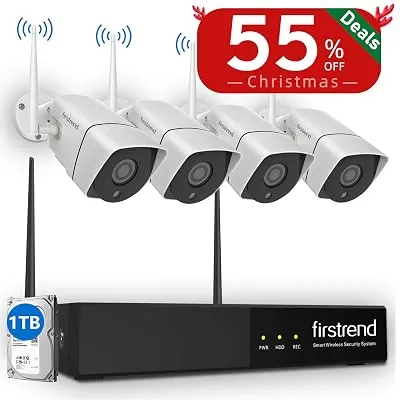
Most connection problems occur because the camera has lost its handshake with the wireless receiver. This often happens after a power surge or a brief internet outage that forces your router to reset its IP address. When the camera can’t find the specific network it expects, it remains in a disconnected state until the link is refreshed.
If your router uses a dual-band signal, ensure the camera isn’t attempting to connect to a 5GHz band if it only supports 2.4GHz. Many older models fail to bridge this gap, resulting in a persistent “device offline” error. If your router broadcasts both under the same name, log into your settings and create a dedicated 2.4GHz network for your security hardware.
Physical distance or interference from structural elements also disrupts service. Wireless signals struggle to pass through thick concrete, metal studs, or large appliances. If you recently moved furniture or added a new electronic device nearby, it may be creating enough interference to block the signal entirely.
Finally, confirm that your power supply is delivering the correct voltage. If you’re using a third-party power adapter, it might not meet the specific requirements of your camera model.
A low-voltage condition often allows the camera to turn on but prevents it from maintaining a stable Wi-Fi connection or powering the infrared night vision sensors. Check the label on your adapter against the manufacturer’s manual; if the amperage is lower than specified, the radio module will be the first component to drop out.
Reset the power connection
This fix is for users whose cameras have suddenly stopped showing a video feed on their monitor or mobile application. Start by unplugging the power cable from the back of the camera or the power brick itself. Wait a few seconds before plugging it back in to ensure the device has fully powered down.
Observe the status lights on the device as it boots up. If the light remains dark after 2 minutes, verify the outlet is live by plugging in a lamp or another small device. If the light is blinking red, the camera is trying to establish a connection to the base station but failing. In this case, move the camera within 5 feet of the base station to rule out signal strength issues.
If the camera connects while close to the base but drops out when returned to its original spot, the issue is environmental. You’ll need to mount the camera in a location with fewer physical obstructions. Note that if you have modified the original firmware or performed a factory reset, you must re-pair the device using the specific button sequence found in your user manual.
Update the network settings
Use this method if your camera shows as “online” but the video stream is black or frozen. Access your base station settings through the desktop software or the provided mobile app. Navigate to the network configuration tab and verify that the base station is using a 2.4GHz Wi-Fi band, as most security systems are incompatible with 5GHz networks.
If your router recently updated its settings, it might have changed the channel or encryption type. Try switching the Wi-Fi channel on your router to a less crowded one, such as 1, 6, or 11. This reduces signal noise from neighbors’ networks, which often causes choppy video feeds.
Many users mistakenly assume that a strong Wi-Fi signal indicator guarantees a stable stream. However, high latency or packet loss can still occur if the router is overloaded with other devices. If you have more than 15 devices connected, prioritize the base station in your router’s Quality of Service (QoS) settings.
If you’re using a wired connection to the router, check the Ethernet cable for signs of wear. Swap the cable with a known working one to confirm the port on the base station isn’t damaged.
If the connection remains unstable after a cable swap, contact your internet service provider to ensure they aren’t blocking traffic on the specific ports your security system requires for remote access. If you can’t reach your provider, check if your router’s firewall is set to “High,” which often blocks necessary incoming data packets.
Perform a factory reset
A factory reset is the final step for cameras that refuse to pair even when placed directly next to the base station. This process wipes all saved network credentials and restores the device to its original out-of-the-box state. Only use this if all other troubleshooting steps have failed, as you’ll need to reconfigure your recording schedules and motion detection zones afterward.
Most users mistakenly reset their cameras before checking the Wi-Fi frequency. If your router broadcasts a 5GHz signal but your camera only supports 2.4GHz, a reset will never solve the connection error. Check your router settings first; if you can’t isolate the 2.4GHz band, a reset is a waste of time.
Locate the small reset button, typically found on the bottom or back of the camera housing. Use a paperclip to press and hold this button for 10 to 15 seconds while the camera is powered on. You should see the status light flash or hear a chime, which indicates the reset is successful.
After the reset, the camera enters “pairing mode.” Follow the initial setup instructions in your manual to add the camera back to your system. If the camera still fails to pair after a full reset, the internal wireless antenna may have suffered a hardware failure. In this situation, the device can’t be repaired by the user and will require a replacement from the manufacturer.
Things to avoid during repairs
Never open the camera casing: The housing is sealed to prevent moisture damage. Opening it voids your warranty and can cause a permanent short circuit. If you see condensation inside the lens, don’t pry it open. Instead, place the unit in a sealed bag with silica gel packets for 48 hours to draw out the moisture naturally.
Don’t use generic power adapters: Using a supply with different specifications than the original can damage the motherboard. Always check the label on your adapter. If you suspect a power issue, contact a qualified technician to test the equipment.
Avoid using Wi-Fi extenders: These devices often introduce latency that makes the video feed unreadable. If your signal is weak, use a mesh network system or a hardwired Ethernet connection instead.
Don’t force the reset button: A gentle press is all that’s needed. Excessive force can snap the fragile internal switch, rendering the camera permanently unresponsive.
How to stop it happening again
Setting up your system correctly the first time prevents most recurring issues. Follow these practices to maintain a reliable connection.
| If you’re doing this | Do this instead | Why |
|---|---|---|
| Placing base near router | Keep at least 3 feet apart | Prevents signal interference |
| Using long, thin cables | Use high-quality shielded cables | Reduces signal loss and drops |
| Ignoring firmware updates | Enable auto-update in app | Keeps security and stability current |
| Installing near metal beams | Move to a wooden surface | Metal reflects and blocks signals |
Most users mistakenly assume that “more bars” on a signal meter means the system is optimized. In reality, proximity to a router often causes packet collision, which manifests as intermittent audio stuttering rather than a total outage. If your connection drops only during peak evening hours, interference from household appliances is the likely culprit.
To distinguish between a hardware failure and environmental interference, check your logs for “Timeouts.” If you see them, move the base station to a non-metallic surface at least six feet away from your router. If the issue persists, replace the patch cable. If your signal remains unstable after these steps, contact support to verify if your local firmware version contains a known bug for your specific router model.
Frequently asked questions
How long does a camera reset take?
A full reset takes 3 to 5 minutes to complete. The device clears its internal memory and reboots during this time. Don’t unplug the power while the light is flashing to avoid software corruption.
Is it safe to leave the camera unplugged?
It’s safe to leave your camera disconnected for any amount of time. The device doesn’t require a constant connection to maintain its internal settings. Note that you won’t receive video recordings or motion alerts while the camera is powered off.
Why is my video feed black?
A black video feed usually indicates the lens is blocked or the infrared filter is stuck. Check that no protective plastic film covers the lens. If the infrared lights don’t activate in low light, the sensor may require a professional assessment.
How often should I reboot the base station?
You don’t need to reboot your base station on a schedule, only when you notice a persistent connection drop. A healthy system can run for months without needing a manual restart. If you find you must reboot it more than once a week, it’s a sign that your router is struggling to manage the device’s traffic or that the base station is overheating due to poor ventilation.
What happens if I lose my login credentials?
Use the “Forgot Password” feature in the mobile app to recover your account via email. Account security is managed on cloud servers, so resetting the camera won’t bypass the login. Contact manufacturer support if you no longer have access to your registered email.
Keep your camera firmware updated through the official app to ensure your system remains compatible with modern network standards. Regular updates resolve minor bugs that cause connectivity issues and provide the latest security patches for your home network.
Conclusion
If you’re still having trouble after these checks, don’t hesitate to reach out to the support team. They’ll help you dig deeper into your settings to find a permanent fix. You’ll be back to monitoring your home in no time, so keep your login details handy for when you call them.