You can perform basic gateway laptop troubleshooting by doing a hard reset, which often clears temporary power errors that stop the system from starting. If your screen is black but you hear fans, hold the power button for 15 seconds to drain static electricity from the motherboard. Most power-related issues stem from a loose battery connection or a faulty charger cable. If the machine doesn’t respond after this, check your power brick for a solid light before seeking further help.
Troubleshooting your Gateway laptop issues
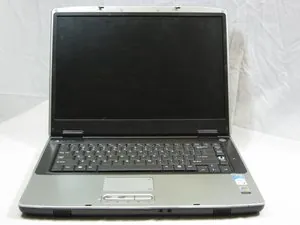
When your device stops working, the cause is usually related to power delivery, software corruption, or heat buildup. A common reason for a
sudden shutdown is an overheated processor caused by blocked air vents. If you feel the bottom of the case becoming hot to the touch while the fan runs loudly, the internal cooling system is likely struggling to move air.
Another frequent issue is a corrupted operating system file. If your screen shows a blue error message or gets stuck on the logo, the software might have hit a critical error during an update. You can often see if this is the case by checking for specific error codes on the screen. If the device was working fine until you installed a new program, that software is likely the culprit.
Finally, hardware failure is possible if the device makes clicking sounds or shows lines on the display. If the screen is cracked or the hard drive makes a rhythmic ticking noise, these parts are physically damaged. You should avoid trying to force these components to work, as this can lead to total data loss. In these cases, you’ll need a professional repair service to look at the internal hardware.
Resetting the power and battery
If your laptop won’t turn on, you should perform a power drain to clear the circuits. First, unplug the AC adapter from the wall and the laptop. If your model has a removable battery, take it out carefully. Hold the power button down for a full 30 seconds to ensure all energy leaves the capacitors. This method is a common troubleshooting step for laptops with non-removable batteries.
After the drain, plug the power cable directly into a wall outlet, bypassing any power strips or surge protectors. If the battery is removable, leave it out for a moment to see if the machine turns on with just the charger. If the device powers up, your battery may be old or failing to hold a charge. If it still doesn’t turn on, try a different wall outlet to ensure the issue isn’t with your home electricity.
This fix is for users dealing with a “dead” screen or a device that refuses to boot. If you see lights but no image, try connecting an external monitor to the HDMI port. If you see an image on the external screen, your laptop’s own display panel has failed. You shouldn’t open the laptop case yourself, as this often voids your warranty or risks damage to delicate internal ribbon cables.
Restoring system software stability
If your computer turns on but acts strangely, software errors are the most likely cause. You can try to enter the recovery environment by restarting the machine three times in a row during the boot process. This action triggers an automatic repair mode that can fix corrupted startup files. Once inside this menu, select the option to keep your personal files while resetting the system settings.
This method works well if your laptop is stuck in a loop or running very slowly. It replaces the core operating system files without deleting your photos or documents. If you have recently changed settings in the BIOS or installed new drivers, this reset will revert those changes to the factory defaults. It’s important to keep the laptop plugged into power during this process.
If the system reset doesn’t fix the problem, you may need a full factory restore. This will erase all data, so ensure you have a backup of your important files on an external drive. If you aren’t comfortable managing partitions or system images, take your device to a certified service center. They have the tools to verify if your hard drive is failing or if the software just needs a clean install.
Using the safe mode environment
Safe mode is a diagnostic tool that loads only the most basic drivers needed to run the laptop. If your screen is flickering or the system crashes every time you open a specific app, safe mode helps you identify the problem. You can access this by holding the Shift key while clicking Restart from the power menu. Once the menu appears, navigate to Troubleshoot, Advanced Options, and Startup Settings.
This fix is for advanced cases where the computer is unusable in its normal state. If the laptop works fine in safe mode, you know the hardware is healthy and a third-party app or driver is causing the conflict. You can then uninstall recently added software or update your graphics drivers from the device manager. If the screen is still black or frozen in safe mode, you’re likely dealing with a physical hardware defect.
This approach isn’t for users who are unfamiliar with navigating system menus. Changing the wrong driver settings can make the laptop impossible to boot, requiring an expert to fix. If you feel overwhelmed by the menu options, stop immediately and contact the manufacturer’s support line. They can walk you through the specific steps for your exact model number without the risk of deeper software damage.
Common mistakes to avoid
Using a universal charger: Using a charger with the wrong tip size can fry the motherboard, so always use the original power brick. If you suspect a power issue, contact a professional technician to test the electrical components, as attempting to measure these yourself is dangerous.
Blocking the vents: Placing the laptop on a soft blanket or pillow traps heat, which causes the system to shut down to protect the processor. Always use a hard, flat surface to ensure at least two inches of clearance for airflow. If your fan runs at maximum speed while idle, your vents are likely clogged with dust.
Forcing a stuck key or port: Pushing hard on a port or key can break the internal plastic clips, which is expensive to repair. If a USB device doesn’t slide in smoothly, flip it over. Never force it, as bent pins often require a full motherboard replacement.
Ignoring warning sounds: A clicking or grinding noise from the hard drive means the disk is failing; continuing to use it will destroy your data. If you hear this, immediately stop all operations and back up your files to an external drive. Don’t run disk-checking utilities, as these can accelerate physical drive failure.
Running unauthorized tools: Downloading “PC repair” software from unverified websites often installs malware that makes your laptop perform even worse than before. Only use system tools built into your operating system, such as Disk Cleanup or Task Manager. If a tool promises to “double your speed” for free, it’s almost certainly malicious.
Maintaining hardware health
You can stop most performance issues by keeping the airflow clear and managing your power settings. A clean workspace and a stable power source are the best defenses against common laptop failures.
| If you’re doing this | Do this instead | Why |
|---|---|---|
| Keeping the laptop on a bed | Use a hard, flat desk | Allows fans to pull in cool air |
| Using cheap third-party chargers | Use the official power brick | Prevents voltage surges and heat |
| Ignoring low battery warnings | Plug in at 20% charge | Extends the total lifespan of the battery |
| Leaving the laptop in a hot car | Store in a room-temp bag | Extreme heat damages internal screens |
Frequently asked questions
How long does a factory reset take?
A factory reset typically takes 30 to 90 minutes, depending on your hard drive speed and data volume. This estimate assumes you’re resetting operating system files rather than performing a deep wipe. Note that choosing to fully clean the drive for security will significantly increase the total time required.
Why does my screen stay black?
A black screen usually indicates a failed display backlight or a critical graphics driver error. If the fan is spinning, the computer is likely powered on but failing to send a signal. If a hard reset doesn’t resolve the issue, the internal display panel or its connection may be damaged.
Is it safe to leave the laptop plugged in?
It’s safe to leave your laptop plugged in once it’s fully charged, as modern batteries stop drawing power once they reach 100%. If you keep the laptop plugged in constantly, the battery may eventually lose some capacity. To preserve battery health, consult your owner’s manual regarding usage recommendations.
Can I fix a broken port myself?
No, you shouldn’t attempt to fix a broken port because it requires soldering tools and specialized knowledge of the motherboard. Attempting to bend a pin or force a cable into a damaged port can cause a short circuit, which may permanently destroy the entire laptop. If a USB or charging port is loose or broken, the safest move is to contact a professional repair shop to have the component replaced.
What happens if I ignore the overheating?
Ignoring an overheating laptop will lead to automatic shutdowns and can eventually melt internal components or cause permanent damage to the processor. The computer is designed to shut itself off when it hits a certain temperature limit to prevent a fire or total hardware failure. If your device is constantly running hot, you must clean the air vents or have the internal thermal paste replaced by a professional.
How often should I update my drivers?
You should check for driver updates through the official update tool periodically to ensure your hardware communicates correctly with the software. Frequent updates are only necessary if you’re experiencing specific glitches with your sound, Wi-Fi, or graphics. If your laptop is working perfectly, you don’t need to update every single driver, as some new versions can occasionally introduce bugs that weren’t present before.
Conclusion
If you have tried all the steps above and your device still doesn’t function, the issue is likely a physical component failure. At this point, you should contact the manufacturer or a local repair expert. Don’t attempt to take the bottom case off or use tools to probe the internals, as this will lead to further damage.