The most common way to perform gigaspire gs4220e troubleshooting is to power cycle your gateway by disconnecting the power cord for 30 seconds before plugging it back in. If your internet connection remains unstable after a restart, the issue usually stems from a loose physical cable or a service disruption in your local area. You can identify the status of your connection by checking the LED lights on the front of your device. A steady green light confirms the unit is powered and connected to your provider’s network.
Troubleshooting your GigaSpire GS4220e connection
When your gateway stops communicating with the internet, it’s often due to a signal interruption between the outside line and your home. The most frequent cause is a loose coaxial or Ethernet cable that has been bumped or pulled, which prevents the modem from completing its “handshake” with the provider’s network. If the cables are tight, the problem might be an external service outage caused by maintenance or damage to the lines in your neighborhood.
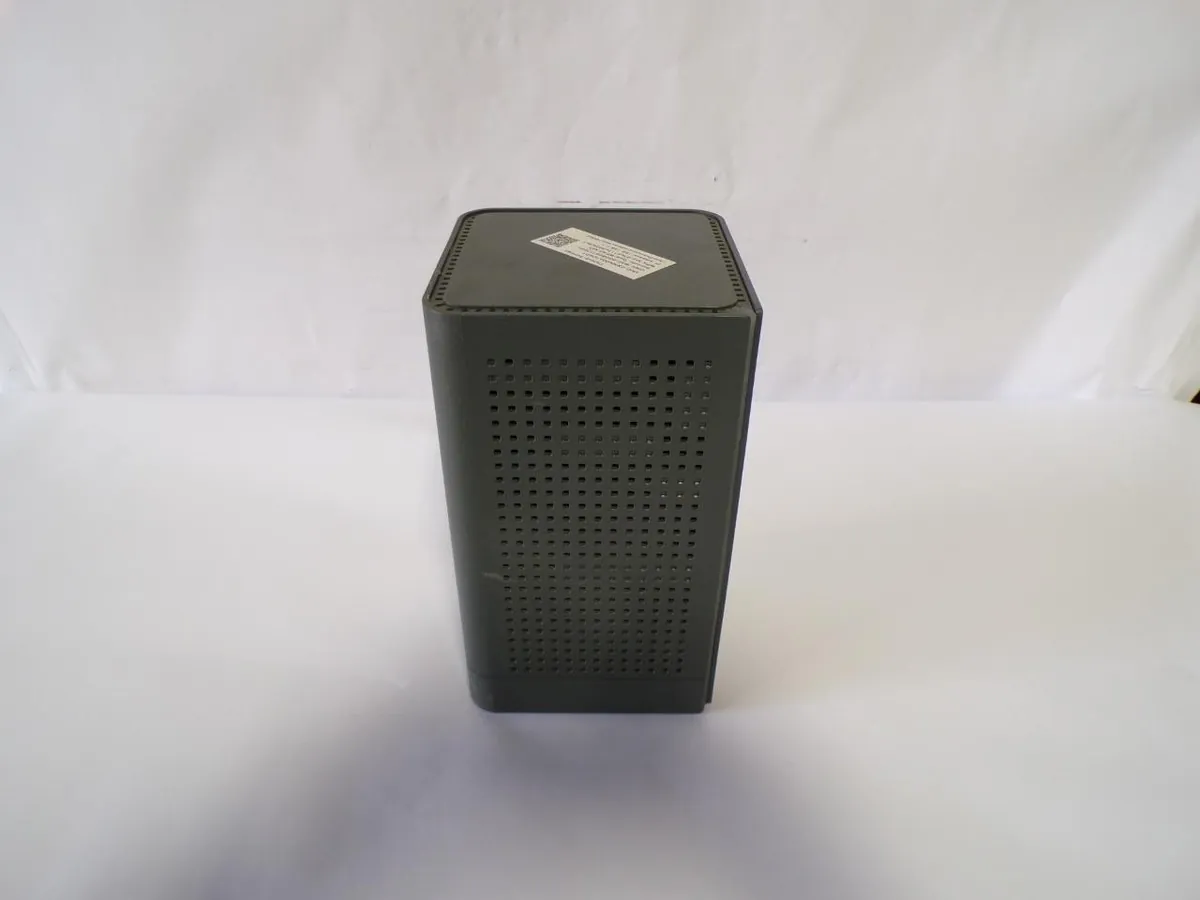
Another common cause is device overheating. Like any high-performance piece of network hardware, your gateway requires steady airflow to function properly. If you keep the unit inside a closed cabinet or near a heat source, internal components may throttle performance or shut down to prevent permanent damage. You should ensure the router sits on a flat, hard surface with at least 4 inches of clear space on all sides to allow proper ventilation.
Finally, firmware errors can occasionally cause a device to freeze. This happens if an automatic update was interrupted or if the system memory has become cluttered over time. Most modern units automatically request the latest software from the service provider, but a bad connection during this process can lead to a state where the router is powered on but can’t pass traffic to your connected devices.
Check your physical connections
You should start your troubleshooting by inspecting every cable attached to the back of the gateway. Ensure the coaxial cable is screwed on tightly and that all Ethernet cables are clicked firmly into their respective ports. If you find a loose cable, push it in until you hear a click or feel it seat firmly against the port.
This fix is intended for users who have recently moved their equipment or had a cable bumped out of place. If the cables look fine but the internet still fails, try swapping the Ethernet cable with a spare one of the same category.
If you use a Cat5e or Cat6 cable, ensure it isn’t bent at a sharp angle, as this can break the internal copper wires. According to the Federal Communications Commission broadband guide, maintaining solid physical connections is the first step toward resolving intermittent connectivity issues.
If you aren’t comfortable handling these cables, or if you see visible damage to the external wiring entering your home, don’t attempt to repair it yourself. Contact your internet service provider’s support team immediately. They have the tools to test the signal strength remotely and can determine if a technician needs to come to your property to replace the damaged line.
Perform a factory reset
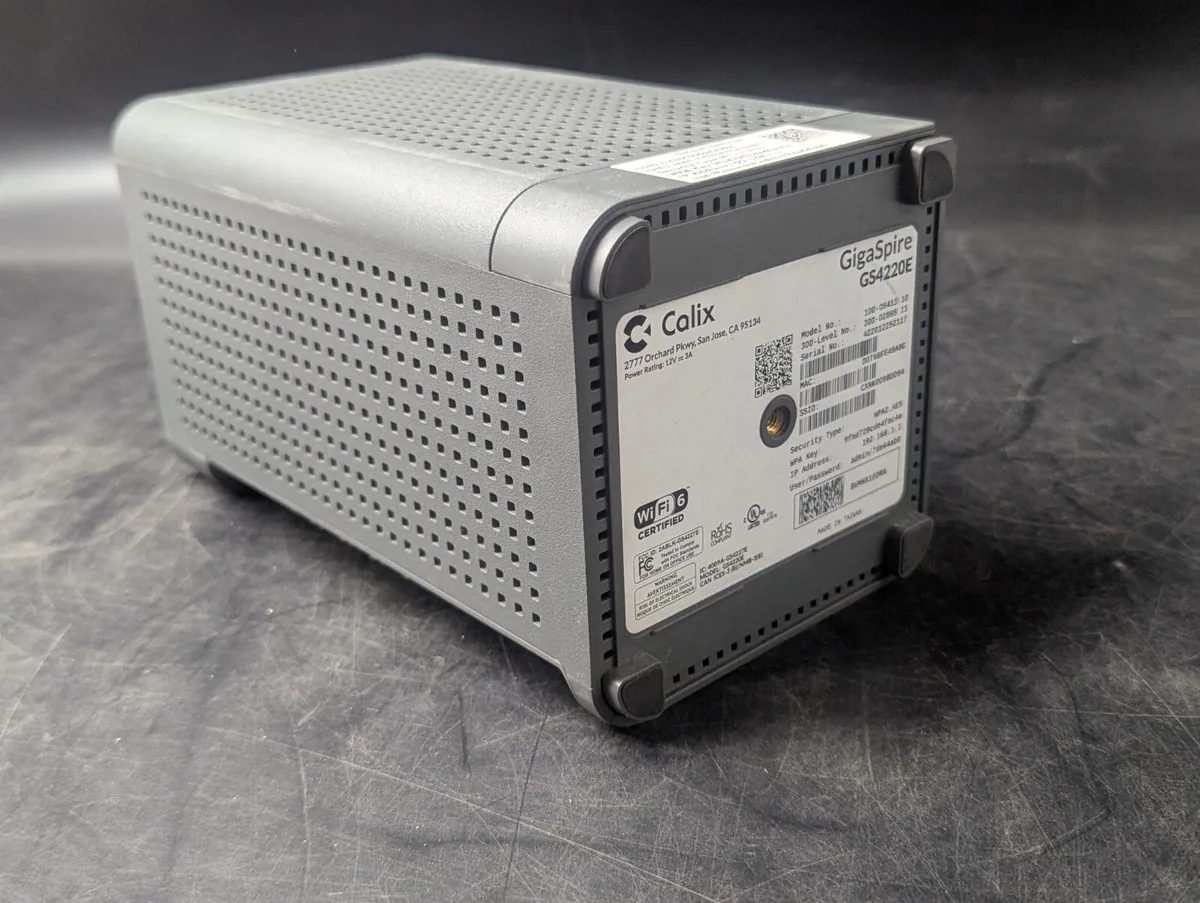
If restarting the device doesn’t restore your service, you may need to perform a factory reset to clear out persistent errors. This process returns the gateway to its original out-of-the-box settings. Any custom network names or passwords you created will be deleted. You’ll need to set up your Wi-Fi credentials again using the information printed on the sticker on the bottom of the device.
To reset the unit, look for the small pinhole labeled “Reset” on the back or bottom panel. Use a paperclip to press and hold the button inside this hole for 15 seconds while the device is powered on. You’ll see the lights flash, indicating that the reboot process has begun. Wait about 5 to 10 minutes for the unit to fully restart and sync with the network.
This method is for when the device is stuck in a loop or won’t accept new configuration changes. It isn’t for users who need to keep specific custom firewall rules or port forwarding settings, as those will be permanently erased. Before resetting, back up these configurations manually if possible.
A common mistake is releasing the button too early. If you hold it for less than 10 seconds, the device may only perform a simple power cycle rather than a full factory wipe.
If the lights don’t change or flash after a full reset, the hardware itself may have failed. At this point, you should contact your provider to request a replacement unit. If the unit remains unresponsive after the reset, verify that the power adapter is plugged into a functional wall outlet.
Verify the service status
Sometimes the issue isn’t with your equipment but with the network signal reaching your house. You can verify this by checking your provider’s mobile app or their website status page from your smartphone using cellular data. If they report a local outage, there’s no action you can take on your hardware to fix it; you must wait for their technicians to complete the repairs.
This step is for when you suspect the problem is widespread in your area. If your neighbors also use the same provider and are experiencing the same symptoms, it’s almost certainly an external network issue. You should avoid calling technical support until you confirm there’s no known outage, as the support lines are often overwhelmed during these times.
If the provider confirms there’s no outage in your area, then you know the problem is specific to your home and you should proceed with the other troubleshooting steps in this article.
A common mistake is assuming a router restart will fix a line-side failure. This costs you ten minutes of downtime and risks corrupting your router’s firmware during a power cycle. Use this decision rule: if the provider’s status map shows a green checkmark, the fault is internal. If the map is blank or shows a red alert, stop troubleshooting immediately.
Avoid harmful maintenance habits
Never spray liquid cleaners directly onto the gateway. Moisture seeps into the vents, causing an electrical short that permanently fries the motherboard. Instead, dampen a microfiber cloth slightly and wipe the exterior casing.
Don’t stack other electronic devices on top of the router. Trapped heat degrades internal circuits, leading to intermittent signal drops or potential hardware failure. If your unit feels hot to the touch, move it to an open shelf with at least four inches of clearance.
Avoid third-party power adapters that don’t match the exact voltage and amperage requirements of the original block. Using a mismatched adapter can cause voltage spikes that destroy the internal power regulator. Check the label on your current brick; if the numbers don’t align perfectly, discard the cable immediately.
Never open the plastic housing. This risks electric shock and voids your warranty, costing you a free replacement.
Proper equipment management
| If you’re doing this | Do this instead | Why |
|---|---|---|
| Leaving the router on the floor | Place it on a shelf or table | Floors collect dust and block signals |
| Hiding the router in a closet | Keep it in an open, central area | Enclosed spaces trap heat and weaken Wi-Fi |
| Using a power strip for the router | Plug it directly into the wall | Reduces potential points of failure |
| Ignoring the status lights | Match lights to the manual | Lights provide the exact error code |
Elevation is the primary factor in signal propagation. Place your device at least three feet above the ground to clear physical obstructions like furniture or heavy carpeting. If your home has multiple levels, position the router on the middle floor to ensure even vertical distribution.
Heat is the silent killer of network hardware. If your router feels hot to the touch, it’s likely throttling your speeds to prevent internal damage. You should maintain at least six inches of clearance on all sides for proper airflow.
If you must use a surge protector, choose one rated specifically for networking gear to avoid signal degradation.
Finally, interpret status lights as a binary diagnostic tool. A solid green light usually indicates a stable connection, while a blinking amber light signifies a firmware update in progress. Never power cycle your device during an amber blink, as this can corrupt your system files.
Frequently asked questions
How long does a factory reset take?
A factory reset takes 5 to 10 minutes to complete. The process finishes when the power light turns solid green and the internet light stops blinking. Don’t unplug the device during this time, as interrupting the software installation can permanently damage the internal memory.
Is it safe to leave the router on 24/7?
Yes, you should leave the device on at all times to ensure you receive automatic security and firmware updates. Turning it off nightly prevents these updates from installing, which may cause connectivity issues. You only need to power cycle the unit if you notice a drop in performance.
What happens if the internet light stays red?
A red light typically means the device has power but can’t communicate with the provider’s central office. This usually indicates a broken physical line outside your home or a service suspension on your account. You should check your account status through your provider’s app to ensure your bill is paid. If the account is in good standing, you must call the provider to have them run a line test.
How often should I restart my gateway?
You should only restart your gateway when you experience a noticeable drop in speed or a complete loss of connection. There’s no benefit to restarting it on a schedule, such as daily or weekly, unless you’re troubleshooting a specific, recurring issue. Frequent, unnecessary reboots can actually be harmful, as they interrupt the background processes that manage your network traffic and security.
How do I know if my router is overheating?
Your router is likely overheating if the casing feels hot or the device restarts randomly. Move the unit to an open area and ensure the vents are clear of dust or fabric. If the device remains hot after relocation, it may have a faulty cooling fan or internal sensor.
Conclusion
If you’ve tried these basics and still aren’t seeing that steady green light, it’s time to reach out to your internet service provider. They’ll be able to run a remote diagnostic on your line to see if there’s a deeper problem. Don’t worry, they’re usually happy to help you get back online.
Related guides